
10 Best Process Documentation Software Tools in 2026 [Tested]





By the third time someone asks how to submit an expense report, you probably wish you had a guide to send them. Luckily, there’s process documentation software that makes it easy.
The challenge is that the best tools on the market take surprisingly different approaches. Some capture your clicks and turn them into screenshot guides. Others give you a home for your entire company’s knowledge. And some let you build training programs and checklists to keep track of who did what and when.
For a narrower comparison focused on creating and maintaining repeatable procedures, see our SOP software guide.
Below is a guide on what to look for and which ones win in which situations based on my first hand experience.
The quick answer
Start with the job you need done.
- Create screenshot-based instructions: Compare Trails, Scribe, Tango, and Guidde.
- Build employee training: Consider Whale.
- Maintain standard operating procedures: Consider SweetProcess.
- Organize documentation: Consider Notion or Confluence.
- Map decisions and handoffs: Consider Lucidchart.
- Assign and track recurring work: Consider Process Street.
How I evaluated
I tested each tool by documenting a real process, editing the result, and sharing it with someone else. I focused on how quickly I could create useful instructions, how easy they were to follow, and how much work it took to update them later.
How I chose what to compare
I focused on products that help someone document a process or follow it correctly. For example, some create the instructions, yet others give teams a practical way to maintain and deliver them. For the broader practice behind the tool category, see process documentation.
In addition, I excluded project management and automation tools that only touch documentation at the edges. Standalone screen recorders and video editors were also outside the scope because capturing footage alone doesn’t produce maintainable process documentation.
How to choose process documentation software
1. Start with what the person following the process needs to do
Process documentation can take several forms, from screenshot guides and narrated tutorials to SOPs, flowcharts, and recurring workflows.
Watching a walkthrough, checking a reference, and following instructions inside an application require different experiences.
Video helps establish the sequence and explain a decision. Screenshots are easier to scan when someone already knows most of the task. In-app guidance helps someone find the right control while doing the work.
A good shortlist starts with the moment people get stuck. If they understand the process but can't find the button, a longer video may add very little.
2. Look closely at the second version
The first version of the documentation is only the beginning. As soon as the process or interface changes, the maintenance work becomes apparent.
Check text and images separately. Regenerating narration can fix a spoken instruction, but it can't update a screenshot of an old interface.
For any tool on your shortlist, try changing one sentence and one screen. Then check the shared version. That small exercise reveals more about long-term usefulness than a polished first recording.
3. Check how the tool handles collaboration
Process knowledge rarely belongs to one person. An expert may explain the work, another person may document it, and a manager may need to approve the result.
Look at how people can comment, suggest changes, assign owners, and control publishing. Also check whether subject-matter experts need paid accounts to contribute.
A fast capture workflow saves little time if every correction still requires a meeting or a long email thread.
Create instructions
Trails
Best for: screenshot guides and narrated video walkthroughs
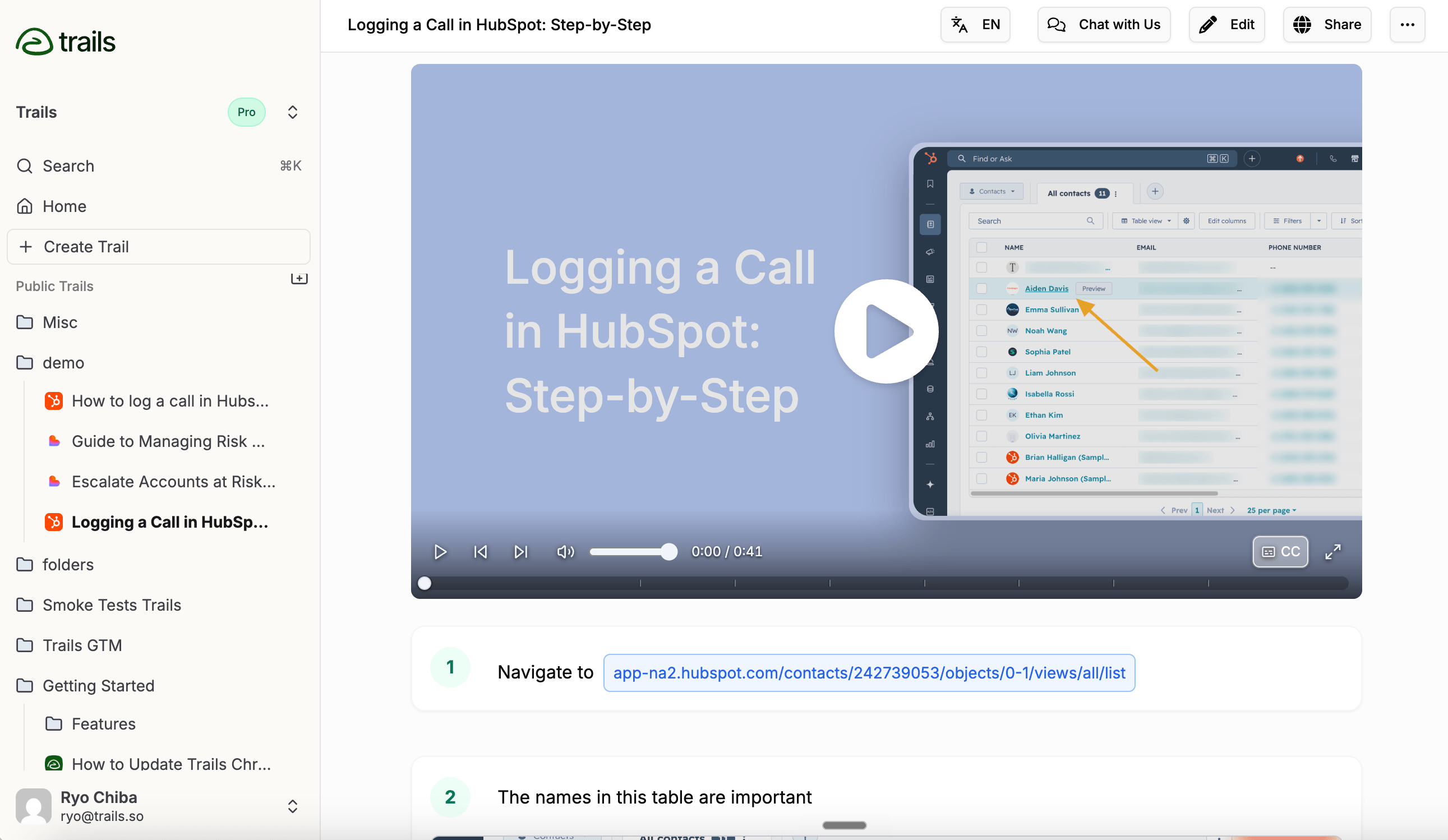
Trails is strongest when some people want to scan written instructions and others would rather watch a video. Record a process once, and Trails turns it into a step-by-step guide with screenshots and an AI-narrated video. Both formats come from the same source, so you don't have to create and maintain them separately.
What stood out in my testing was the editing workflow. I could remove an unnecessary step, fix the written instruction, or update an image without recording the entire process again. Trails then applies those changes to the narration and generated video.
The Trails AI SOP generator can also turn an existing screen recording or meeting recording into an editable procedure.
The tradeoff is control. Trails is designed to produce useful documentation quickly, not give you frame-by-frame control over animation and timing. Choose a tool like Guidde if presentation details matter more than keeping the written guide and video easy to update.
Pricing: Creator is $29/month for one user and up to 20 guides per month. Team is $49/month for five users and unlimited guides, with additional users at $10/month. Enterprise pricing is custom. Annual billing is 20% less. Trails pricing
Choose Trails if: You want one recording to become both a skimmable screenshot guide and a narrated video, especially if the process will change over time.
Skip Trails if: You need detailed video production controls, employee quizzes and completion tracking, or guidance that appears inside the application while someone works.
Scribe
Best for: screenshot guides and finding where AI can improve work
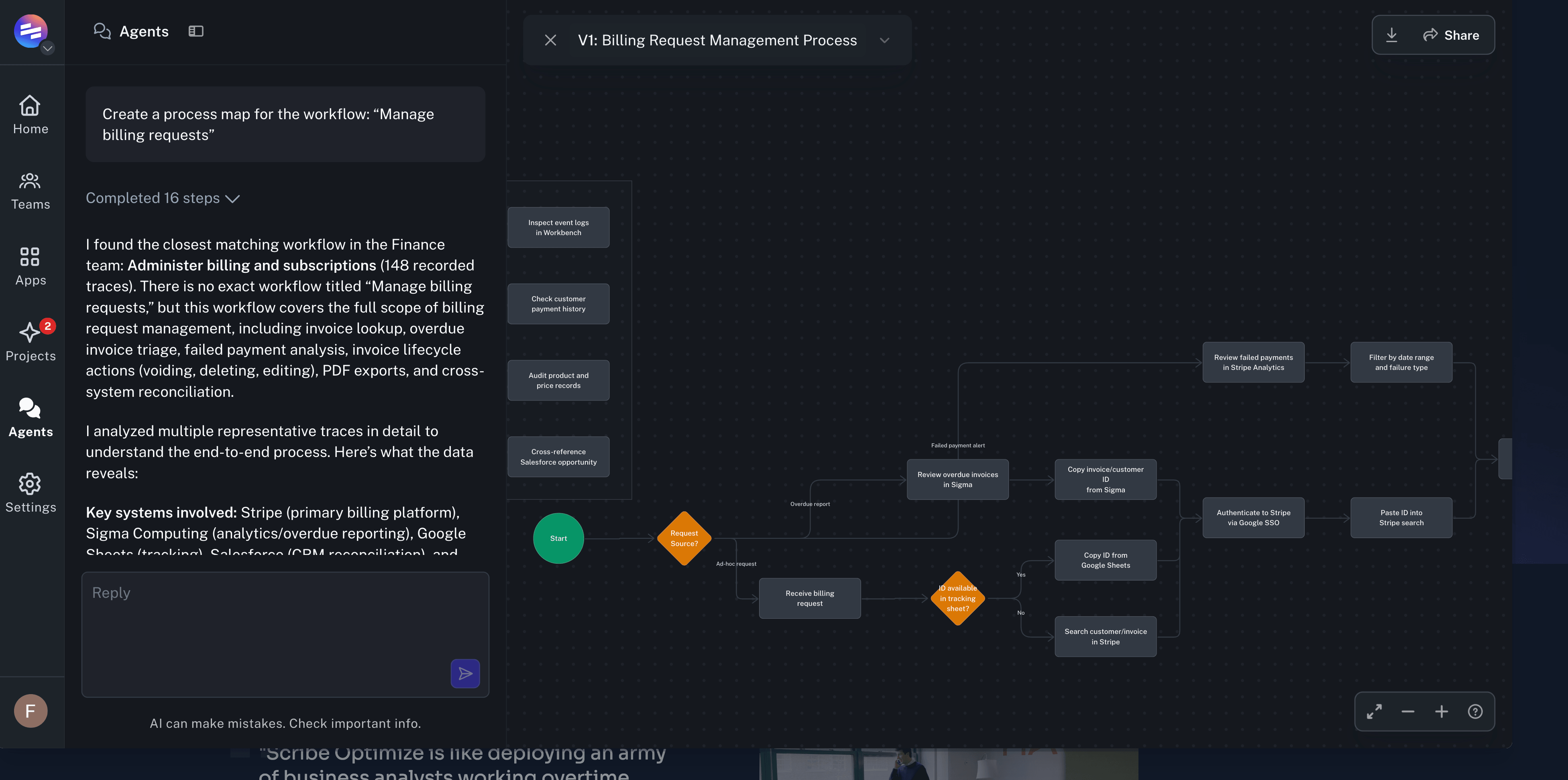
Scribe starts with process capture. Record yourself completing a task, and it turns your clicks into a step-by-step guide with screenshots and written instructions. The result is easy to edit and publish where people already work.
The more interesting difference is what Scribe wants to do after documenting the process. Its “Workflow AI” positioning connects documentation with AI adoption. Scribe Optimize observes workflows across approved applications, maps how work moves between people and tools, and surfaces bottlenecks, inconsistencies, and repetitive steps. It then recommends where automation or AI could save time and helps teams build an ROI case for the investment.
That makes Scribe relevant to two different buyers. An operations specialist can use Capture to stop writing instructions by hand. A transformation leader can use Optimize to decide which processes are worth improving or handing to AI. The tradeoff is that the broader automation analysis sits in Scribe’s enterprise offering. As such, teams that only need clear process instructions may find many of Scribe’s features unnecessary.
Pricing: Basic is free. Pro Personal is $35/user/month, or $25 with annual billing. Pro Team is $29/user/month with a five-seat minimum ($145/month), or $23 with annual billing. Enterprise and Scribe Optimize use custom pricing. Scribe pricing
Choose Scribe if: You want fast screenshot documentation and see process capture as the first step toward finding AI and automation opportunities across the organization.
Skip Scribe if: You mainly need narrated training videos, or you want workflow analysis and automation recommendations without moving into an enterprise plan.
Tango
Best for: enterprise software adoption and automating sales workflows
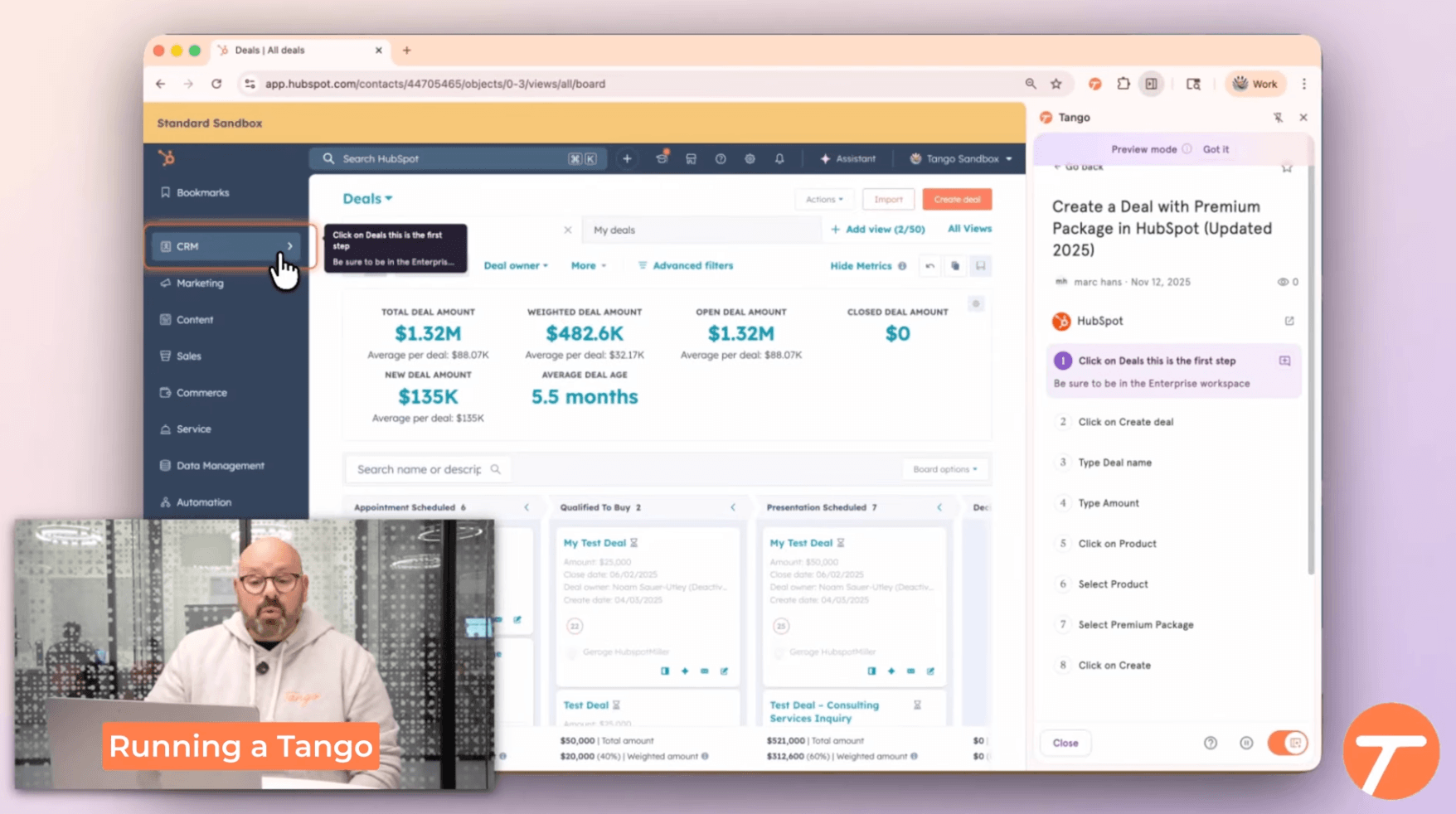
Tango is strongest when process documentation is only the first step. A sales enablement team can capture a workflow such as qualifying a lead or handing an account to customer success, then turn those instructions into a Guide Me walkthrough that leads reps through the process inside tools such as Salesforce and HubSpot.
Its Nuggets feature can also pin helpful context to a specific page or field. Instead of asking a rep to leave the CRM and search a knowledge base, enablement can put the answer where the question appears. This makes Tango more focused on process adoption and consistent execution than on maintaining a standalone tutorial library.
Tango's enterprise story now extends into browser-based automation. Teams can use its automations to complete repeatable work across web applications, with the user able to review important actions. For sales operations, the progression is practical: document the correct CRM process, guide reps through it, then automate the stable steps that no longer require judgment.
The tradeoff is packaging and maturity. Tango's advanced guidance and automation features sit in its custom-priced Enterprise plan, and the newer automation features are less reviewed than the workflow-capture product. Teams that only need clear screenshot instructions will be paying for a broader software-adoption platform than they need.
Pricing: Pro is $26/user/month for one or two users on monthly billing, or $20/user/month for three or more. Annual equivalents are $22 and $15 respectively. Enterprise is custom-priced. Tango pricing
Choose Tango if: Your sales enablement or operations team needs reps to follow the right process inside enterprise software and want a path from guidance to automation.
Skip Tango if: You mainly need a standalone screenshot guide or training video and don't need in-app guidance or browser automation.
Guidde
Best for: polished video tutorials with detailed visual control
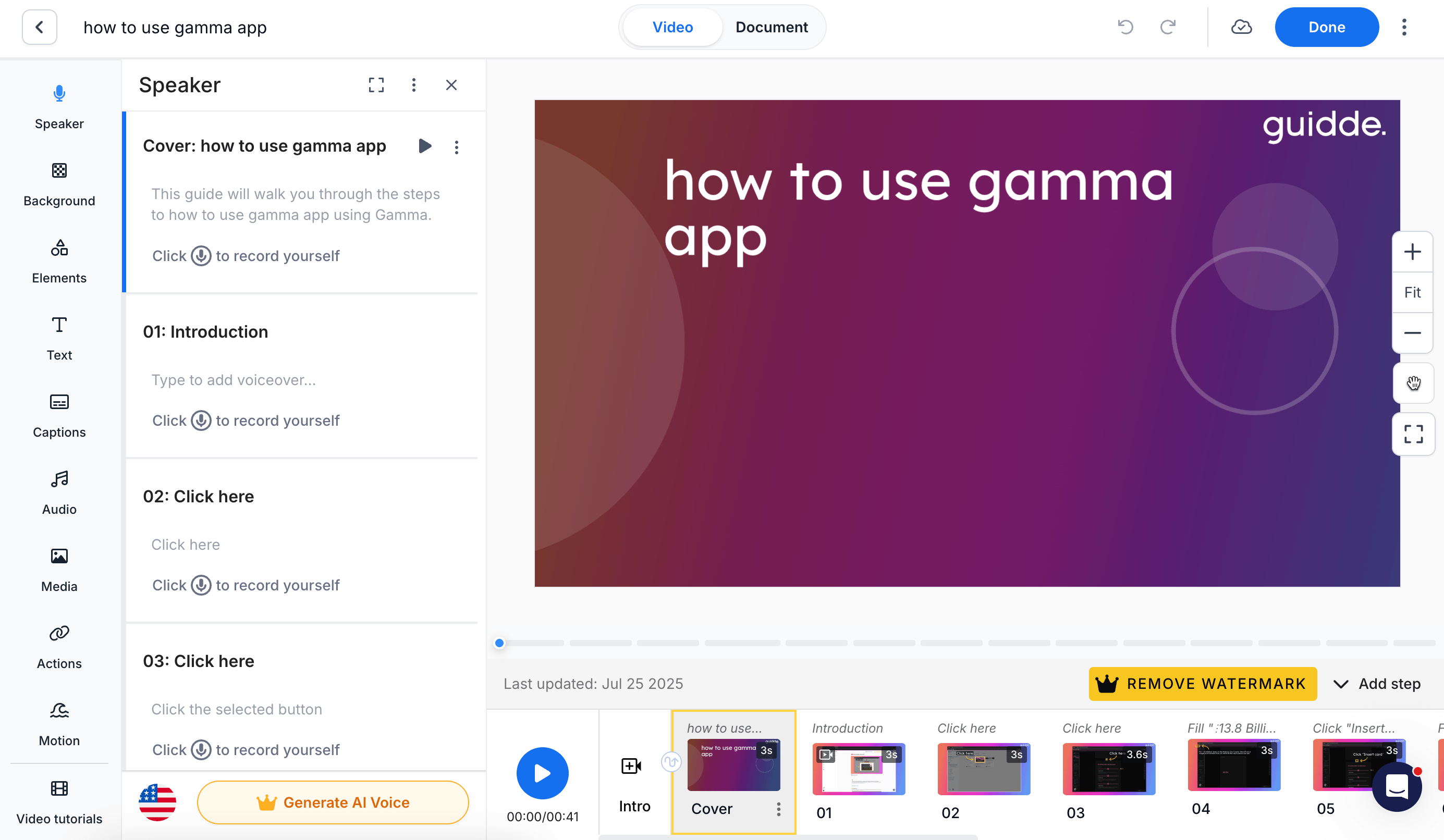
Guidde is the most video-focused tool in this group. Record a workflow, and it turns the capture into a narrated, step-by-step presentation with callouts, zooms, and an accompanying written guide. Scribe and Tango treat the screenshots as the main event. Guidde treats them as the raw material for a produced video.
In my testing, Guidde gave me more control over how that video looked than the other capture tools. I could adjust the timing of a scene and make the output look like a deliberately-produced training video. Guidde also offered translation, privacy tools, and exports in formats such as MP4, GIF, PDF, PPTX, and SCORM.
However, that control is also the reason Guidde was harder to use. Its timeline-based editor presents more decisions than Trails or Scribe. Making a small visual change could pull me into editing timing and animation when I only wanted to correct an instruction. The written steps and video also felt less like two views of the same maintainable document and more like parts of a video-production project. If your team cares about presentation, that extra work may be worthwhile. If the goal is to publish clear instructions quickly and keep them current, it can feel like unnecessary overhead.
Guidde sits between lightweight process capture and a full video editor. I'd choose it over Scribe when narration and visual polish matter more than scannability, and over Tango when I want a standalone training asset rather than guidance inside the application. Compared with Trails, Guidde gives creators finer control over the finished video, but Trails is the better fit when the written guide and narrated walkthrough need to stay easy to revise together.
Pricing: Free includes up to 25 how-to videos. Pro is $29 per creator per month and adds unlimited videos, branding, exports, and basic blur. Business is $59 per creator per month and adds desktop capture, analytics, stronger privacy controls, and unlimited text-to-voice. Enterprise pricing is custom. Annual plans cost less. Guidde pricing
Choose Guidde if: You are producing polished, branded, or multilingual training videos and want hands-on control over timing and presentation.
Skip Guidde if: You want the fastest path to a simple screenshot guide, need instructions that appear inside an application, or expect frequent updates and don't want each revision to become a video-editing task.
Train employees and maintain procedures
Whale
Best for: turning process docs into employee training
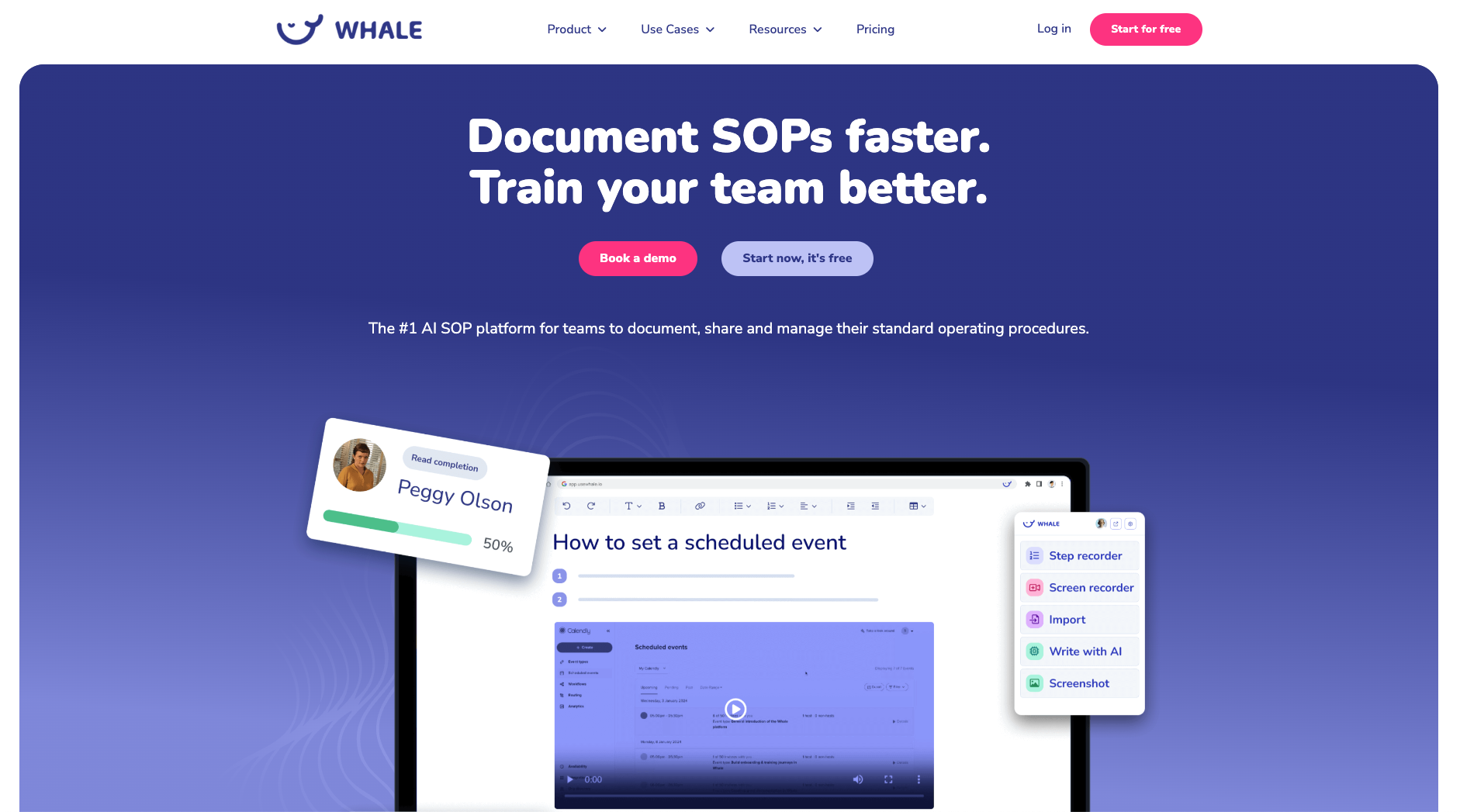
Whale was the strongest tool I tested for teams that need proof employees have read and understood their procedures. A documented process can become part of an assigned training flow with deadlines, quizzes, badges, and completion reporting. Review cycles give every procedure an owner and a date for checking it again, which made Whale feel more dependable than a folder of guides in Notion or Confluence.
Alice, Whale’s AI assistant, was the feature I found most useful. It answers questions from the company’s documentation, including inside Slack, so employees can get an answer without hunting through the library. The results depend heavily on how well the source material is organized, but Alice gives teams a practical reason to maintain that material.
Whale’s recording tools were less convincing. The browser extension creates screenshot instructions, and its video converter can generate an SOP from a recording, but the written guide and video remain separate artifacts. When comparing the outputs against the others, they were meaningfully worse. Trails was faster for producing both formats from one capture and easier to revise when a process changed. Guidde offered more control over the finished video.
Pricing: Team costs $99 per month for 10 users, but excludes training flows and quizzes. Scale, at $299 per month for 25 users, is the realistic starting point for employee training. Lower plans also ration AI-generation tokens.
Choose Whale if: You need assigned training and accountability around an SOP library.
Skip Whale if: Your main job is creating frequently updated screenshot process guides or narrated tutorials.
SweetProcess
Best for: making walkthroughs part of a maintained SOP library
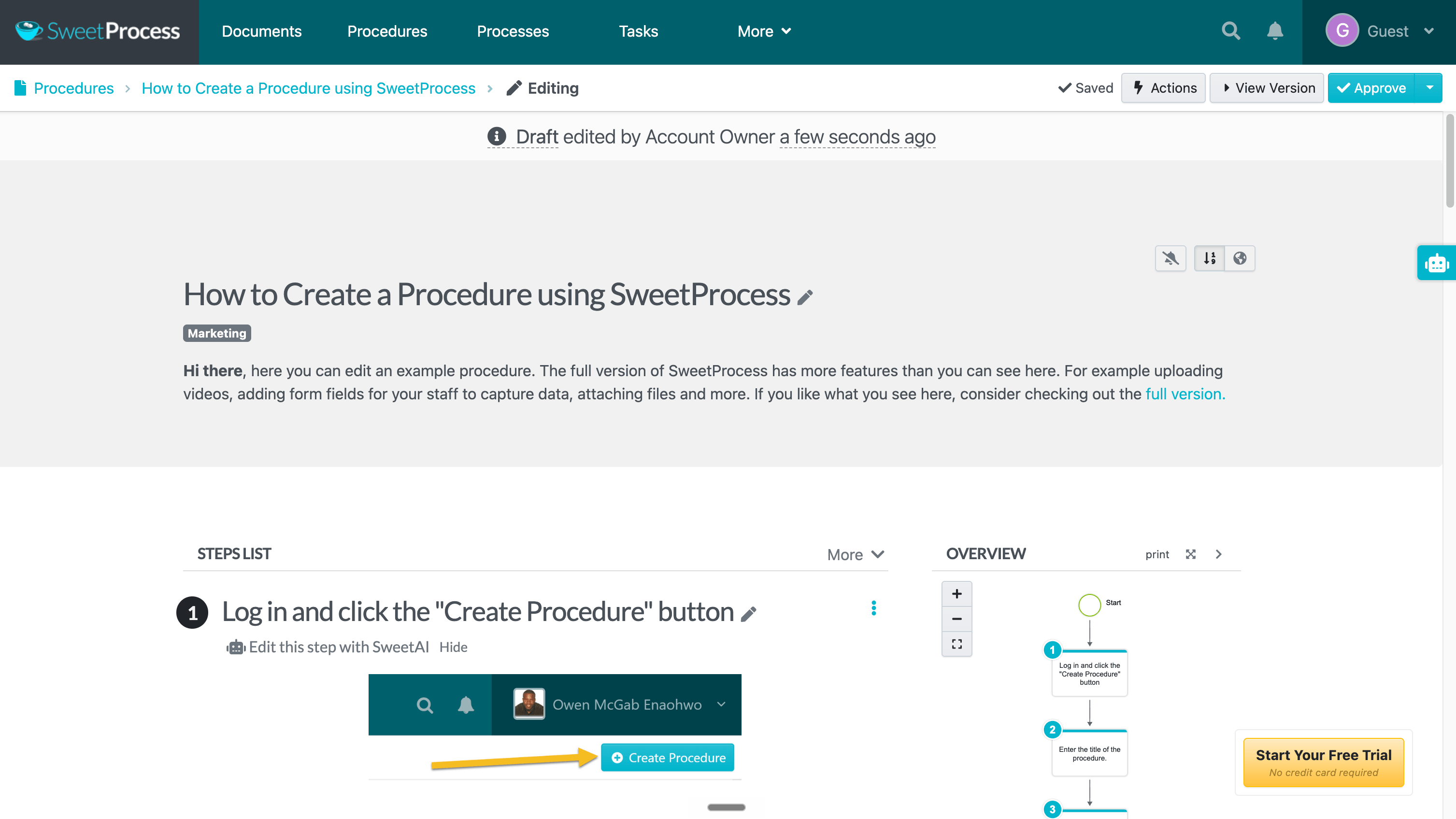
SweetProcess is the tool I’d choose when a process needs an owner or an approval procedure. Its Chrome recorder gave me a workable starting point with screenshots and written steps. But the differentiation from the other tools appeared after capture. SweetProcess was much stronger once the guide became part of an SOP system. I could run the procedure as recurring work with an enforced sequence. The history remained available afterward.
Creating a walkthrough felt slower and less polished than it did in Trails or Scribe. The recorder still left me with editing work, and the finished result lacked the cohesive written-guide-and-narrated-video experience I got from Trails. But I could see how the approvals, quizzes, and completion acknowledgements make it suitable for procedures that need to be tracked and not just referenced.
The interface took time to learn, particularly when grouping documents and configuring teams, and it had a notably dated UI. However, its breadth pays off when SOPs need to govern repeatable work.
Pricing: SweetProcess costs $99 per month for up to 10 users, with additional users at $5 per month. Its official pages contain conflicting user limits, so confirm the current allowance before buying.
Choose SweetProcess if: Your processes need governance and task accountability.
Skip SweetProcess if: Your priority is quickly producing polished screenshot guides or narrated videos.
Organize documentation
Notion
Best for: process documentation that needs to live beside the rest of your company knowledge
When I documented the same process in Notion that I used to test the capture tools, I had to build the entire guide manually. That meant creating the screenshots and instructions before structuring the page myself.
Updates exposed an even larger drawback. When a menu changed, I had to replace the screenshot and revise the text separately. There was no shared source keeping the written guide and recording in sync.
For an internal knowledge base, Notion is a great choice. For a process documentation tool, not as much. However, after using the other tools I can see how you can easily pair a tool like Scribe or Trails with Notion. Most of the other capture-focused tools are designed to have their content embedded within knowledge bases, so it’s a natural pairing.
Pricing: Free is $0. Plus is $10 per member per month, and Business is $20 per member per month. Enterprise uses custom pricing. Annual billing can save up to 20%. Notion pricing
Choose Notion if: You want process documentation to live beside the rest of your company's work, and you're willing to create guides manually or embed them from a capture tool.
Skip Notion if: You need to capture a workflow automatically, keep screenshots and narration in sync, or track whether employees completed the process.
Confluence
Best for: process documentation within an Atlassian knowledge base
Like Notion, I documented the same process in Confluence that I used to test the capture tools. The editor was flexible, but I still had to create and structure the entire guide by hand. Compared with Trails or Scribe, publishing a usable guide took noticeably longer.
Confluence felt better once I treated the guide as part of a larger knowledge base. I could place it beside related company knowledge and Jira work. Comments and version history also made reviews straightforward. But the extra structure creates more decisions, and finding the right page became harder as I added content, especially since their search is worse than Notion’s.
Recording with Loom helped, but the video and page remained separate. When I changed a step, I still had to update the text, screenshots, and recording individually.
Pricing: Free supports up to 10 users. Standard starts at $5.42 per user per month, and Premium starts at $10.44. Loom and Marketplace apps may add to the cost. Confluence pricing
Choose Confluence if: Your team already works in Atlassian and wants process guides beside the rest of its company knowledge.
Skip Confluence if: You want to capture a process quickly or keep written instructions and video synchronized as the workflow changes.
Map a process
Lucidchart
Best for: explaining the decisions and handoffs around a process
Lucidchart made the most sense when I stopped treating it like a tool for writing instructions. I could build a clear process map with branches, owners, and handoffs, then rearrange it without redrawing the whole thing. For a workflow such as customer onboarding, it was much easier to show where the standard path split from an exception than it was in a screenshot guide or video.
However, creating the map required more judgment than recording a process with Trails, Scribe, or Tango. I had to decide what belonged in each box, how much detail to include, and where to link out to separate instructions. The canvas was approachable for a simple flowchart, but layers, data linking, and larger diagrams added enough controls that I occasionally spent more time formatting the map than clarifying the process.
Lucidchart also did little to explain how to complete the work inside an application. I still needed screenshots or a walkthrough for each software task, and every extra asset became something else to update. I'd use Lucidchart to explain which path someone should follow, then pair it with a capture tool to show what to click.
Pricing: Free includes three editable documents with up to 60 shapes each. Individual costs $9 per month. Team costs $10 per user per month with a three-user minimum. Enterprise pricing is custom.
Choose Lucidchart if: Your process has branches, responsibilities, or handoffs that are difficult to explain in a linear guide.
Skip Lucidchart if: You mainly need to capture software steps quickly.
Run recurring work
Process Street
Best for: running repeatable processes with instructions built in
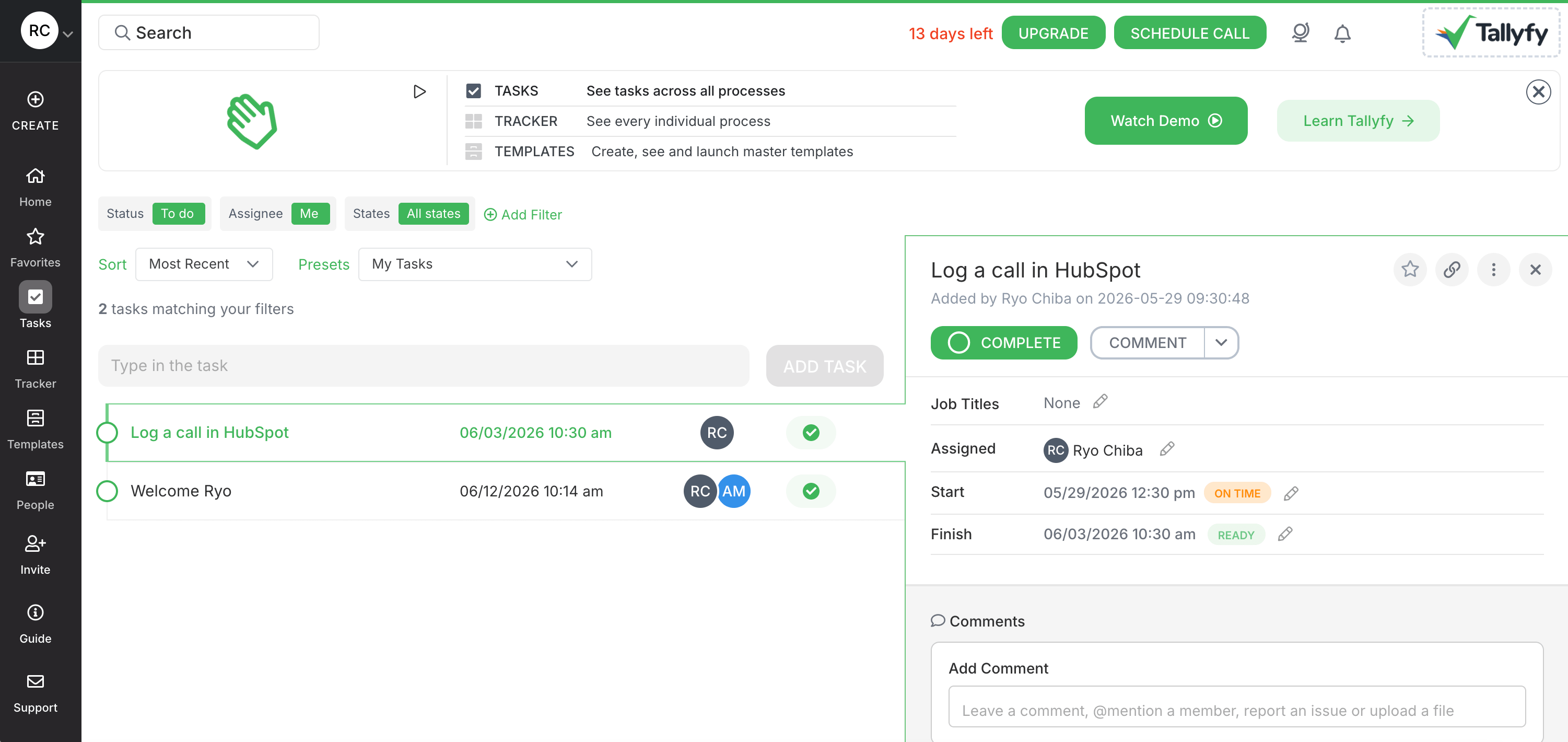
Process Street felt less like a documentation tool and more like a system for making sure people follow a process. When I built an employee-onboarding workflow, I could place instructions beside each task, assign steps to different people, require approvals, and prevent someone from skipping ahead.
This made it so that hypothetically, a new hire didn't need to search for the right guide or remember what came next. However, setting it up took considerably longer than recording the same process with Trails or Scribe. I had to design the workflow, configure assignments and deadlines, and test each path before it felt ready to use.
The interface also exposed more controls than I needed for a simple procedure. Conditional logic and reporting are valuable for compliance or cross-functional work, but they made basic documentation feel heavier. And although I could embed a video beside a task, Process Street didn't create that video for me. I still needed another tool to record and maintain it.
I'd choose Process Street when proving that work happened matters as much as explaining how to do it. For a searchable library of standalone walkthroughs, it is more machinery than most teams need.
Pricing: Startup, Pro, and Enterprise plans use custom pricing. Startup includes five users and 10 guests. Pro offers a 14-day free trial.
Choose Process Street if: You need instructions inside assigned workflows, with approvals, deadlines, and an audit trail.
Skip Process Street if: You mainly want to capture a process quickly or create screenshot guides and narrated videos.
Which process documentation software should you choose?
If your team mainly makes software tutorials, narrow your first comparison to Trails, Scribe, Tango, and Guidde. Each can help turn a process into something people can follow, and their video capabilities now overlap enough that broad “text versus video” labels are unhelpful.
Choose based on the revision and delivery workflow. Consider Trails for maintaining guides and narrated videos together. Scribe is compelling when a screenshot reference leads the experience. Tango deserves attention when in-app guidance matters. Guidde is worth comparing when creators need more control over the finished video.
Whale and SweetProcess become stronger candidates when step-by-step instructions belong in a training program or maintained SOP library. Notion and Confluence can provide its home, Lucidchart can explain the surrounding decisions, and Process Street can place it beside an assigned task.
Before committing, document one real process, change one instruction, replace one screenshot, and share it with someone who's never done the task. Their ability to finish without asking you for help is the result that matters.
Frequently asked questions
What is process documentation software?
Process documentation software helps you create and maintain instructions for repeatable work. Depending on the tool, that documentation might take the form of screenshot guides, narrated videos, SOPs, flowcharts, checklists, or an internal knowledge base.
What is the difference between process documentation and SOP software?
Process documentation is the broader category. It can explain how work flows between people and systems, including decisions, handoffs, and supporting context. An SOP is a specific set of instructions for completing one task consistently. Many tools support both, but some are better at mapping a process while others are built for step-by-step procedures.
What is the best process documentation software?
The best choice depends on what you need people to do. Trails, Scribe, Tango, and Guidde are strong options for capturing software workflows. Whale and SweetProcess add training or SOP management. Notion and Confluence organize a broader knowledge base, Lucidchart maps decisions and handoffs, and Process Street runs assigned, repeatable workflows.
What features should I look for in process documentation software?
Prioritize fast capture, simple editing, clear search, version history, sharing controls, and integrations with the tools your team already uses. Then test the maintenance workflow. Change one instruction and one screenshot to see how much work it takes to keep the published guide accurate.
Is there free process documentation software?
Yes. Several tools offer free plans, including Scribe, Tango, Guidde, Notion, Confluence, and Lucidchart. Free plans often limit users, documents, exports, or advanced controls. Check the limits against your real workflow instead of judging the product from a single test guide.
How do I create process documentation?
Start with one real process and complete it the way the work actually happens. Capture each step, decision, owner, and exception. Add screenshots or video where words alone could be confusing, then ask someone unfamiliar with the task to follow the instructions. Their questions will show you what is missing.
How do you keep process documentation up to date?
Give each process an owner and review it whenever the underlying software or policy changes. Version history and review reminders help, but the biggest factor is editing effort. If replacing a screenshot or correcting a sentence requires a complete rewrite or re-recording, documentation will go stale.
Can process documentation software create video tutorials?
Some tools can. Trails creates a screenshot guide and AI-narrated video from the same capture, while Guidde emphasizes video editing and presentation. Scribe and Tango also offer narrated viewing formats. Check whether a tool provides a hosted player, downloadable video, or both, because those delivery options create different maintenance work.
How much does process documentation software cost?
Pricing ranges from free plans to custom enterprise contracts. Some products charge per creator, others per user, and training or in-app guidance may require a higher tier. Compare the total cost for everyone who needs to create, review, and view the documentation, not just the advertised starting price.