On-device blur
Select any area you want to keep private. Trails blurs it on your device before uploading the screenshot. The original sensitive pixels stay on your device.
Blur sensitive details on your device before Trails uploads a screenshot. Smart blur finds common private fields, and access controls protect each Trail after you share it.
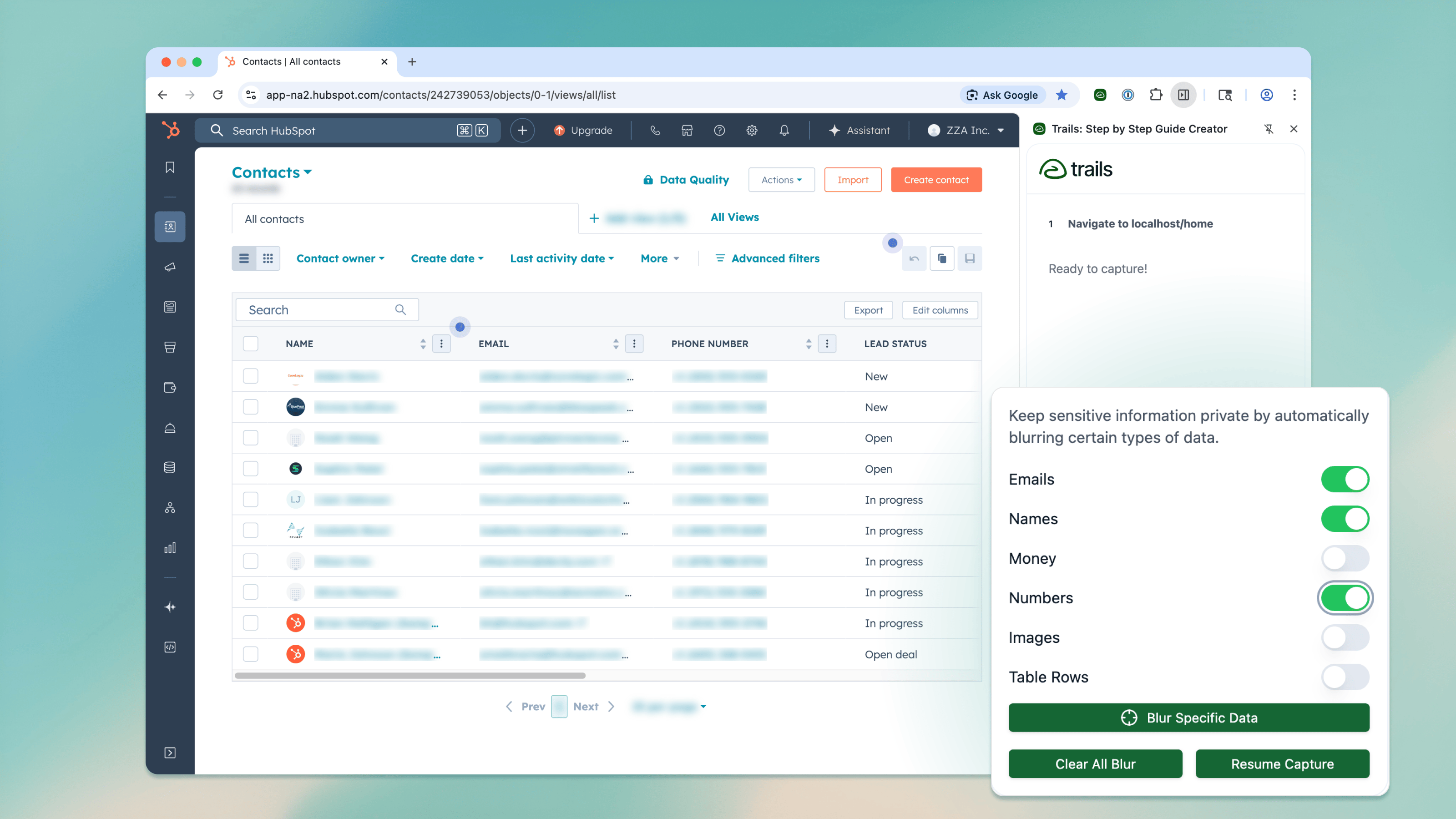
Use smart blur for common private fields. Select any other area yourself, then review the result before you share.
Select any area you want to keep private. Trails blurs it on your device before uploading the screenshot. The original sensitive pixels stay on your device.
Choose the information Trails should find, such as email addresses or numbers. The browser extension blurs matching details on your device before capture continues.
Adjust the blur while you review a Trail. Add anything smart blur missed or clear an area you want to show.
Pause your browser capture and choose which details to blur. Trails finds matches on the page and covers them on your device. Review the result, then continue capturing.
Blur sensitive info
On-device blur protects the capture. Trails encrypts customer data at rest and in transit. Workspace permissions and SAML SSO control who can access it.
An independent audit reviews whether Trails security controls are well designed and work as intended.
A BAA is available for eligible Enterprise customers working with protected health information.
Trails encrypts customer data at rest and in transit.
SAML SSO
Use your identity provider to manage access to an Enterprise workspace.
Roles and permissions
Set workspace roles for people who create content and people who manage it.
Per-guide access
Choose who can open each Trail before you share it.
Start your first Trail with on-device blur built into capture.