
9 Best Video Tutorial Software in 2026, Tested





Most screen-recording apps can capture a process, but choosing between them gets harder because the best tool depends on what happens after recording. You might need a quick personal walkthrough, a carefully edited lesson, an AI presenter, or a tutorial your team can keep current as the software changes.
We compare nine tools to help you decide how much editing your tutorials need and whether that work will be manageable as your library grows.
We make Trails, one of the products included here, so this isn't an independent review. To keep the comparison useful, we explain where competing tools are the stronger choice and distinguish documented capabilities from hands-on testing. We also draw on current product documentation, pricing, and real customer reviews to help you make the best choice for your use case.
Quick picks depending on what you need
- Editable instructions and video: Compare Trails, Guidde, and Trupeer based on how you plan to revise the material.
- Precise video editing: Consider Camtasia.
- Automatic zooms and cursor effects on a Mac: Consider Screen Studio.
- A quick personal walkthrough: Consider Loom.
- Editing a recorded explanation through its transcript: Consider Descript.
- An AI presenter or translated presenter video: Compare Synthesia and HeyGen.
How we evaluated
We used creating a contact in HubSpot as a reference scenario and created video tutorials in each of the tools below. Then, we evaluated each tool based on how easy it was to create the first draft, edit it to something that we felt was polished, and share or export it to another user.
This guide focuses on software tutorials that teams need to update, so we also gave particular attention to revising instructions and replacing outdated visuals.
How we chose what to compare
We cover three kinds of tools for teaching software tasks rather than distributing courses or making films: apps that turn captured tasks into tutorials, editors for recorded footage, and tools that build lessons around an AI presenter.
Trails, Guidde, and Trupeer represent capture-to-tutorial tools; Camtasia, Screen Studio, Loom, and Descript cover different recording and editing needs; Synthesia and HeyGen cover AI avatar and human presenter-led lessons. We deliberately chose to exclude standalone course-distribution platforms and video editors that don’t list tutorials as a use case because their main purpose falls outside this guide's focus.
How to choose
Make the explanation easy to follow
A zoom can show where to click, but it can't explain why the viewer should choose “Editor” instead of “Admin.” Look for a way to add or revise that explanation without recording the whole tutorial again.
Start with the part of making a tutorial that gives you the most trouble. If you know the process but stumble over the narration, script cleanup or AI voiceover may help most. If your explanation is good but the viewer can't see the button, better cursor and zoom controls are the priority.
Check how you'll update the tutorial
Changing a spoken instruction is one kind of edit; showing a redesigned settings page is another. Text-based editing can cut speech or generate new narration, but it doesn't make an old screenshot current.
Before choosing a tool, consider one ordinary revision: the button has moved and its name has changed. Work out how you'd replace the visual, revise the explanation, and publish the correction. That’ll tell you about the long-term workload.
Calculate the cost for your team
A free recorder may limit clip length, and even AI narration may require a higher plan. When estimating the bill, check whether private viewers need paid seats and whether AI usage costs extra.
Count authors and private viewers separately, then estimate how much video you'll generate or translate. Depending on the plan, viewers may cost much less than authors, or may still require paid seats. See the team-cost comparison in the appendix.
Trails: For editable instructions and a narrated video
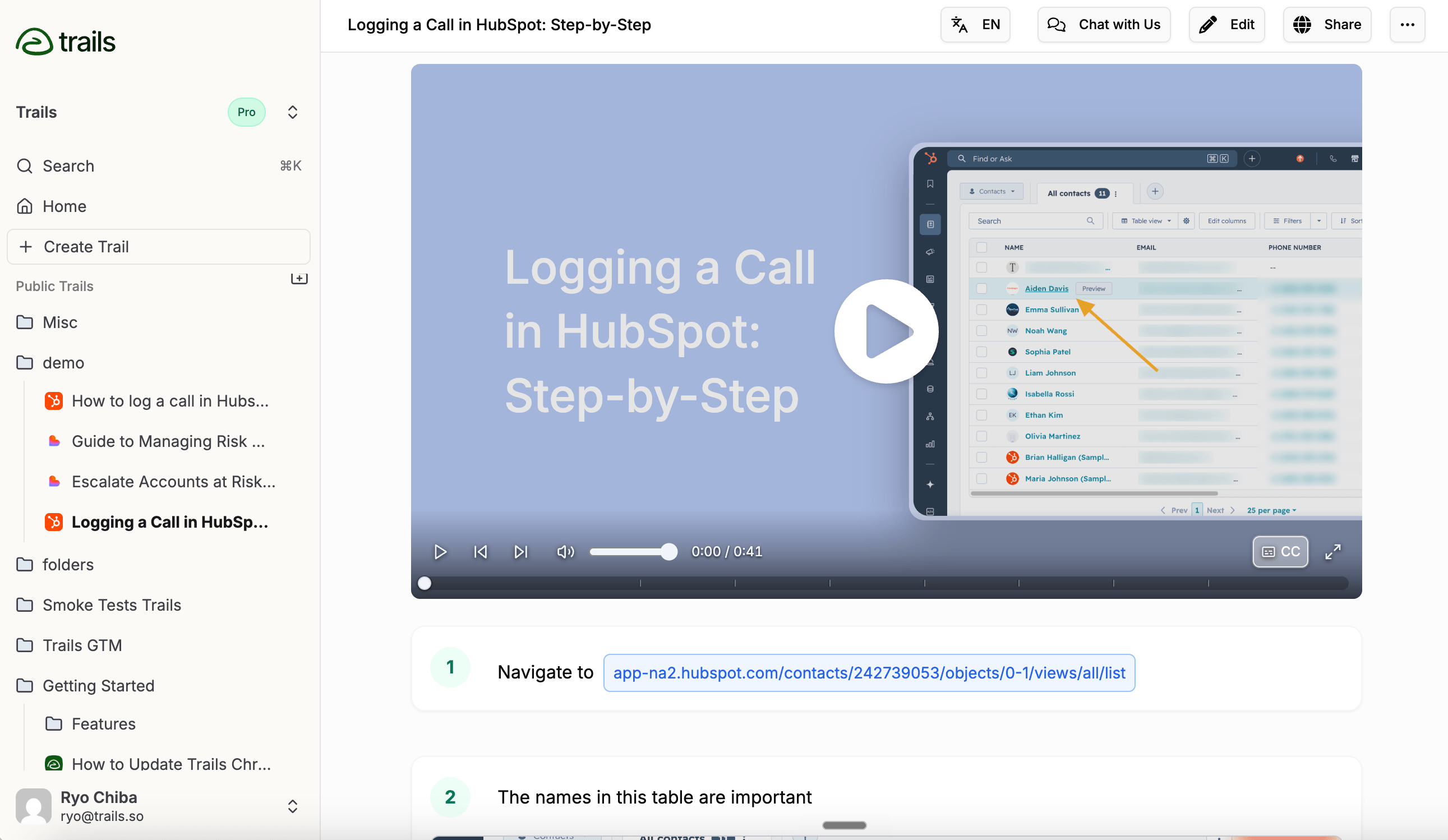
Trails suits recurring software tasks that people need to learn once and look up later because it creates a narrated video and an editable written guide from the same capture. A new user can watch the video; someone who needs a reminder can jump to the relevant written step.
Because you edit the instructions directly, you can explain why someone needs “Editor” access by revising the step text and regenerating the narration. If the permissions screen has changed, replace the affected visual as well.
That makes Trails appealing for an operations or customer success team maintaining dozens of short tutorials. We'd choose it over Camtasia for that job because the work stays centered on the instructions.
The Creator plan costs $29 per month and includes one user and 20 guides per month. Team costs $49 per month for five users, with additional users at $10 per month and unlimited guides. Check who needs private access before choosing a plan: private viewers allocated to the plan count toward billing even if they never create a guide.
Choose Trails if: Your tutorials teach recurring software tasks, and the same material needs to work as both a video and a reference guide. It's especially compelling when keeping the instructions current is part of the job.
Where it falls short: Trails builds the video around individual steps, so choose Camtasia if the lesson depends on continuous movement, precisely timed overlays, or several video and audio tracks. Loom is a more direct fit when you want your face and delivery to carry the lesson.
Guidde: For branded videos edited one step at a time
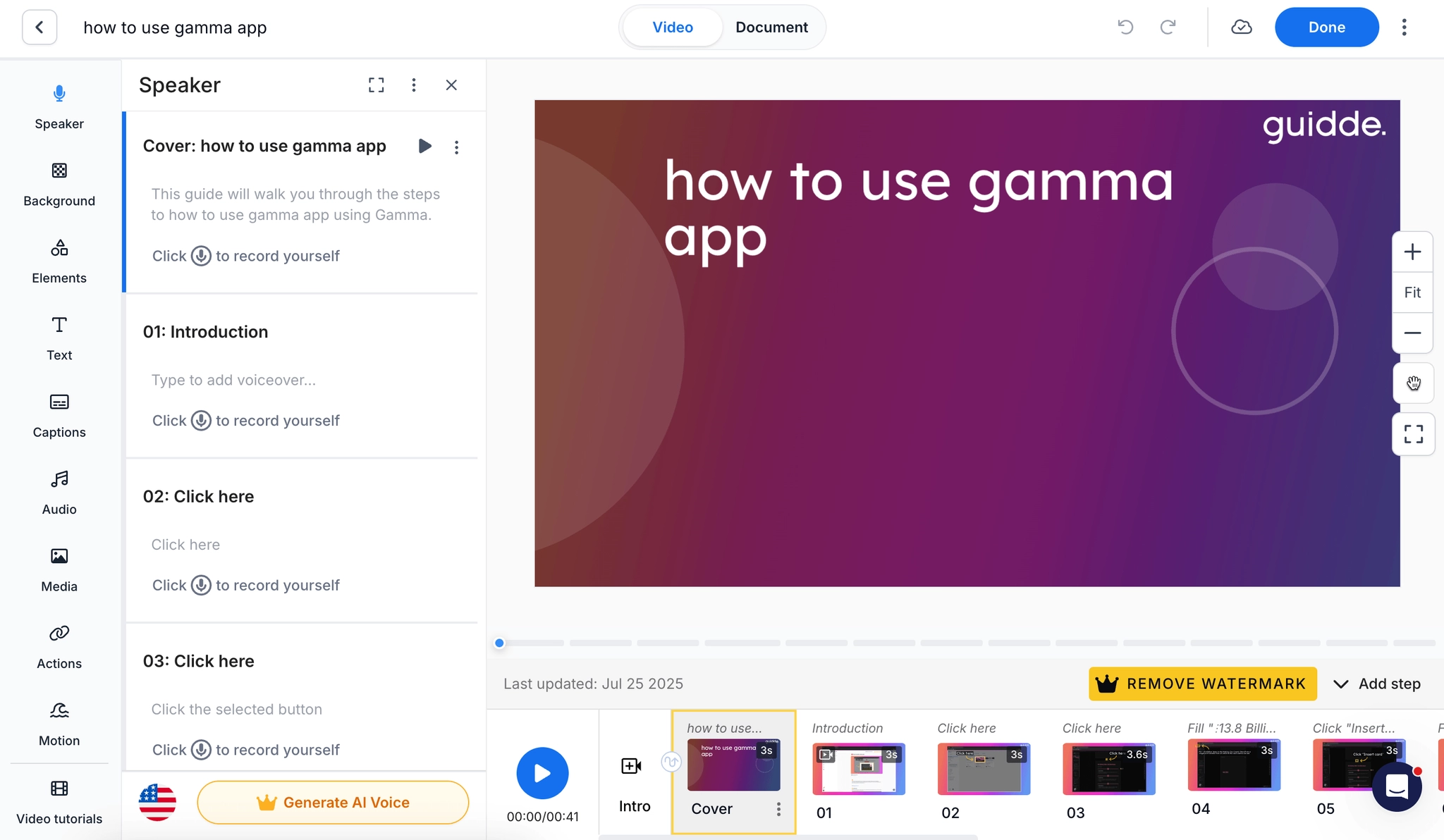
Guidde turns a captured process into a branded narrated video and written documentation, and lets you edit one step at a time rather than on a timeline.
With Magic Mic, you can explain the task aloud while recording; Guidde transcribes that explanation and uses the cleaned-up text to generate narration for each step, so your original delivery doesn't have to be polished.
Guidde's introductions, callouts, and subtitle styling are useful when several authors need to produce a consistent series of customer tutorials.
Pro costs $29 per creator per month, or $19 per creator per month, billed annually. Business costs $59 per creator per month, or $39 per creator per month, billed annually, and includes unlimited text-to-voice, desktop capture, and advanced privacy controls. Viewers can join the workspace at no extra cost. Translation and several training-delivery features require Enterprise.
Choose Guidde if: You want branded video documentation with narration and step-level presentation controls, especially when a few designated authors produce tutorials for a much larger audience.
Skip Guidde if: You need AI narration on the lowest paid tier or detailed multitrack editing. Guidde's Speaker Editor documentation places AI text-to-voice on Business and Enterprise. Compare Trails for editing written steps to generate a video, and Camtasia for greater control over footage.
Camtasia: For precise control over video and audio
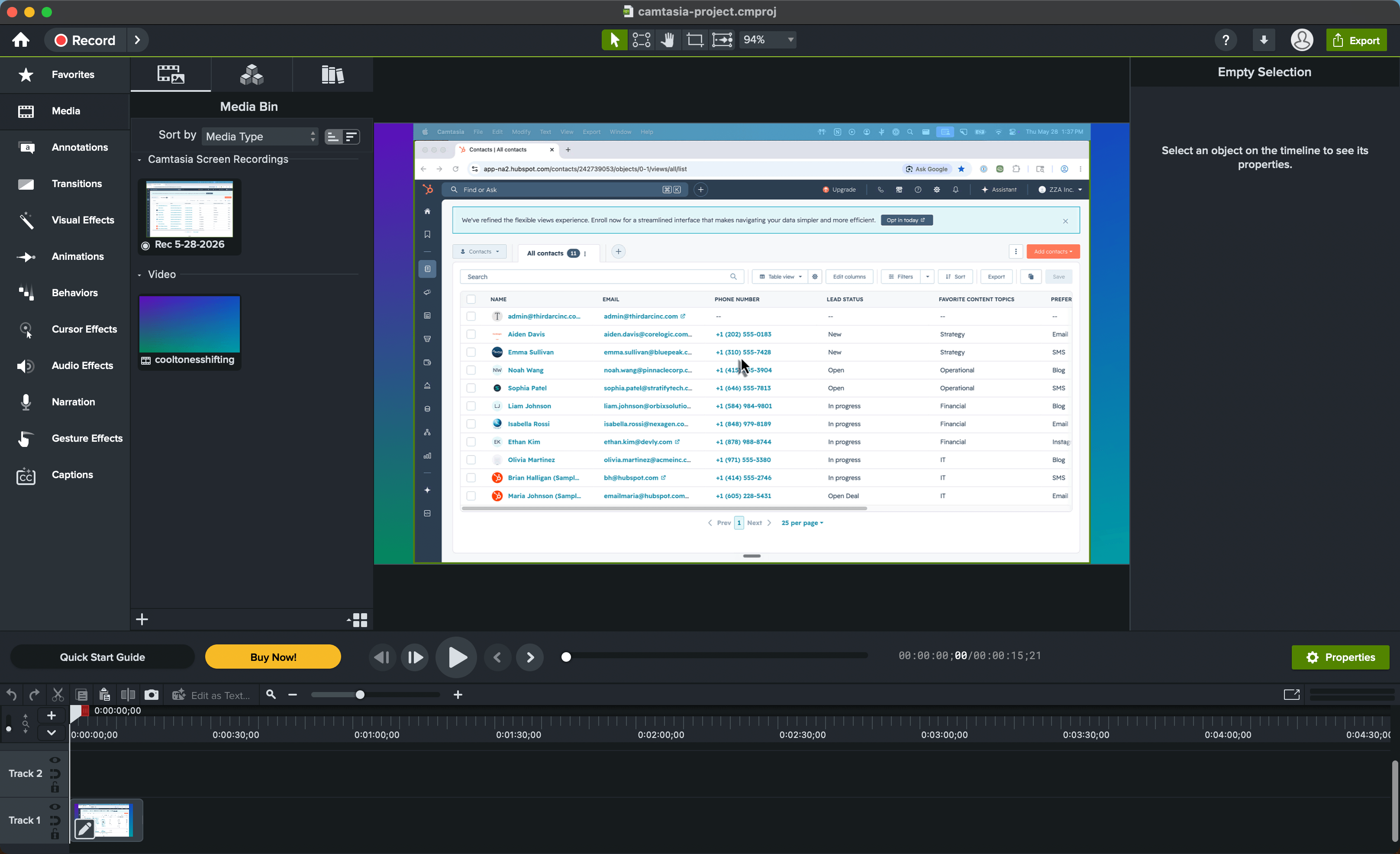
Camtasia is the tool we'd choose for a lesson where timing is part of the instruction, such as highlighting each input in a spreadsheet formula exactly when you explain it. Its multitrack editor gives you separate control over the screen recording, camera, sound, and supporting visuals.
You can adjust the pointer's size and path after recording, which helps make small or hurried movements easier to follow. Screen Studio automates zooms and cursor effects; Camtasia gives you more control over how those effects explain the task.
That control creates work because replacing a clip can throw off a callout's timing, so someone has to check that it still appears at the right moment. Audiate's transcript editing can help clean up the speech, but the visual timing still needs attention. Some tasks also require moving between applications.
The individual Essentials plan is currently listed at $179.88 per year and includes the editor without a watermark, text-based editing, captions, quizzes, and SCORM export for compatible learning management systems. Create adds generated voiceover at $249 per year. Team buyers should use business licensing rather than assume an individual subscription can be reassigned.
Choose Camtasia if: Your lessons need precise control over what appears on screen as you explain the task. The extra editing work can be worthwhile when precise timing helps explain the task, but for a short procedure that changes often, maintaining the project may take more effort than you need.
Skip Camtasia if: Most tutorials are a handful of clicks that change frequently. Trails or Guidde can make those updates less of a production task, while Screen Studio suits simpler polished recordings on a Mac.
Screen Studio: For automatic zooms and cursor effects on a Mac
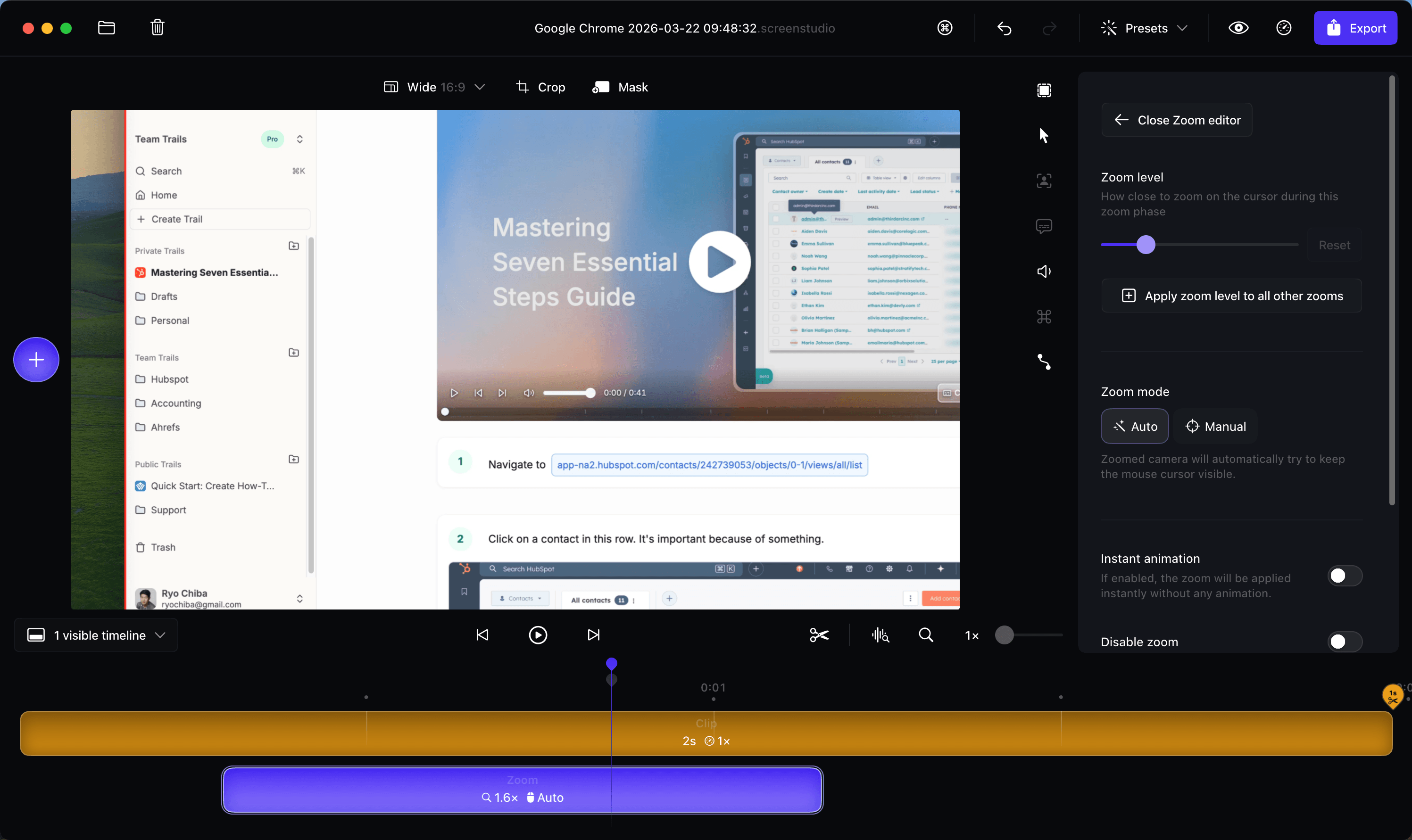
Screen Studio adds automatic zooms, smoother cursor movement, and consistent framing to Mac screen recordings, making it a good fit for short product walkthroughs when you want those effects without setting up each one yourself.
Automatic zooms can help viewers follow a small control, but a close-up can also hide useful context. When a lesson compares two settings, adjust the zoom to keep both visible.
It also records a connected iPhone or iPad, which makes it worth considering for mobile-app tutorials. Screen Studio can improve how the recording looks, but you still need to plan the explanation and edit the footage when the interface changes.
The subscription is $29 per month, or $9 per month, billed annually ($108 per year), and both billing options include all features and shareable links. Check that everyone creating tutorials uses a Mac before choosing it for a team.
Choose Screen Studio if: You record on a Mac and want attractive, readable screen or iOS tutorials with relatively little visual setup, especially when the original recording is already close to the lesson you want.
Skip Screen Studio if: Your authors use Windows, or you need the tool to turn a captured task into written instructions you can keep updating. Choose Camtasia for deeper editing or Trails for creating a guide and video together.
Trupeer: For cleaning up a rough walkthrough
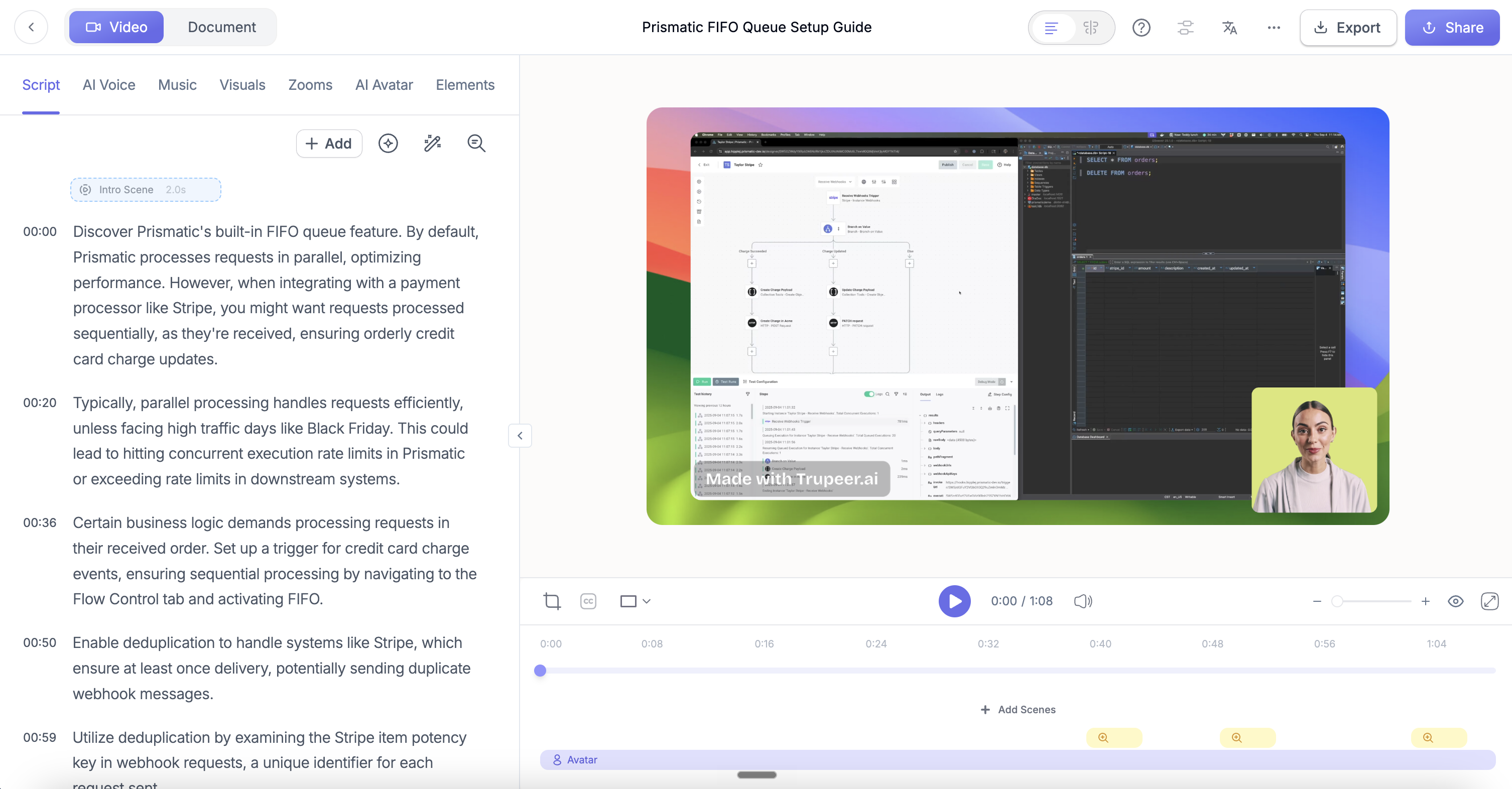
Trupeer transcribes a screen recording, improves the script, generates a voiceover, and adds effects such as zooms and also produces written documentation. Consider it when you can demonstrate a task clearly but need help turning the recording into a finished tutorial.
After revising the script, check that the button or menu is still visible when the narration mentions it. A shorter sentence can change the timing, but Trupeer includes editing and synchronization controls for that work.
Check the generated script and written guide against the actual process before publishing.
Trupeer meters AI use in credits. Pro costs $49 per month, or $40 per month, billed annually, with one creator, 2,000 monthly credits, and recordings up to ten minutes. Scale costs $249 per month, or $199 per month, billed annually, with three creators, 10,000 monthly credits, translation, and a brand kit. The published comparison caps Pro at one creator and Scale at three; ask about seat options before choosing a plan for a growing team.
Choose Trupeer if: You want to turn rough screen recordings into polished narrated tutorials and accompanying documents, especially when the automation replaces substantial cleanup work.
Skip Trupeer if: You need inexpensive collaboration for a couple of authors or predictable high-volume production. Check how many credits a typical tutorial and revision use, and confirm the cost of adding authors before committing.
Synthesia: For lessons with an AI presenter
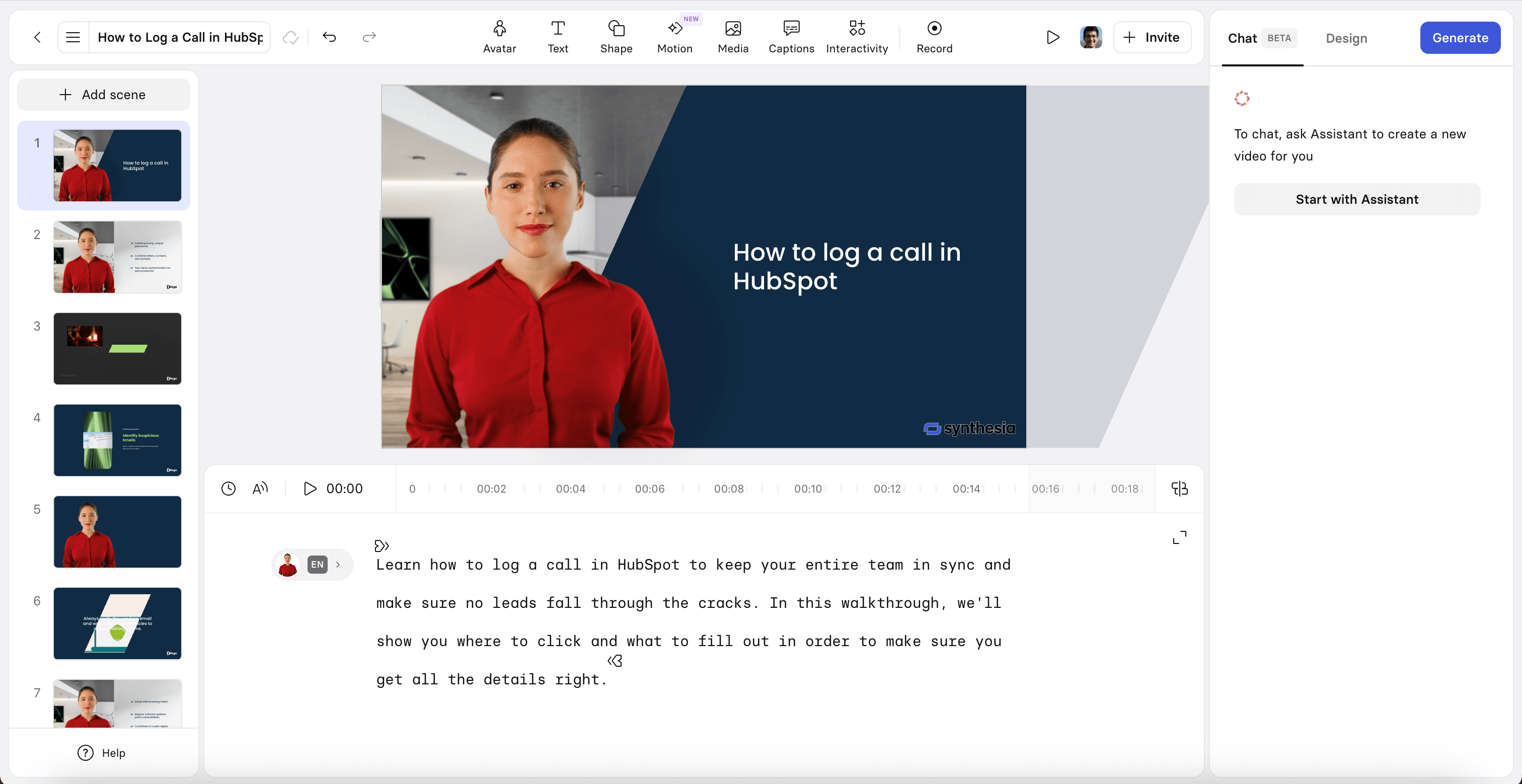
Synthesia lets you combine an AI presenter, screen demonstrations, and explanatory visuals in a scene-based editor, making it worth considering when you want a presenter to introduce or explain a lesson without filming someone each time.
Its AI Screen Recorder can turn a recording into editable scenes, so a lesson can move from an avatar's introduction to a screen demonstration.
Use a presenter when the introduction adds useful context, but for a simple task such as resetting a password, start with the screen demonstration.
Starter costs $29 monthly, with one editor, three guests, and 1,200 monthly credits usable for up to ten minutes of generated video. Creator is $89 monthly, with one editor, five guests, and up to 30 video minutes from its credit allowance. Other AI features share that pool; guest access isn't another authoring seat. One-click translation is listed under Enterprise.
Choose Synthesia if: You're building structured training lessons and want a consistent presenter without arranging repeated filming sessions, especially when screen demonstrations are one part of a broader lesson.
Skip Synthesia if: Most tutorials are short answers to “where do I click?” Trails, Guidde, or Loom can keep the viewer closer to the task with fewer presentation decisions.
HeyGen: For translating videos with an on-screen presenter
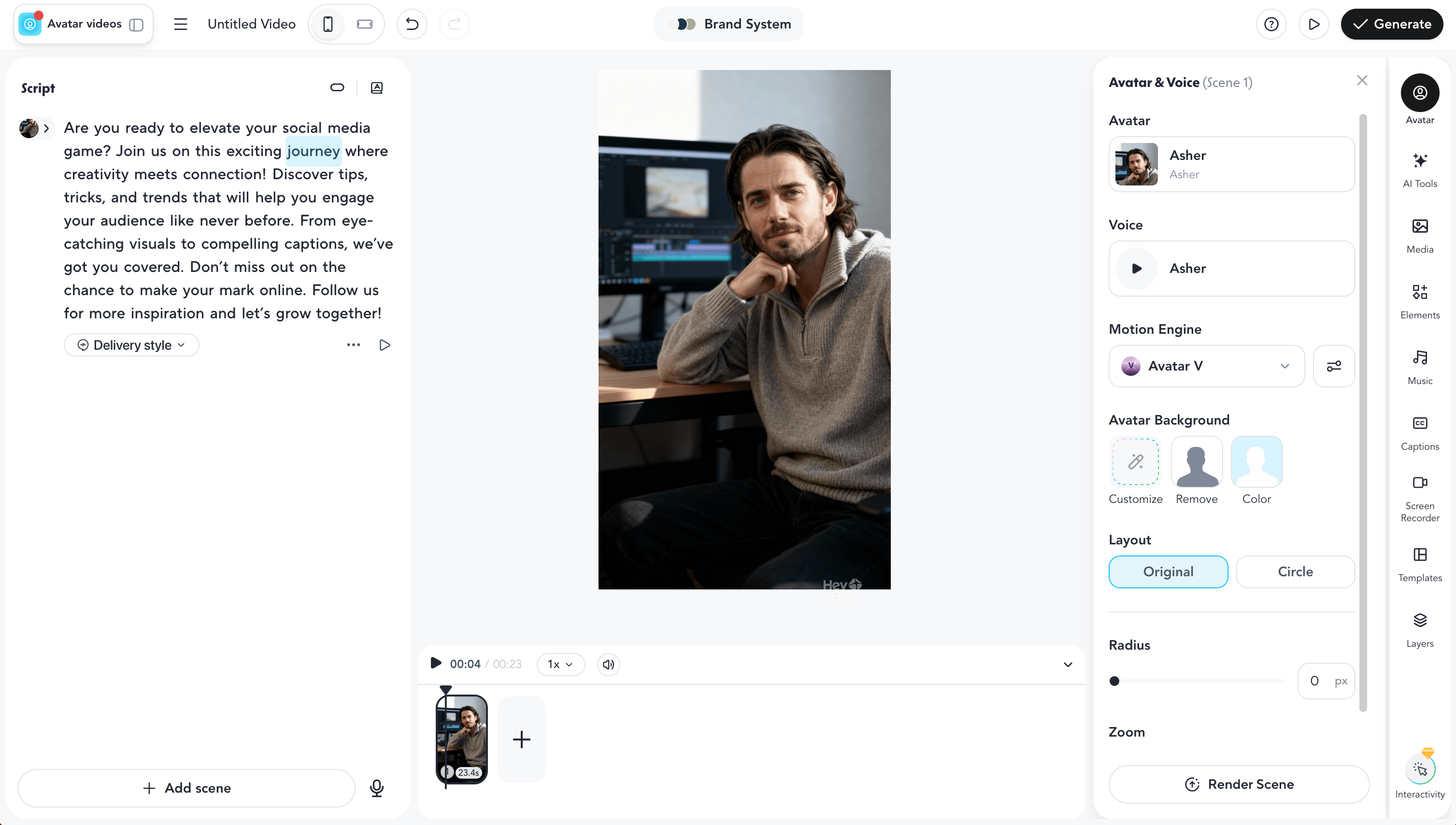
Consider HeyGen if you already have a presenter-led tutorial and need versions in other languages because its translation tools generate translated speech and synchronize the presenter's lip movements. It also offers avatars and custom video avatars for creating new lessons from scripts.
We'd shortlist it for a presenter-led tutorial library that needs several language versions. The tradeoff is most obvious in a lesson that alternates between a person and a screen recording: lip sync helps the presenter segment, but the software demonstration still has to make sense in the target language. If the narration names a translated menu while the recording shows English labels, the viewer may still need help finding it.
Ask someone fluent in the target language to check that product terms are pronounced correctly and the voice sounds natural, then have them follow the tutorial to make sure each spoken instruction matches what's visible on screen. If the tutorial mostly shows the screen, translated narration may be enough; lip synchronization matters only where the presenter appears.
Creator costs $29 per month, with 600 credits and 1080p exports. Pro starts at $49 per month with 1,000 credits and adds translation-script editing and proofreading. Check the credits required for your translation mode. A tool's maximum supported video length doesn't tell you how many minutes your plan includes.
Choose HeyGen if: A consistent presenter or localization of existing presenter-led tutorials is central to your work. Compare it closely with Synthesia using a short lesson containing your actual terminology.
Skip HeyGen if: Your main job is capturing clicks and keeping the resulting instructions current. Start with a tool that captures a task as editable steps.
Loom: For a quick personal walkthrough
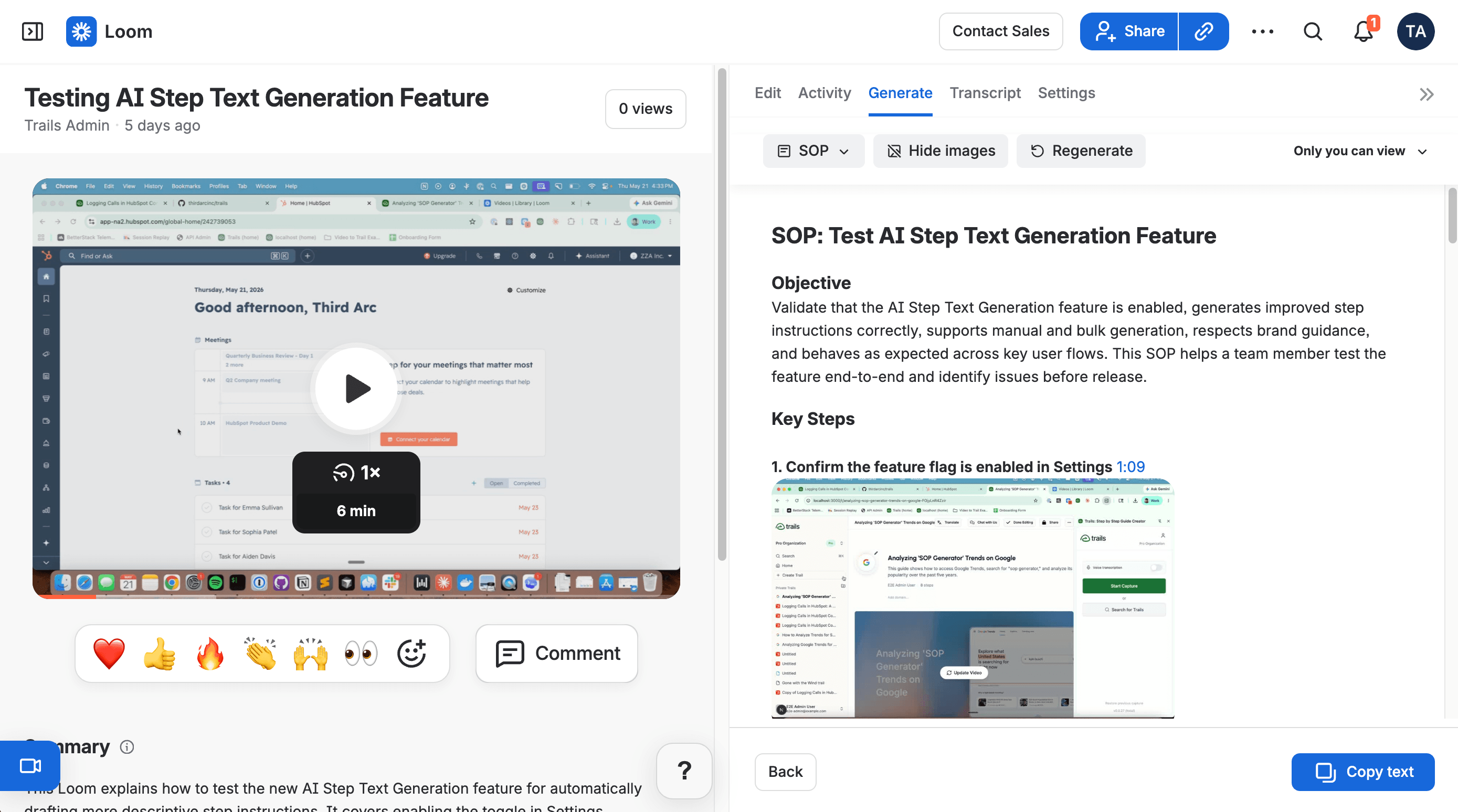
Loom is our pick when one person needs an explanation now because you can send them a recording of yourself explaining the task on screen. A customer asking why their report looks wrong may benefit more from hearing you explain their specific setup than from a neatly packaged general tutorial.
Your own explanation can add context that a general tutorial misses: why you skipped an option, or what is unusual about this customer's setup. Viewers can ask follow-up questions in the comments.
Business lets you trim and join recordings, while Business + AI adds transcript editing, silence and filler-word removal, and written outputs generated from the video. For a tutorial library, also consider how often you'll need to replace outdated footage. Editing a generated document doesn't update the original recording.
Starter includes 25 recordings with a five-minute limit for recorded videos. Business costs $18 per user per month and Business + AI costs $24 per user per month on monthly billing.
Choose Loom if: You need short, personal walkthroughs for customers or colleagues, especially when your explanation is the main teaching material. It's also a sensible free starting point within Starter's limits.
Skip Loom if: You're building a reference library that people must scan and maintain step by step. Trails is a stronger fit for that job; Descript suits recordings that need more substantial editorial cleanup.
Descript: For editing a video through its transcript
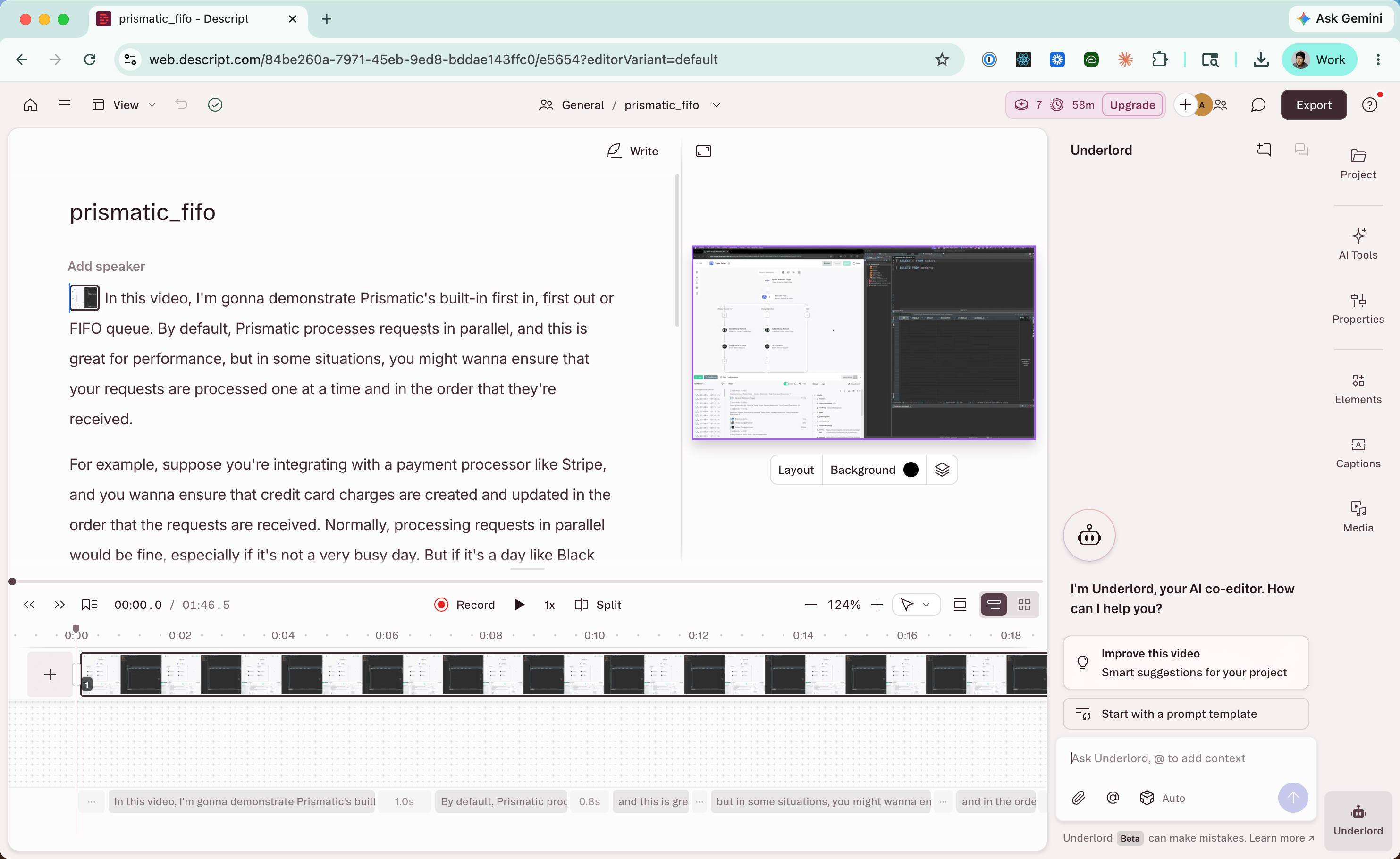
Descript lets you shorten a recorded explanation by editing its transcript. Delete a sentence and the corresponding audio and video are removed; move a passage and the media moves with it. Consider it if you find editing text easier than working on a timeline.
The detail to watch is what happened on screen during the sentence you deleted because, in a software tutorial, the “unnecessary” aside might coincide with opening the menu needed for the next step. Watch the affected section after every substantial transcript edit to make sure the steps still appear in the right order. A tighter explanation should still leave the viewer a complete sequence to follow.
Descript adds captions, sound cleanup, layouts, and AI speech tools, making it useful for lessons that mix an instructor with screen footage. Compared with Screen Studio, we'd choose it when the words need more attention than the cursor. Descript edits recorded audio and video, so changes to the software interface still require updated footage.
Hobbyist costs $24 per month, or $16 per month, billed annually, including ten media hours, 400 AI credits, and watermark-free 1080p export. Creator costs $35 per editor per month, or $24 per editor per month, billed annually, with 30 media hours, 800 AI credits, and 4K export. Media hours cover uploaded and recorded material. Media hours and AI credits are separate limits, so you can have media hours left and still need more AI credits.
Choose Descript if: You teach by talking through a subject and want to cut repetition, tighten explanations, and combine narration with screen footage, making it a good fit for tutorials that need a real editing pass after recording.
Skip Descript if: You mainly need to capture a short process and publish it as a guide and video. Trails requires fewer media-editing decisions, while Camtasia is the better shortlist candidate for precise visual production.
Which video tutorial software should you choose?
Choose around the work you expect to repeat. Camtasia gives you precise production control, while Screen Studio handles much of a Mac recording's visual polish. Descript makes spoken explanations easier to edit, and Loom gets a personal walkthrough to someone quickly.
Guidde and Trupeer deserve a close comparison when you want AI to turn captured workflows into polished video documentation. Synthesia and HeyGen are stronger candidates when a presenter or a multilingual lesson is central to the result.
For teams teaching everyday software processes, we'd start with Trails because its lasting advantage is an editable procedure behind the video, with written steps the viewer can return to. Create a tutorial in Trails, then revise one instruction before committing to a larger library. That second edit is where the right tool starts to earn its place.
Frequently asked questions
What is the best video tutorial software?
The best choice depends on the tutorial you need to make. Trails works well for editable instructions and video, Camtasia for precise production, Screen Studio for polished Mac recordings, Loom for quick personal walkthroughs, and Descript for transcript-based editing. Synthesia and HeyGen are better fits when an AI presenter or translation is central to the lesson.
What is the easiest way to make a video tutorial?
Start with one task and record a clean run from beginning to end. Add only the explanation, captions, and visual cues the viewer needs to follow it. Before publishing, ask someone unfamiliar with the process to complete the task using the tutorial.
Which software is best for screen-recording tutorials?
Loom is a straightforward choice for a quick recording. Screen Studio adds automatic visual polish on a Mac, while Camtasia gives you more control over footage, sound, callouts, and timing. If the recording also needs to become an editable written guide, consider Trails, Guidde, or Trupeer.
Can AI create video tutorials from a screen recording?
Yes. Tools such as Trails, Guidde, and Trupeer can turn a captured process into narrated video documentation. AI can draft instructions, narration, captions, and visual effects, but you should still check every step against the actual software before publishing.
What should a team look for in video tutorial software?
Look beyond the first recording. Check how the tool handles updated screens, revised narration, private viewing, author and viewer seats, translation, exports, and brand controls. The right tool is the one your team can keep current without rebuilding every tutorial.
What is the difference between a screen recorder and video tutorial software?
A screen recorder captures what happens on screen. Video tutorial software also helps shape that recording into a lesson through editing, narration, captions, callouts, written steps, or an AI presenter. Some tools focus on fast sharing, while others are built for maintaining a tutorial library.
Appendix: A team-cost comparison
A team-cost comparison
For a consistent example, assume five people create tutorials and 20 others need private viewing access. The totals below use monthly billing where a complete monthly price is available, exclude tax and optional add-ons, and were checked on September 9, 2026. Plans differ in features and generation limits, so these are budget examples rather than equivalent packages.
| Tool and plan | Cost for five authors and 20 private viewers | Included use and access |
|---|---|---|
| Trails Team | $249 per month, billed monthly: $49 for five users plus $200 for 20 additional users. | Assumes all 25 people are allocated to the plan. Unlimited guides; AI videos included. Private viewers count toward billing. |
| Guidde Business | $295 per month, billed monthly: five creators at $59 each; viewers are free. | Unlimited how-to videos and standard text-to-voice; advanced privacy controls. Premium voices cost extra. |
| Camtasia business licensing | Request a five-user business quote and confirm the cost of private delivery. | Individual suite prices aren't a transferable team-license quote, so specify whether you need Audiate and hosted sharing or will use an existing private video library. |
| Screen Studio | Five separate $29 monthly subscriptions would cost $145 per month for authoring. Confirm team licensing and private delivery separately. | All recording and editing features are included, but shareable links alone don't establish access restricted to 20 named viewers; an existing private host may be needed. |
| Trupeer Enterprise | Custom annual contract; request a quote for five creators and 20 private viewers. | The public comparison caps Scale at three creators; Enterprise supports five or more. Confirm AI credits and private-viewer access in the quote. |
| Synthesia Enterprise | Custom quote for five editors; specify 20 private viewers and the billing term. | Starter and Creator each include one editor, but guest reviewers aren't extra authoring seats. Confirm generation allowances and private delivery. |
| HeyGen Business | Starts at $149 per month, with additional seats at $20 per month. Confirm the complete five-author, 20-viewer quote. | The base plan lists 1,500 credits. Confirm included seats, whether viewers need paid access, and how added seats affect credits. |
| Loom Business + AI | Five paid authors cost $120 per month on monthly billing. If all 25 people require paid users, the total is $600 per month. | Unlimited recordings and transcript editing. Private-viewing setup determines the final total; confirm workspace roles before treating viewers as free. |
| Descript Business | $325 per month, billed monthly: five editors at $65 each; 20 Viewer seats are free. | Five editors contribute 200 media hours and 7,500 AI credits per month to a shared pool. Viewers can view and comment on projects. |
Loom's workspace roles vary between legacy and Atlassian-managed accounts. Confirm how your 20 viewers will access private videos before budgeting only for authors. Descript's Viewer role is free, and each paid Editor adds to the shared usage pool.