
Glossary
Screen Recording
 ChatGPT
 Perplexity
 Gemini
 Claude
What is screen recording?
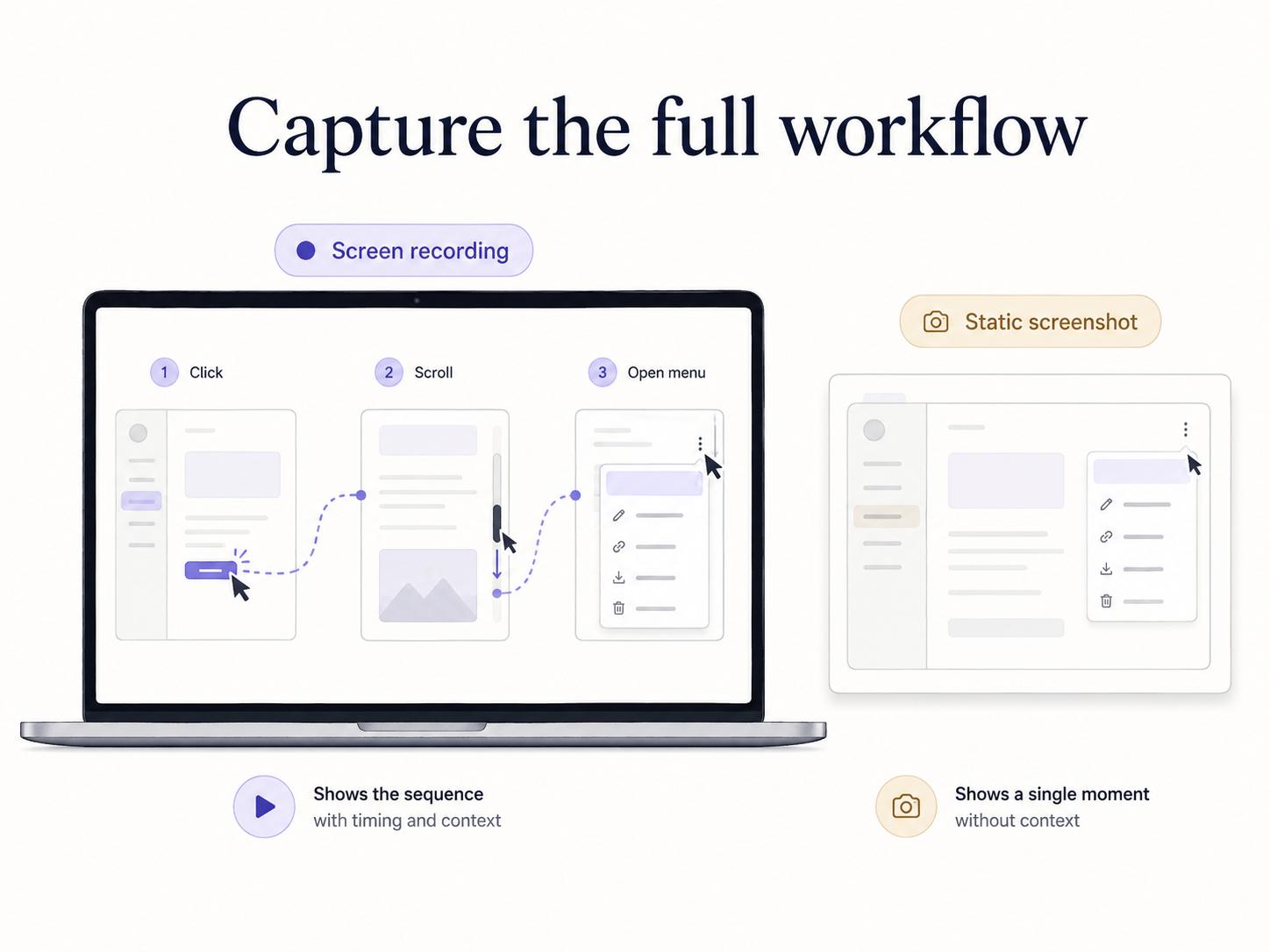
Screen recording is the process of capturing video of activity on a computer, browser, or mobile screen. A recording can show clicks, typing, cursor movement, scrolling, pop-ups, transitions, timing, and other details a static screenshot misses.
Teams use screen recordings for training, support, onboarding, product demos, bug reports, and process documentation. The format is useful because it captures work while it is happening. Its weakness is the same: raw video is often harder to skim, search, update, and reuse than written steps.1
Why screen recording matters
Screen recording preserves workflow context. If someone is explaining how to create a customer report, a recording can show which menu they open, how they filter the data, what they ignore, and what the finished result looks like. That movement can be hard to reconstruct from memory later.
It is especially useful when a workflow crosses several screens or includes small interface details that matter. A support agent can record a bug reproduction. A product manager can record a feature walkthrough. An operations lead can record a recurring admin task before turning it into a standard operating procedure.
The key distinction: recording is often a capture method, not the final knowledge product. It gets the real workflow out of someone's head. Then the team has to decide whether the video is enough, or whether the workflow needs a guide, checklist, SOP, or help article built from it.
When to use a screen recording
Use a screen recording when the viewer needs to see motion, sequence, or timing.
- Showing a workflow across several screens or tools
- Demonstrating a user interface that changes after each action
- Capturing a bug, error state, or support issue
- Creating source material for a training guide
- Explaining a new product feature to teammates or customers
- Preserving a subject-matter expert's process before it changes
A recording is weaker when the audience needs a fast reference. If someone only needs to know which field to update, a written step and annotated screenshot may be faster than a video.2 If the process will be repeated often, treat the recording as source material for structured documentation.
Screen recording vs. written documentation
Screen recording is best when the viewer needs to see how something unfolds. Written documentation is best when the reader needs the next exact action.
Neither format is automatically better. A recording is strong for discovery, teaching, and context. Written documentation is strong for repeatability, search, compliance, and maintenance. The most useful process guides often combine both: a short video or AI-narrated walkthrough for context, plus step-by-step instructions for execution.
A practical decision rule:
- Use video when motion is the message.
- Use screenshots when one exact screen state matters.
- Use written steps when the process must be repeated reliably.
- Use all three when the task is important, complex, or frequently taught.
What makes a screen recording useful
A useful screen recording is focused. It should have a clear task, a clean screen, and a reason for existing.
Before recording, close unrelated tabs, silence notifications, and switch to demo data if possible. Decide whether narration helps. Voice can make a walkthrough feel natural, but it also makes future edits harder. If the process changes every month, written notes may be easier to maintain than a fully narrated video.
During the recording, move deliberately. Pause before important clicks. Avoid random cursor movement. If the viewer needs to understand a choice, explain why the choice matters instead of only clicking through it.
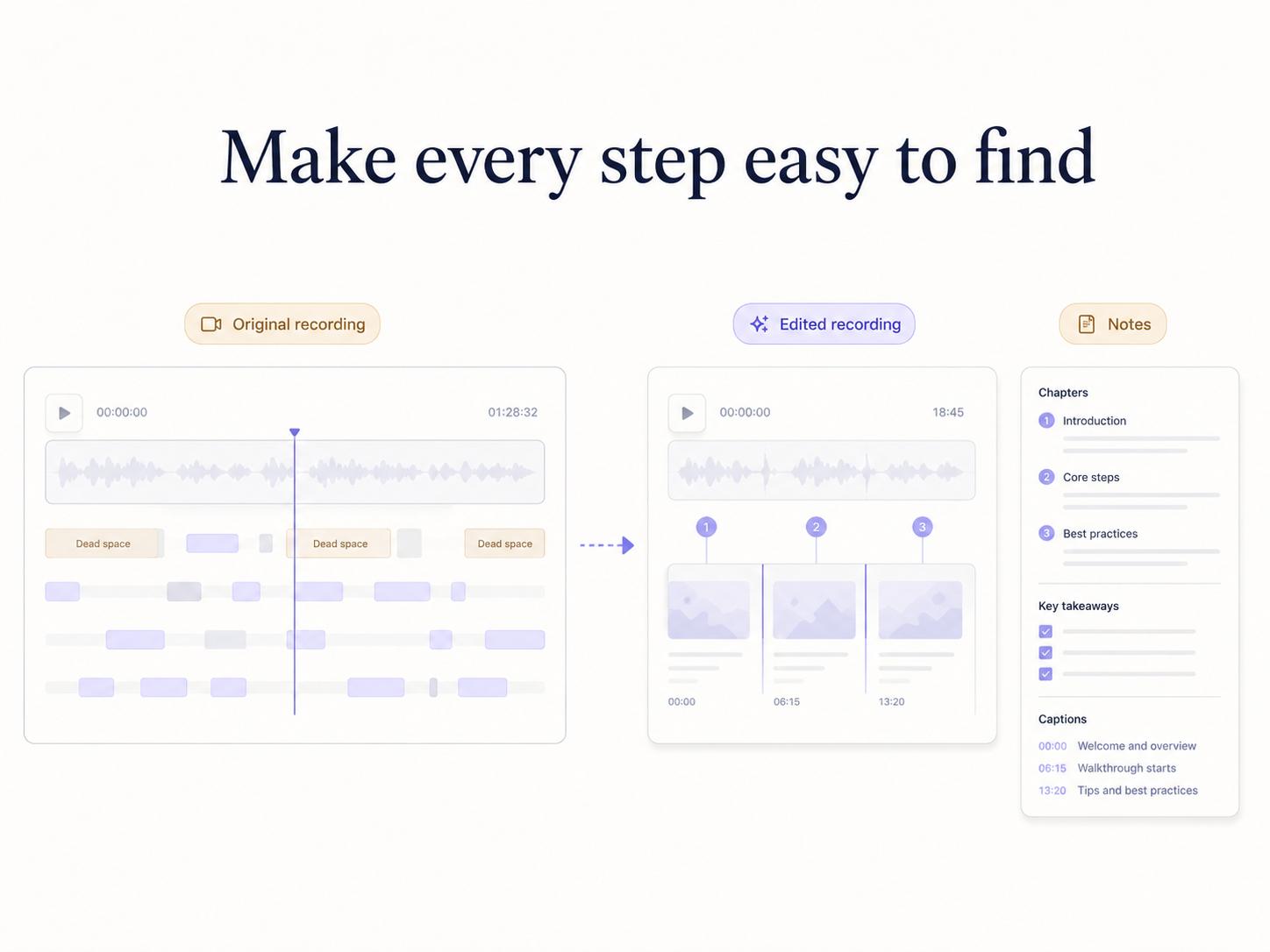
After recording, trim dead space. Add a title that names the task, not the tool. "How to refund a duplicate invoice" is more useful than "Billing walkthrough." If the recording will be reused, add written steps or a short summary so people can find the part they need without watching from the beginning. For narrated recordings, captions or transcripts also make the content more accessible and easier to reference later.3
Common mistakes
One common mistake is treating a long recording as documentation just because it exists. A ten-minute video may contain the answer, but that does not make it easy to use. If viewers have to scrub around to find one step, the recording is carrying too much of the process alone.
Another mistake is recording sensitive information. Customer names, internal messages, account IDs, financial details, browser bookmarks, credentials, and private URLs can all appear accidentally. If the recording will be shared, review it like a public artifact.
A third mistake is skipping ownership. A recording can show how a task was done once, but it may not say who owns the process, how often it runs, what exceptions matter, or what the final quality check should be. Those details belong in the surrounding SOP or guide.
AI-ready prompt for turning a recording into a guide
Use this prompt after recording a workflow:
## Screen Recording to Guide Prompt

**Glossary term:** Screen Recording
**Source:** Trails Glossary — trails.so/glossary/screen-recording

---

### 01. Turn a recording into a guide

"Turn this screen recording summary into a step-by-step guide.

Workflow: [name of workflow]
Audience: [who will use the guide]
Goal: [what the person should accomplish]
Recording notes: [paste transcript, notes, or rough sequence]
Tools involved: [apps or systems]
Known risks: [sensitive data, approvals, common mistakes]

Create:
1. A clear guide title.
2. A short overview.
3. Step-by-step instructions with decision points.
4. Places where screenshots would help.
5. Common mistakes or edge cases.
6. A final quality check."
How Trails helps
Trails captures workflows as they happen and turns them into polished step-by-step guides. It can also create an AI-narrated video version for training or sharing. That gives teams the speed of screen recording without leaving important process knowledge trapped in raw video.
For an existing recording, see how to convert video into an SOP. If the goal is to produce a tutorial, compare video tutorial software for narration, editing, and maintenance.
Sources
- 1
Nielsen Norman Group. Video Usability. Nielsen Norman Group. www.nngroup.com/articles/video-usability/. Accessed July 9, 2026.
- 2
Nielsen Norman Group. Instructional Video Guidelines. Nielsen Norman Group. www.nngroup.com/articles/instructional-video-guidelines/. Accessed July 9, 2026.
- 3
W3C Web Accessibility Initiative. Understanding Success Criterion 1.2.2: Captions (Prerecorded). W3C. www.w3.org/WAI/WCAG21/Understanding/captions-prerecorded.html. Accessed July 9, 2026.