
Glossary
Desktop Procedure
 ChatGPT
 Perplexity
 Gemini
 Claude
What is a desktop procedure?
A desktop procedure is a step-by-step guide for completing a repeatable task in a desktop environment, desktop application, operating system, or workstation setup. It explains the screens, settings, files, permissions, checks, and evidence someone needs to complete the task correctly.
Desktop procedures are common in IT support, admin operations, finance, HR, customer support, and teams that depend on installed software or workstation tools. They matter when a small detail, such as the right file format or permission level, determines whether the task actually works. 1
Where desktop procedures show up
A desktop procedure might cover printer-driver setup, VPN configuration, spreadsheet reconciliation, customer-record updates in a desktop CRM, new-hire workstation setup, or invoice processing in accounting software.
Those tasks often feel simple to the person who does them every week and fragile to everyone else. The menu location, required file name, save format, authentication order, or device state may matter. When those details live only in memory, training slows down and support gets inconsistent.
A good desktop procedure gives the reader enough context to understand the task, then guides them through the exact operating path. It also explains what success looks like, because many desktop tasks appear complete before the downstream system has accepted the change.
Desktop procedure vs SOP vs work instruction
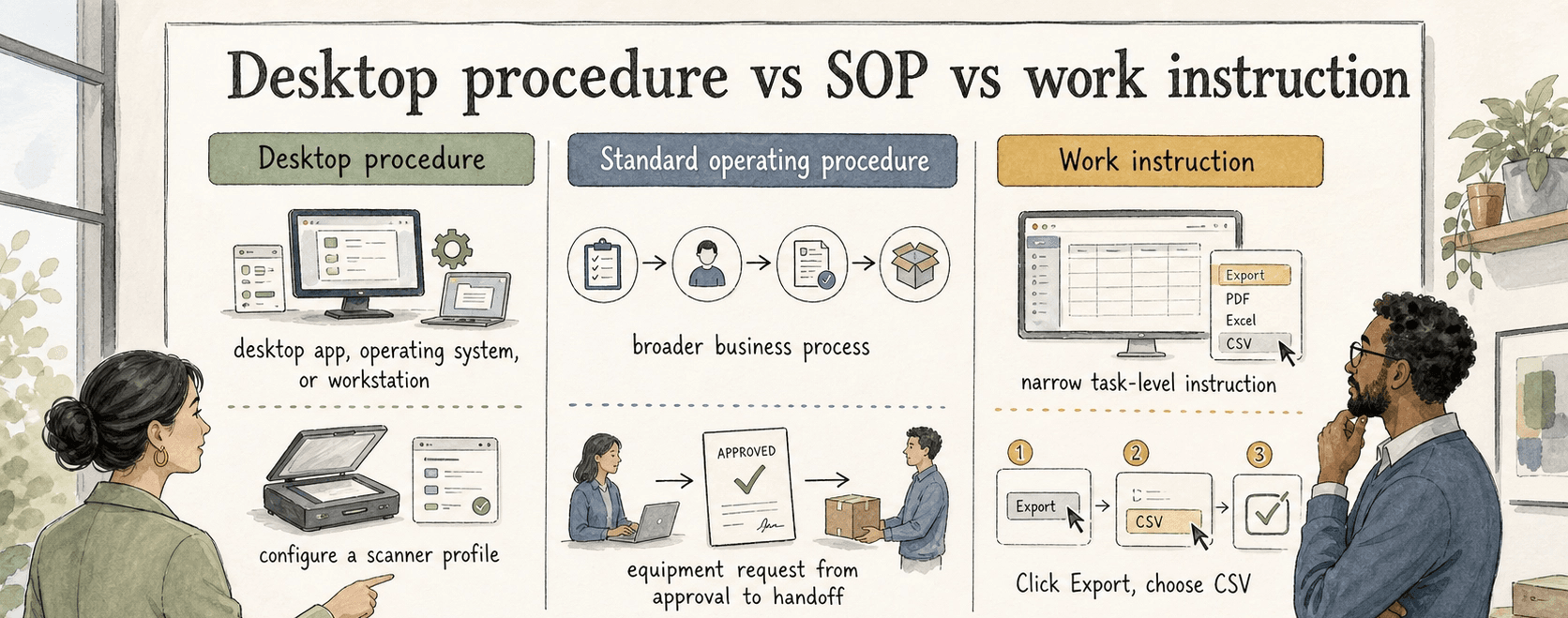
Desktop procedure, SOP, and work instruction overlap. The practical difference is scope.
| Term | Best use | Example |
|---|---|---|
| Desktop procedure | A repeatable task in a desktop app, operating system, or workstation environment | Configure a scanner profile in a desktop capture tool |
| Standard operating procedure | A broader repeatable business or operational process | Handle a new employee equipment request from approval to handoff |
| Work instruction | A narrow task-level instruction, often for a specific role or station | Click Export, choose CSV, save the file with the required naming pattern |
The mistake is treating a desktop procedure like a tiny software tutorial. It still needs ownership, trigger conditions, exception handling, and verification. If a user follows the steps but does not know when to stop, escalate, or record evidence, the procedure is incomplete.
What to include in a desktop procedure
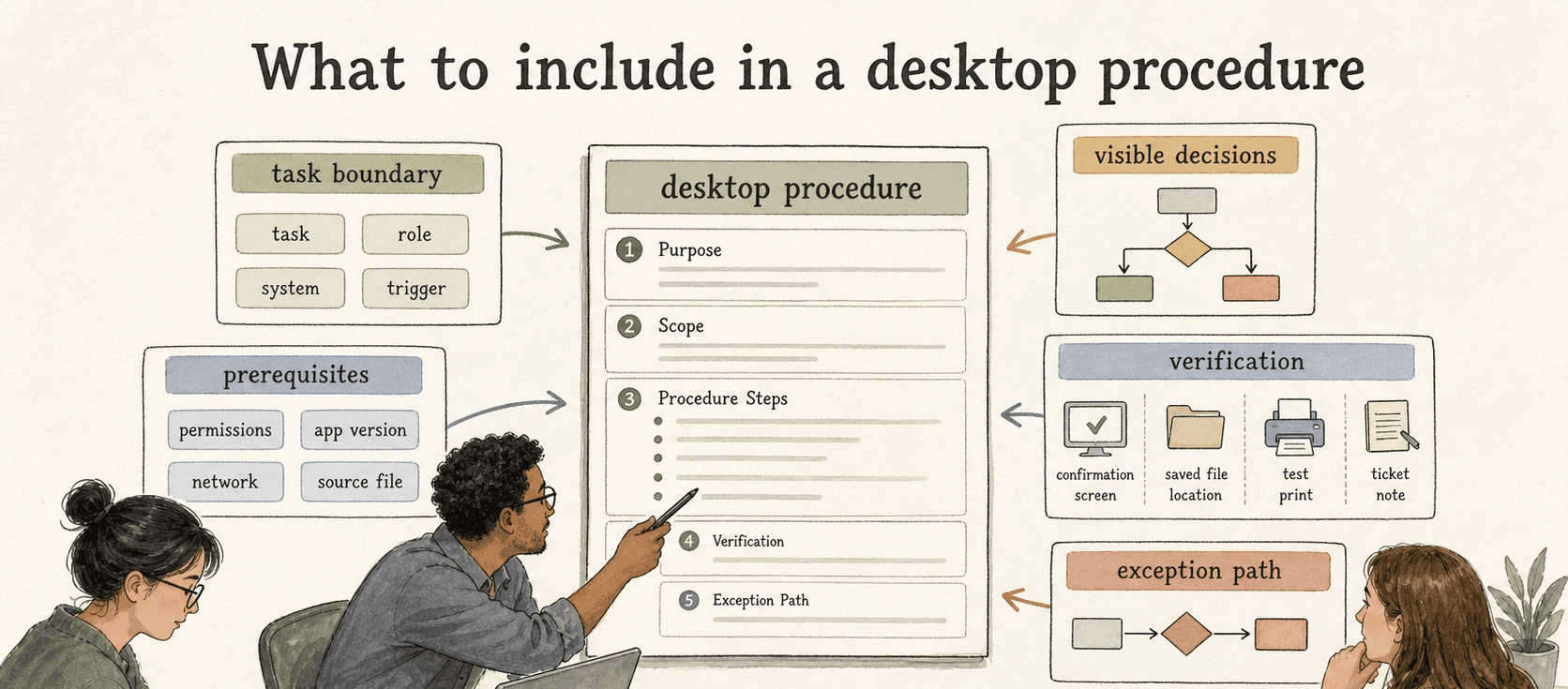
Start with the task boundary. Name the task, user role, system, and trigger. "Update desktop settings" is too vague. "Configure VPN client for a new Windows laptop" is specific enough to trust.
List prerequisites before steps. Desktop work often fails because the user lacks permissions, has the wrong app version, is on the wrong network, or does not have the source file. Put those conditions at the top so the reader does not discover them halfway through. 2
Write steps around visible decisions. Screenshots can help, but the text should explain what the user is trying to accomplish. "Select the active employee profile, not the archived duplicate" is more durable than "click the first row."
Add verification. Tell the reader what proves the task is done: a confirmation screen, saved file location, successful test print, synced record, status change, or ticket note.
Add an exception path. If the user cannot find a setting, lacks access, sees a version mismatch, or gets an error, say what happens next. That may be a support queue, escalation contact, rollback step, or note in the ticket.
Example: workstation setup desktop procedure
For a new-hire laptop, a desktop procedure might cover the required software list, login sequence, device naming convention, security-agent check, browser-profile setup, printer mapping, and final handoff note.
The final verification matters most. The laptop may look ready after the apps are installed, but the procedure should require proof that the user can sign in, access shared drives, connect to required tools, and open first-day resources. Without that check, IT has only moved the problem to the employee's first morning.
AI-ready desktop procedure prompt
Use this prompt when turning a known task into a first draft:
## Desktop Procedure Prompt

**Glossary term:** Desktop Procedure
**Source:** Trails Glossary — trails.so/glossary/desktop-procedure

---

### 01. Create the desktop procedure

"Create a desktop procedure for [task] in [application or operating system]. The procedure is used by [role] when [trigger]. Include purpose, scope, prerequisites, required permissions, step-by-step instructions, decision points, screenshots or evidence to capture, completion criteria, and exception handling. Write for a competent user who has not done this exact task before. Avoid vague steps such as "update the record" unless the field, screen, and verification are clear."
Common mistakes
The first mistake is over-documenting obvious clicks and under-documenting judgment. Readers can usually infer that a Save button saves a record. They cannot infer which duplicate record to choose, which export format the downstream system accepts, or when an error means stop instead of retry.
The second mistake is ignoring software drift. Desktop procedures age quickly when app versions, menu names, and permissions change. Review them when software is upgraded, patched, or redeployed, not only on a fixed calendar. 3
The third mistake is leaving the procedure disconnected from the work queue. Link it from the ticket type, onboarding checklist, help desk macro, or internal wiki page where the task starts.
How Trails helps
Trails can capture a desktop workflow as someone performs it, then turn that captured workflow into a polished step-by-step guide. That is useful when the important details live in screens, menus, and handoffs rather than in a clean written process. Trails can also create an AI-narrated video version for training or sharing.
Sources
- 1
Microsoft. Deploy Windows apps. learn.microsoft.com/en-us/intune/app-management/deployment/deploy-windows.
- 2
Microsoft. Win32 app management. learn.microsoft.com/en-us/intune/app-management/deployment/win32.
- 3
NIST. SP 800-40 Rev. 4, Guide to Enterprise Patch Management Planning. csrc.nist.gov/pubs/sp/800/40/r4/final.