
Glossary
Desktop App
 ChatGPT
 Perplexity
 Gemini
 Claude
What is a desktop app?
A desktop app is software installed and run on a desktop or laptop computer, usually through an operating system such as Windows, macOS, or Linux. Unlike a browser-based web app, a desktop app can use local files, device resources, offline access, system permissions, and integrations with hardware or other installed software. 1
Desktop apps still matter because not every workplace workflow happens in the browser. Finance tools, design software, development environments, call-center utilities, point-of-sale systems, scanning tools, and specialized admin programs may all depend on local installation and workstation setup.
How desktop apps work
A desktop app usually has to be installed, updated, configured, and granted the right permissions before someone can use it. Some desktop apps run mostly on the local machine. Others connect to cloud services but still need a local client for performance, hardware access, security controls, or offline work.
That local footprint is both the advantage and the maintenance cost. A desktop app can be faster or more capable for certain tasks, but it also introduces version drift, permission issues, device compatibility problems, and setup steps that teams need to manage. 2
For operations and support teams, the useful question is which parts of the workflow depend on the user's machine. If the workflow relies on local files, plug-ins, drivers, device settings, or offline state, the team needs more than a normal login guide.
Desktop app vs web app vs mobile app
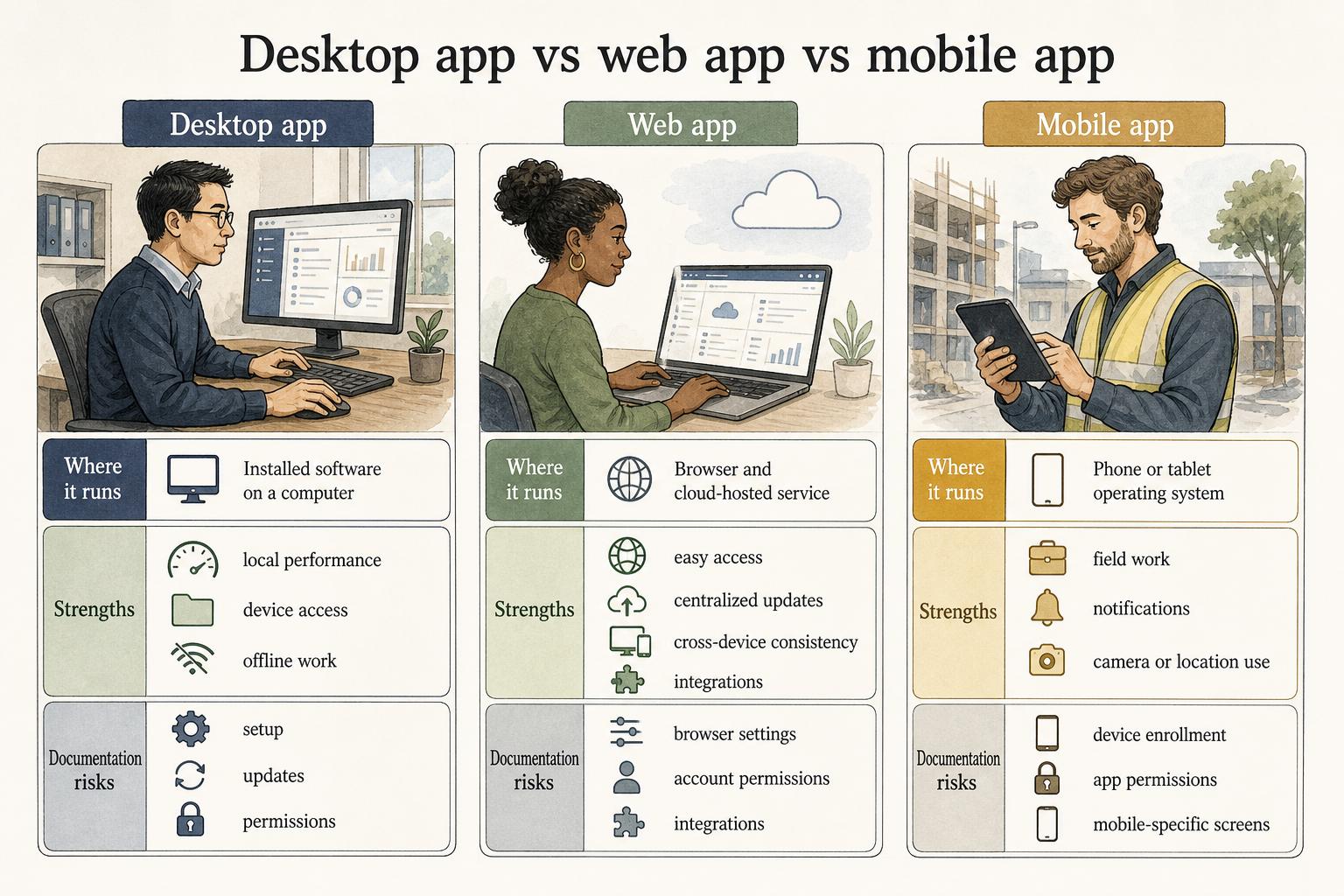
The difference between app types is mostly where the software runs and what environment it depends on.
| App type | Runs primarily in | Common strength | Common documentation risk |
|---|---|---|---|
| Desktop app | Installed software on a computer | Local performance, device access, offline work, specialized workflows | Setup, updates, permissions, workstation-specific behavior |
| Web app | Browser and cloud-hosted service | Easy access, centralized updates, cross-device consistency | Browser settings, account permissions, integrations |
| Mobile app | Phone or tablet operating system | Field work, notifications, camera or location use | Device enrollment, app permissions, mobile-specific screens |
This distinction matters because the support burden changes. A web app guide may focus on roles, screens, and account permissions. A desktop app guide often needs installation, local configuration, version checks, and troubleshooting for machine-specific issues.
Examples of desktop apps
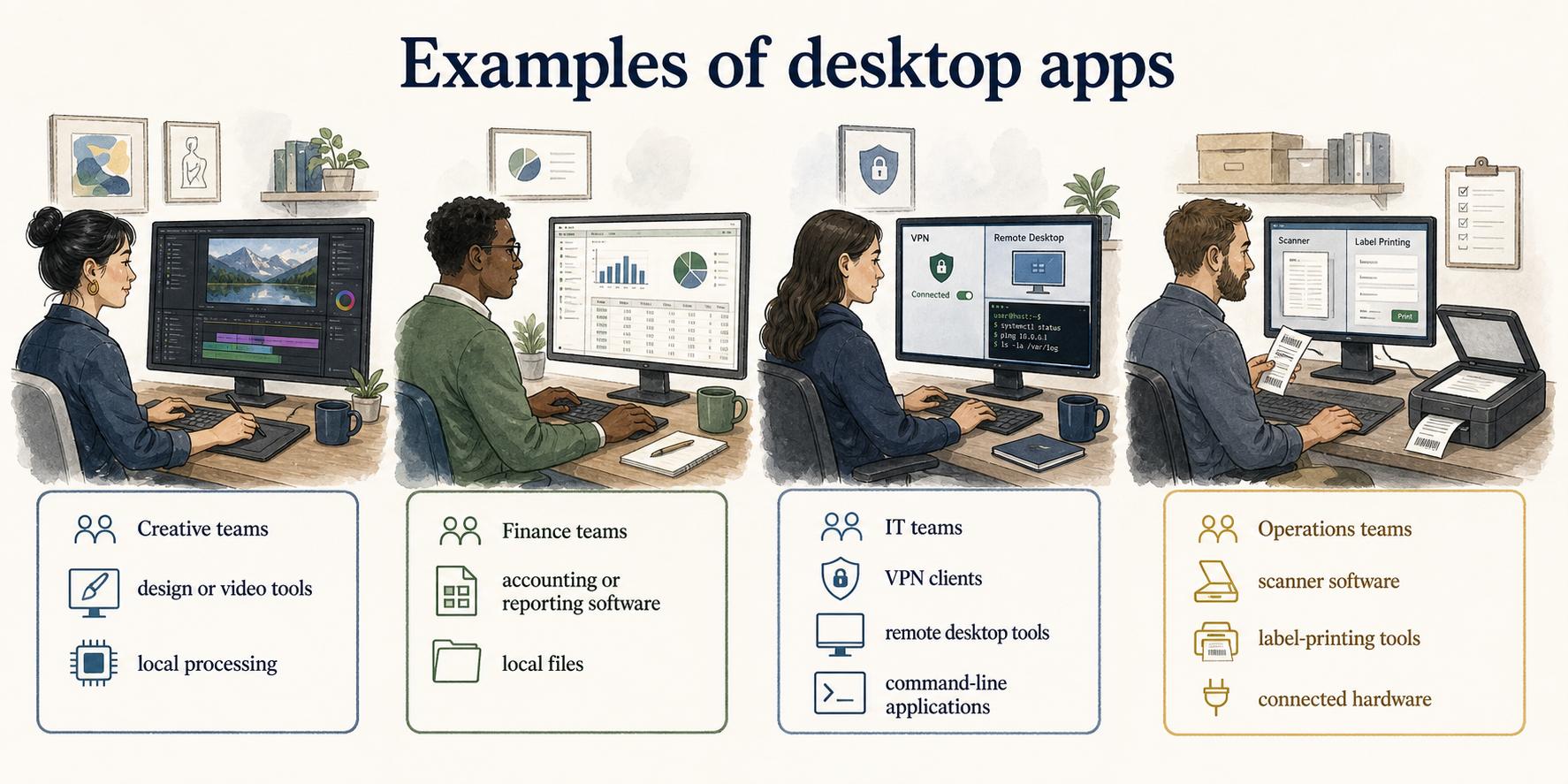
Creative teams may use desktop design or video tools because local processing matters. Finance teams may use installed accounting or reporting software tied to local files. IT teams may use VPN clients, remote desktop tools, endpoint management utilities, or command-line applications. Operations teams may use scanner software, label-printing tools, or line-of-business systems that depend on connected hardware.
In each case, the desktop app is part of an operating environment. The user needs the correct device, permissions, version, data source, and sometimes physical hardware before the workflow can succeed.
What teams should document for desktop apps
Start with installation and access, but do not stop there. Installation only proves the app exists on the computer. It does not prove the user can complete the job.
Document the supported operating systems, required app version, login method, permissions, plug-ins, file locations, connected devices, and configuration settings that affect the workflow. Then document the actual task: what to open, which record or file to choose, what decision to make, and what output proves the work is complete.
The subtle failure mode is version mismatch. Two employees may both say they use the same desktop app, but one has a different menu layout, export option, or security setting. If the procedure assumes one version without saying so, the document will fail when a new hire or support rep needs it most. 3
Desktop app documentation checklist
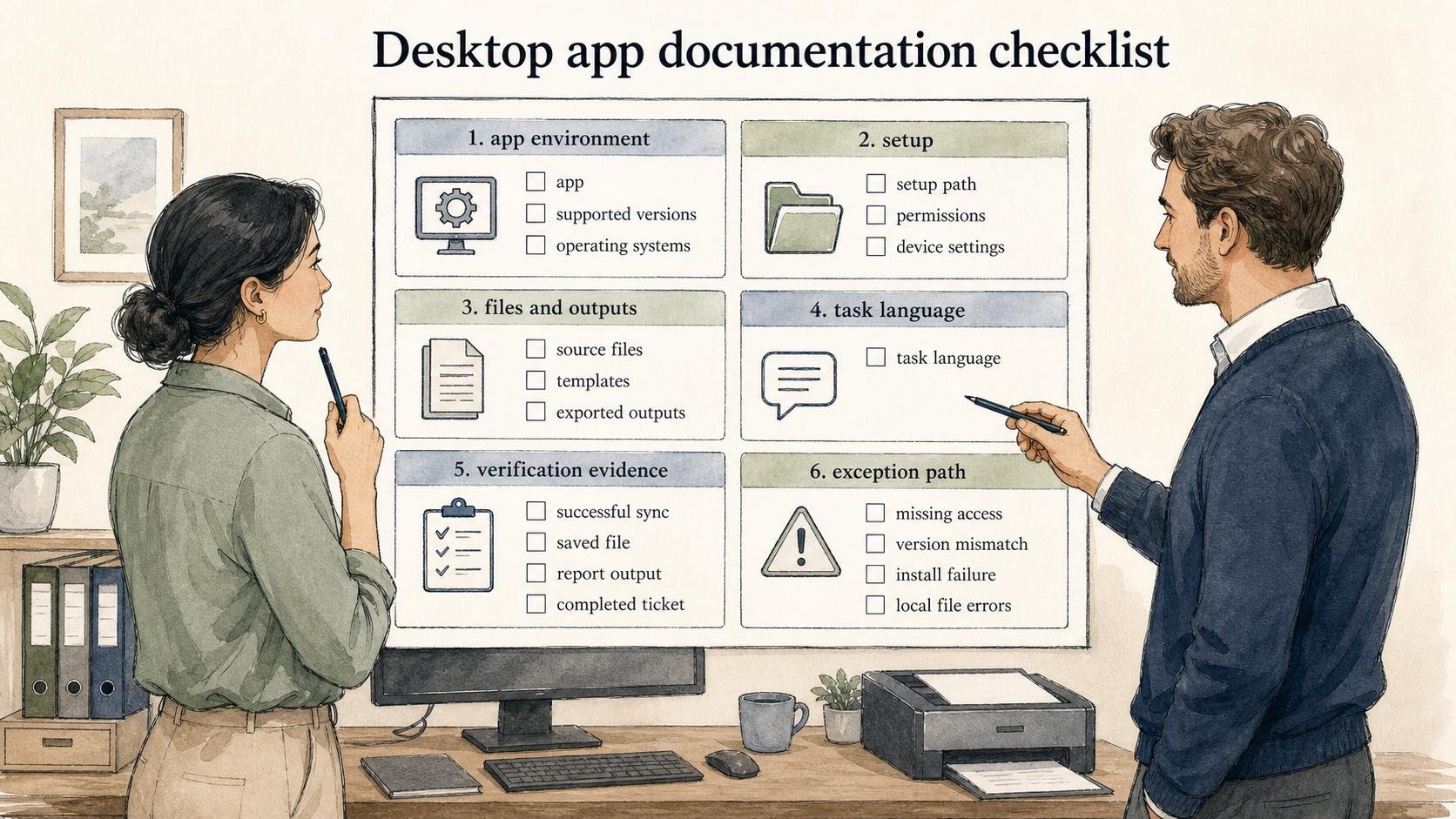
Use this checklist when a desktop app supports a repeatable workflow:
- Name the app, supported versions, and operating systems.
- Capture the setup path, including required permissions and device settings.
- Identify where source files, templates, or exported outputs should live.
- Explain the workflow in task language rather than button language.
- Include verification evidence, such as a successful sync, saved file, report output, or completed ticket.
- Add an exception path for missing access, version mismatch, install failure, or local file errors.
Documentation takeaway
Desktop apps create documentation needs that web apps can hide. The workflow may depend on a workstation, local file path, peripheral, or setting that only exists on one machine. Teams should document those dependencies before they become support tickets.
For training, the most useful artifact is often a visual walkthrough paired with a short written procedure. The walkthrough shows the interface; the written procedure explains the decisions, prerequisites, and completion criteria.
How Trails helps
Trails can capture a desktop-app workflow as someone performs it, then turn that workflow into a polished step-by-step guide. That is useful when the procedure depends on screens, menus, and local setup details that are hard to recreate from memory. Trails can also create an AI-narrated video version for training or sharing.
Sources
- 1
Microsoft. Deploy Windows apps. learn.microsoft.com/en-us/intune/app-management/deployment/deploy-windows.
- 2
NIST. Securing critical software. www.nist.gov/itl/executive-order-14028-improving-nations-cybersecurity/securing-critical-software/security.
- 3
NIST. SP 800-40 Rev. 4, Guide to Enterprise Patch Management Planning. csrc.nist.gov/pubs/sp/800/40/r4/final.