
Glossary
Blur Tool
 ChatGPT
 Perplexity
 Gemini
 Claude
What a blur tool does
A blur tool is software that hides sensitive or distracting information in an image, screen recording, video, or live capture by making selected areas unreadable. Teams use blur tools to protect customer data, employee information, account details, private messages, internal notes, and other content that should not appear in documentation or training material. NIST guidance on personally identifiable information says PII should be protected from inappropriate access, use, and disclosure, which is the privacy problem blur tools often help teams manage in screenshots and videos. 1
A blur tool makes part of a visual asset hard or impossible to read. In a screenshot, that might mean hiding a customer email address, payment amount, API key, internal comment, or private Slack message. In a video, it might mean keeping a moving area covered while someone demonstrates a workflow.
The job sounds simple, but the stakes are practical. Teams want realistic examples, and real screens contain names, financial details, credentials, messages, and customer records. Blur lets a team show the workflow without sharing everything on the screen.
The best blur tools are boring in the right way: fast to apply, easy to adjust, obvious during review, and hard to miss before publishing.
When teams use blur tools
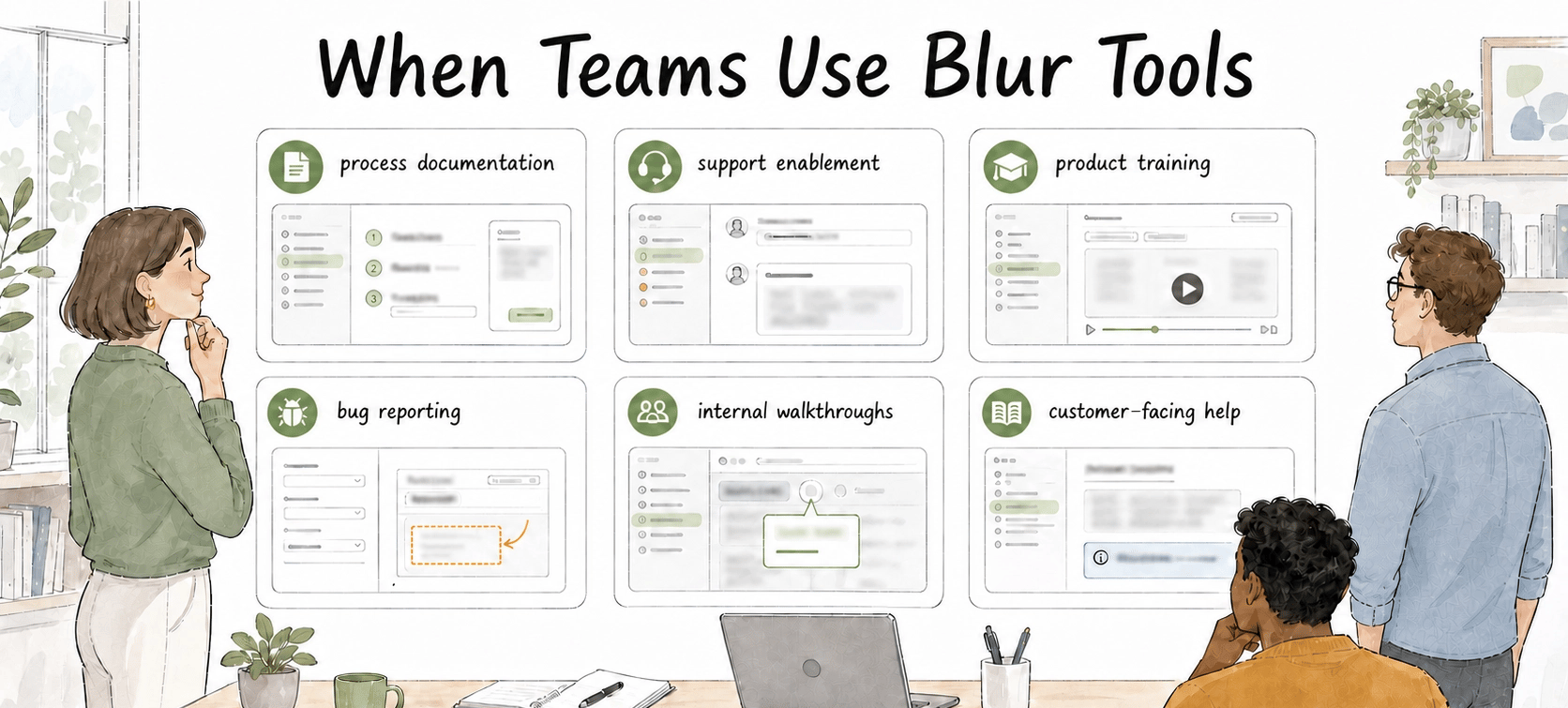
Blur tools are common in process documentation, support enablement, product training, bug reporting, internal walkthroughs, and customer-facing help content. They are especially useful when screenshots or videos come from live systems instead of staging accounts.
Use blur when you need to:
- Hide customer names, emails, addresses, phone numbers, or account IDs.
- Remove private internal notes from a support or CRM screen.
- Mask prices, revenue numbers, payroll fields, or financial data.
- Cover API keys, tokens, URLs, or configuration values.
- Reduce visual noise so the viewer focuses on the step being taught.
That last use case is underrated. Blur is also an attention tool. If a screen has twenty fields and the learner needs one button, a subtle blur around irrelevant areas can make the instruction easier to follow.
Blur vs redaction
Blur and redaction are related, but they solve different problems.
| Method | Best for | Watch-out |
|---|---|---|
| Blur | Screenshots, training videos, walkthroughs, UI examples | The original file and editing history still need careful handling |
| Redaction | Documents, records, legal or compliance-sensitive files | It should remove the sensitive content, not merely cover it visually |
| Cropping | Removing irrelevant screen areas | It can hide useful context if overused |
| Synthetic data | Demos, templates, repeatable examples | It takes setup, but often reduces review burden |
A practical rule: use blur when the goal is to make a visual example safe enough to review and understand. Use stronger redaction or synthetic data when the asset may be shared broadly, archived, exported, or used in a regulated workflow. NIST's de-identification guidance treats redaction as a removal-based technique and cautions that redaction alone may not provide formal privacy guarantees, which is why higher-risk assets deserve a stricter workflow than visual masking alone. 2
What makes a blur tool good
A useful blur tool should make the safe path faster than the unsafe path. If people have to export a screenshot, open another editor, draw a shape, save a copy, re-upload it, and remember which version is safe, mistakes become predictable.
The strongest tools usually have a few practical traits:
- Fast selection, so the user can blur sensitive areas while the context is fresh.
- Adjustable intensity, so the hidden content is unreadable but the screen still makes sense.
- Persistent blur in videos, so a moving field stays covered through the relevant clip.
- Review-friendly output, so another person can tell what was hidden and why.
- Clear separation between the editable original and the shareable final version.
The last point matters. Many teams think the job is done when something looks blurred. The safer workflow also controls who can access the original, who can edit the blur, and which final file gets published.
Common mistakes
The most common mistake is blurring too late. If a guide or video is already shared in a review channel, the sensitive information may have spread before anyone notices. Blur should happen during capture or immediately after capture, before the asset enters a broader workflow. The FTC's business data-security guidance starts with knowing what personal information you have and scaling down what you keep, a useful reminder that privacy review should happen before content is widely copied. 3
Another mistake is blurring only the obvious field. Sensitive information often appears in multiple places on the same screen: a table row, page title, browser URL, sidebar, toast notification, or account switcher. A good review habit is to scan the whole frame, not just the center of attention.
A third mistake is using blur to avoid better demo data. If the same workflow will be recorded repeatedly, synthetic accounts and clean example records are usually easier to maintain. Blur is useful, but it should not become a permanent workaround for messy documentation environments.
Documentation takeaway
For process documentation, a blur tool works best when it is part of the publishing workflow rather than an afterthought. The process should answer three questions:
- What information must always be hidden?
- Who reviews screenshots or videos before sharing?
- Where is the approved, shareable version stored?
That small policy prevents a familiar failure mode: everyone agrees privacy matters, but no one owns the final check. ICO anonymisation guidance also emphasizes understanding the strengths, weaknesses, and suitability of anonymisation techniques in context, which maps well to deciding when blur is enough and when a stronger control is needed. 4
How Trails helps
Trails helps teams capture workflows as they perform them, turn those workflows into polished step-by-step guides, and create AI-narrated video versions for training or sharing. For documentation that starts from real work, blur and review controls matter because real screens often contain real data.
A good Trails workflow keeps the artifact useful, safe to share, and clear enough that a teammate can repeat the process without seeing information they do not need.
FAQ
Is blur enough for sensitive information?
It depends on the workflow and the risk. Blur is useful for many screenshots and training assets, but highly sensitive records may require stronger redaction, synthetic data, tighter access control, or a formal review process.
Should teams blur screenshots before or after writing a guide?
Blur as early as possible, ideally during capture or immediately after capture. Waiting until publication increases the chance that sensitive information is copied into drafts, comments, exports, or review channels.
What should be blurred in process documentation?
Blur customer data, employee data, credentials, private messages, financial fields, internal notes, and anything the viewer does not need to complete the task. Also consider blurring irrelevant screen areas when they distract from the step being explained.
- AI screenshot editor
- annotation tool
- screen recording
- compliance documentation
- data encryption
- enterprise security
- browser extension
- documentation software
Sources
- 1
NIST SP 800-122. Guide to Protecting the Confidentiality of PII. NIST SP 800-122. csrc.nist.gov/pubs/sp/800/122/final.
- 2
NIST SP 800-188. De-Identifying Government Datasets. NIST SP 800-188. csrc.nist.gov/pubs/sp/800/188/final.
- 3
FTC. Protecting Personal Information: A Guide for Business. FTC. www.ftc.gov/business-guidance/resources/protecting-personal-information-guide-business.
- 4
ICO anonymisation guidance. ICO anonymisation guidance. ICO anonymisation guidance. ico.org.uk/for-organisations/uk-gdpr-guidance-and-resources/data-sharing/anonymisation/about-this-guidance/.