
Glossary
Browser Extension
 ChatGPT
 Perplexity
 Gemini
 Claude
What a browser extension does
A browser extension is a small software add-on that changes what a web browser can do. Extensions can add buttons, capture information, block content, connect web apps, automate repetitive actions, or make a workflow easier without opening a separate desktop app.
A browser extension sits close to the work people already do in web apps. That closeness is its advantage and its risk. Instead of asking someone to copy information into another tool, an extension can add a control, capture the current page, detect page context, or pass selected information into another system.
Common examples include password managers, grammar assistants, screenshot tools, screen recorders, ad blockers, workflow capture tools, and internal tools that add shortcuts to CRM, support, or operations systems. The extension doesn't replace the browser. It adds a narrow layer of behavior around browsing.
For teams, the sharper question is whether the tool needs to appear at the exact moment someone is doing web-based work. If it does, an extension may fit better than a dashboard, bookmark, or desktop app.
How browser extensions work in practice
Most browser extensions combine three parts:
- A visible interface, such as a toolbar icon, popup, sidebar, or in-page button.
- Browser permissions that allow the extension to read, change, capture, or interact with specific pages.
- Background logic that connects browser activity to a service, local setting, or workflow.
The permissions matter. Chrome's extension documentation says extensions declare permissions to access browser APIs and features, and some permissions trigger user warnings. 1 A screenshot extension may need access to capture a visible tab. A password manager may need to detect login fields. A process documentation extension may need to observe clicks or page titles while someone records a workflow.
A good extension asks for the minimum access it needs, explains what it captures, and keeps the user in control. MDN's WebExtensions guidance distinguishes runtime permission requests from install-time requests, which is one reason scoped access can feel less invasive when the request matches the moment of use. 2
When a browser extension is the right tool
A browser extension is usually a strong fit when the workflow is web-based, frequent, and context-sensitive.
| Use case | Why an extension helps | Watch-out |
|---|---|---|
| Capturing a browser workflow | The tool can follow the steps as they happen | Users need clear pause, stop, and privacy controls |
| Filling or reusing information | The extension can act inside the current page | Field detection can break when websites change |
| Adding guidance to a web app | Help appears where the user is working | Too many prompts can clutter the screen |
| Connecting apps | The extension can pass context from one tool to another | Permissions and data handling need review |
The mistake is using an extension when the work doesn't need browser context. If the user mainly reviews reports, edits long-form content, or manages a queue, a web app may be calmer and easier to govern. Extensions work best as precise tools at the edge of the workflow.
Common mistakes with browser extensions
The first mistake is treating installation as adoption. An extension can be installed and still go unused if the trigger moment is unclear. Teams should define when someone clicks it, what output it creates, and where that output goes next.
The second mistake is ignoring permission fatigue. Users are more likely to trust an extension when the request matches the job. A blur tool asking for screen access makes sense. A lightweight note-taking extension asking to read every site may raise questions. Google Chrome Enterprise guidance treats extension permissions as a security review input because permissions can affect what browser data or functionality an extension can access. 3
The third mistake is leaving the extension out of the process documentation. If a support team uses an extension to capture bug reproduction steps, the process should say who records, what to redact, how the result is reviewed, and where the final guide or ticket attachment lives.
Browser extension vs desktop app
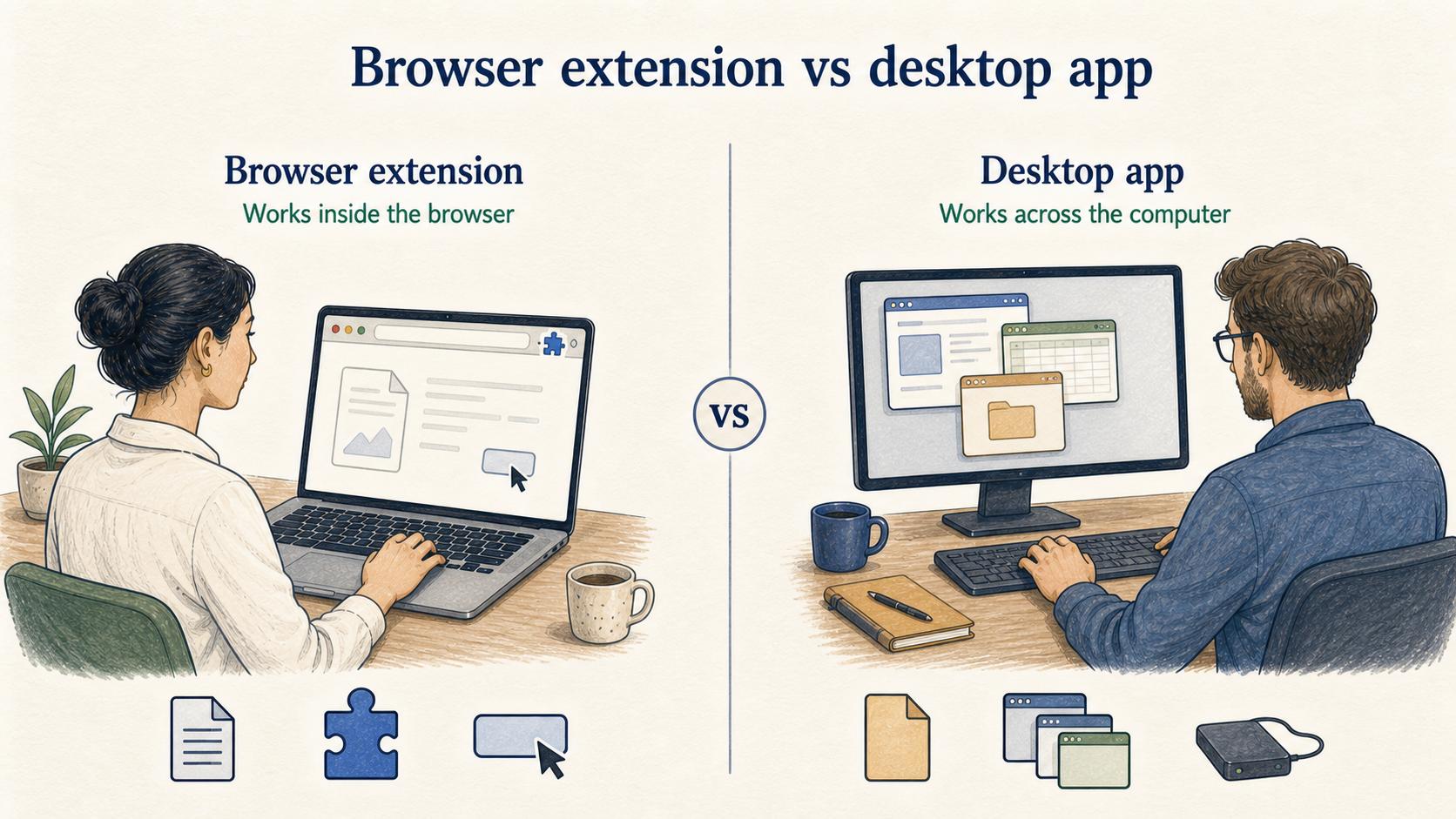
A browser extension lives inside the browser and is best for web-based actions. A desktop app runs at the operating-system level and can usually handle broader capture across files, windows, hardware, and multiple applications.
Choose a browser extension when the workflow happens mostly in web apps and the feature needs page context. Choose a desktop app when the workflow spans many applications, files, or system-level controls.
Many teams eventually use both. The extension handles lightweight in-browser actions; the web or desktop product handles review, editing, governance, and sharing.
How Trails helps
Trails uses browser-based capture to help teams document workflows as they happen. Instead of asking someone to write steps from memory, Trails captures a process while the person performs it, turns that workflow into a polished step-by-step guide, and can create an AI-narrated video version for training or sharing.
The extension layer works because it feeds a larger documentation workflow: captured steps become clean guides, repeatable processes, and easier handoffs.
FAQ
Is a browser extension the same as a Chrome extension?
Not exactly. A Chrome extension is a browser extension built for Google Chrome or other Chromium-based browsers. Browser extension is the broader category.
Are browser extensions safe for business use?
They can be, but teams should review permissions, vendor trust, data handling, and the workflow being supported. The safest extension is scoped to a clear job and asks only for the access it needs. NIST's Privacy Framework frames this kind of review as part of identifying and managing privacy risk while protecting individuals' privacy. 4
Why do workflow tools use browser extensions?
Workflow tools use browser extensions because many business processes happen inside web apps. The extension can capture or assist the work in context, then send the output to a system where it can be edited, shared, and maintained.
Sources
- 1
Chrome Extensions documentation on declaring permissions. Chrome Extensions documentation on declaring permissions. Chrome Extensions documentation on declaring permissions. developer.chrome.com/docs/extensions/develop/concepts/declare-permissions.
- 2
MDN WebExtensions permissions API. MDN WebExtensions permissions API. MDN WebExtensions permissions API. developer.mozilla.org/en-US/docs/Mozilla/Add-ons/WebExtensions/API/permissions.
- 3
Google Chrome Enterprise guide to extension permission risk. Google Chrome Enterprise guide to extension permission risk. Google Chrome Enterprise guide to extension permission risk. support.google.com/chrome/a/answer/9897812.
- 4
NIST Privacy Framework. NIST Privacy Framework. NIST Privacy Framework. www.nist.gov/privacy-framework.