
Glossary
AI Screenshot Editor
 ChatGPT
 Perplexity
 Gemini
 Claude
Overview
An AI screenshot editor uses artificial intelligence to help modify, clean up, annotate, redact, or repurpose screenshots. It may suggest edits, remove sensitive details, generate callouts, replace text, reduce visual clutter, or adapt a screenshot for a guide, training asset, or presentation.
The useful promise is speed. The risk is trust. Screenshots often show real interfaces, settings, customer data, or process steps, so AI editing needs a clear line between making an image easier to understand and changing what the image proves. C2PA's content provenance standard is a useful reference point because it focuses on establishing the origin and edits of digital content.1
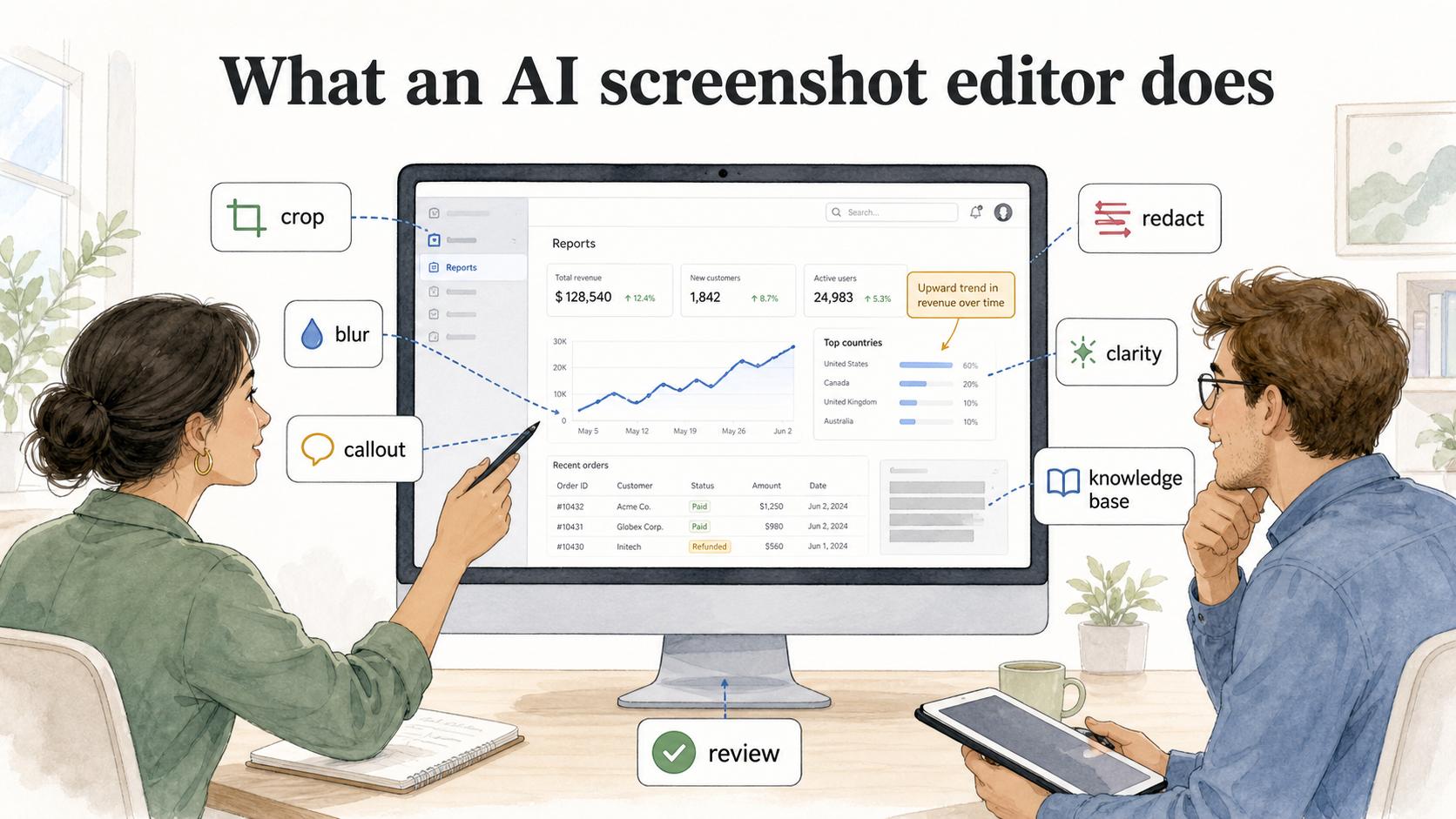
What an AI screenshot editor does
A basic screenshot editor gives people manual controls: crop, blur, draw, highlight, add text, or resize. An AI screenshot editor adds assistance around those same jobs. It might detect important interface elements, suggest where to place a callout, remove personal information, generate alternate labels, enhance image clarity, or reformat a screenshot for a knowledge base article.
For support, enablement, and documentation teams, the value is faster production of visual instructions. A teammate can capture a screen, hide private details, emphasize the relevant control, and turn the screenshot into something a reader can understand without a live explanation.
The editor still needs review. If a screenshot proves what a user saw, documents a bug, or explains a regulated workflow, AI-generated changes should be limited and intentional. NIST's AI Risk Management Framework describes trustworthy AI in terms such as validity, reliability, accountability, transparency, and privacy, which maps directly to this review step.2
AI screenshot editor vs annotation tool
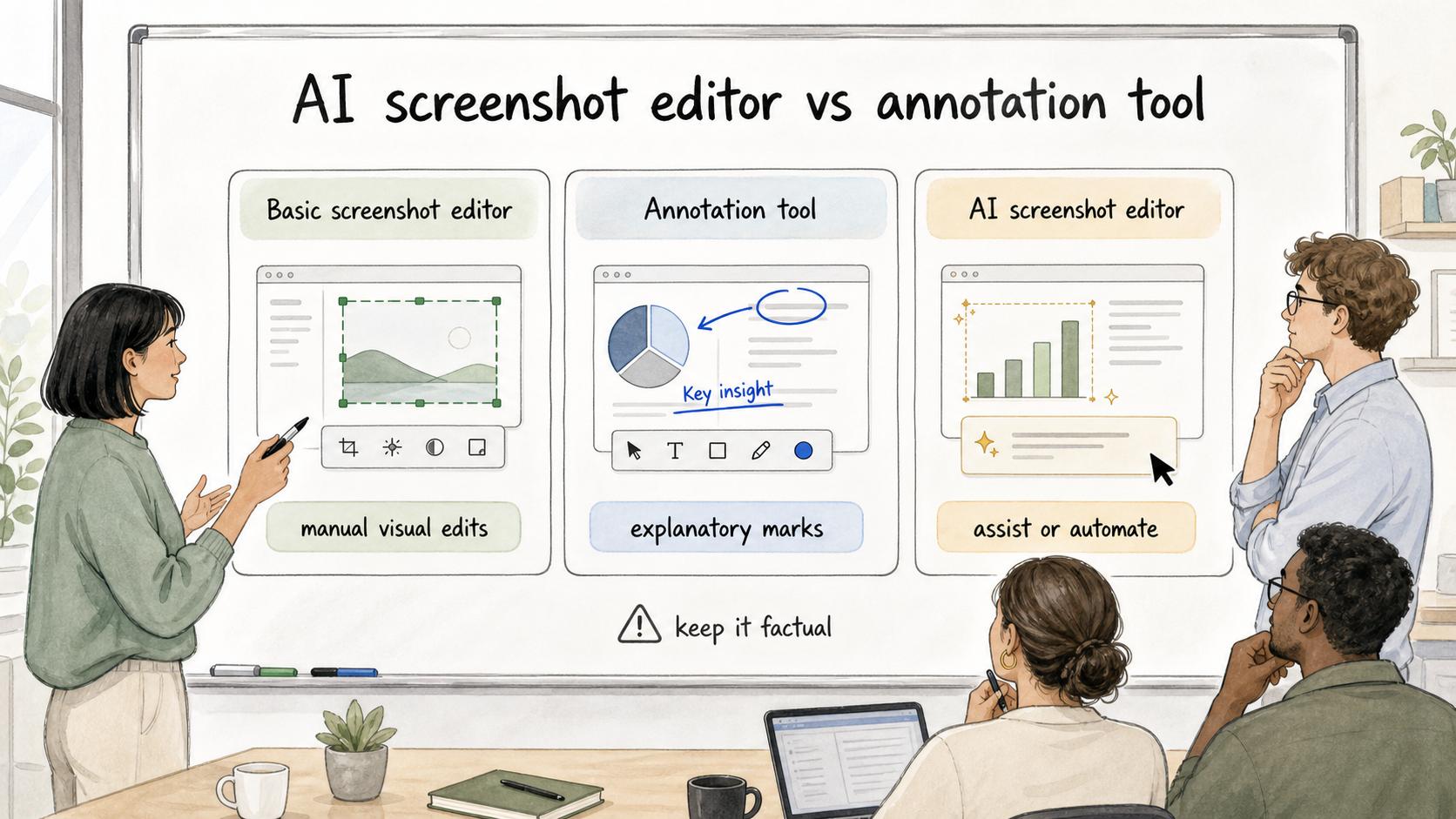
AI screenshot editors and annotation tools overlap, but they are not the same thing.
| Tool type | Main job | Best fit | Main caution |
|---|---|---|---|
| Basic screenshot editor | Manual visual edits | Quick crops, blurs, arrows, and labels | Slow for repeated documentation work |
| Annotation tool | Add explanatory marks or comments | Reviews, guides, training, and feedback | Can create clutter if every detail is marked |
| AI screenshot editor | Assist or automate screenshot cleanup and explanation | Faster documentation, redaction, layout, and callout generation | May alter details that should stay factual |
Start with the screenshot's job. If the image is a teaching aid, AI cleanup may be useful. If the image is evidence, edits need to be limited and transparent.
Where teams use AI screenshot editors
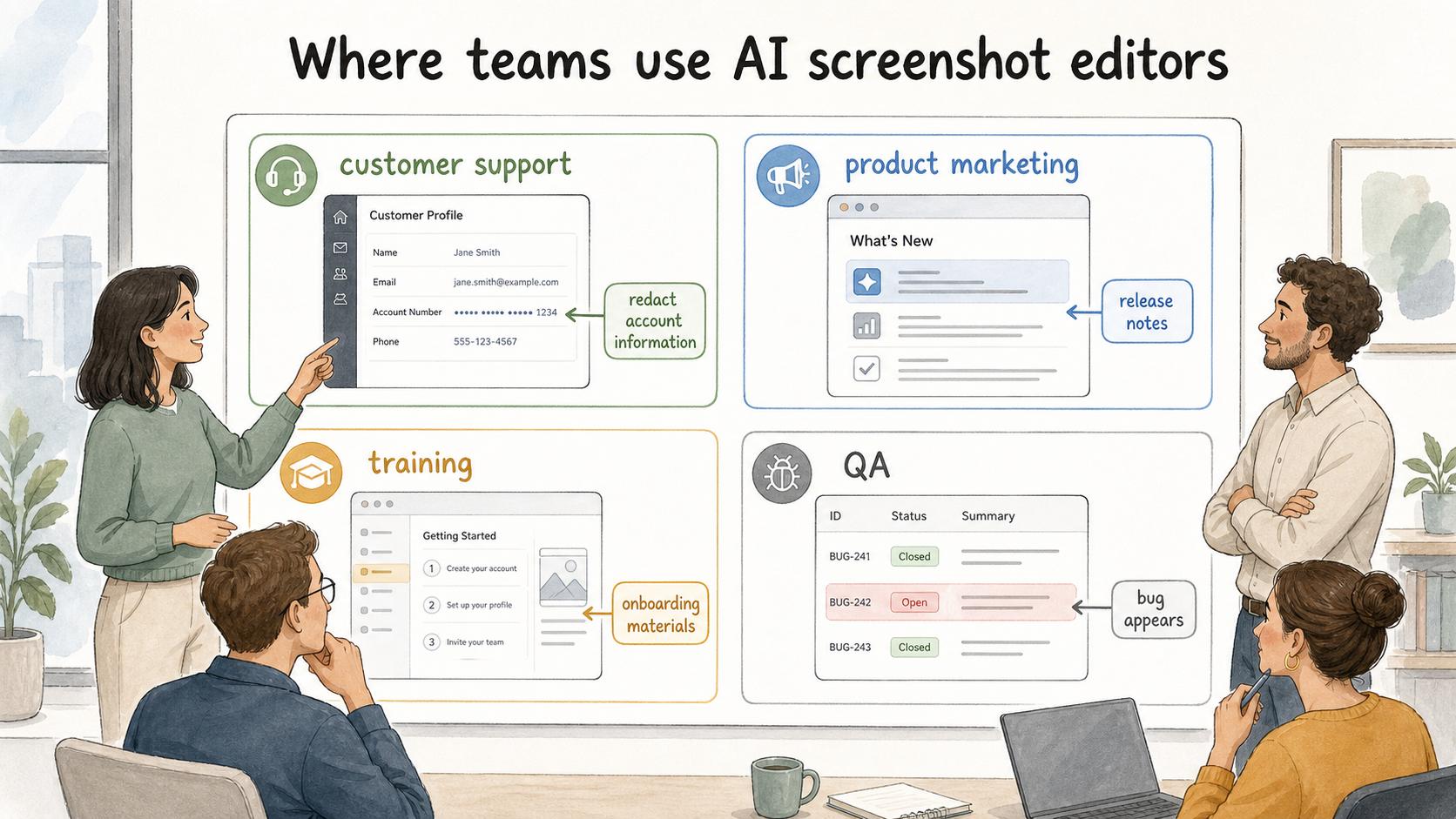
AI screenshot editors are most useful in workflows where screenshots are frequent, repetitive, and easy to misunderstand without context.
A customer support team might redact account information and highlight the exact button a user needs to click. A product marketing team might clean up demo screenshots for release notes. A training team might turn internal workflow captures into consistent onboarding materials. A QA team might add light annotation to show where a bug appears while preserving the reported state.
The shared job is visual communication. A screenshot compresses where something is, what changed, or what the reader should do next. Nielsen Norman Group's guidance on visual hierarchy supports this point: visual design should guide attention to the most important elements.3
What to check before publishing an edited screenshot
AI-assisted screenshots need review because small visual changes can create real confusion. A cleaned-up image may remove context a teammate needs. A generated callout may label the wrong field. A redaction may hide too much, making the step impossible to follow.
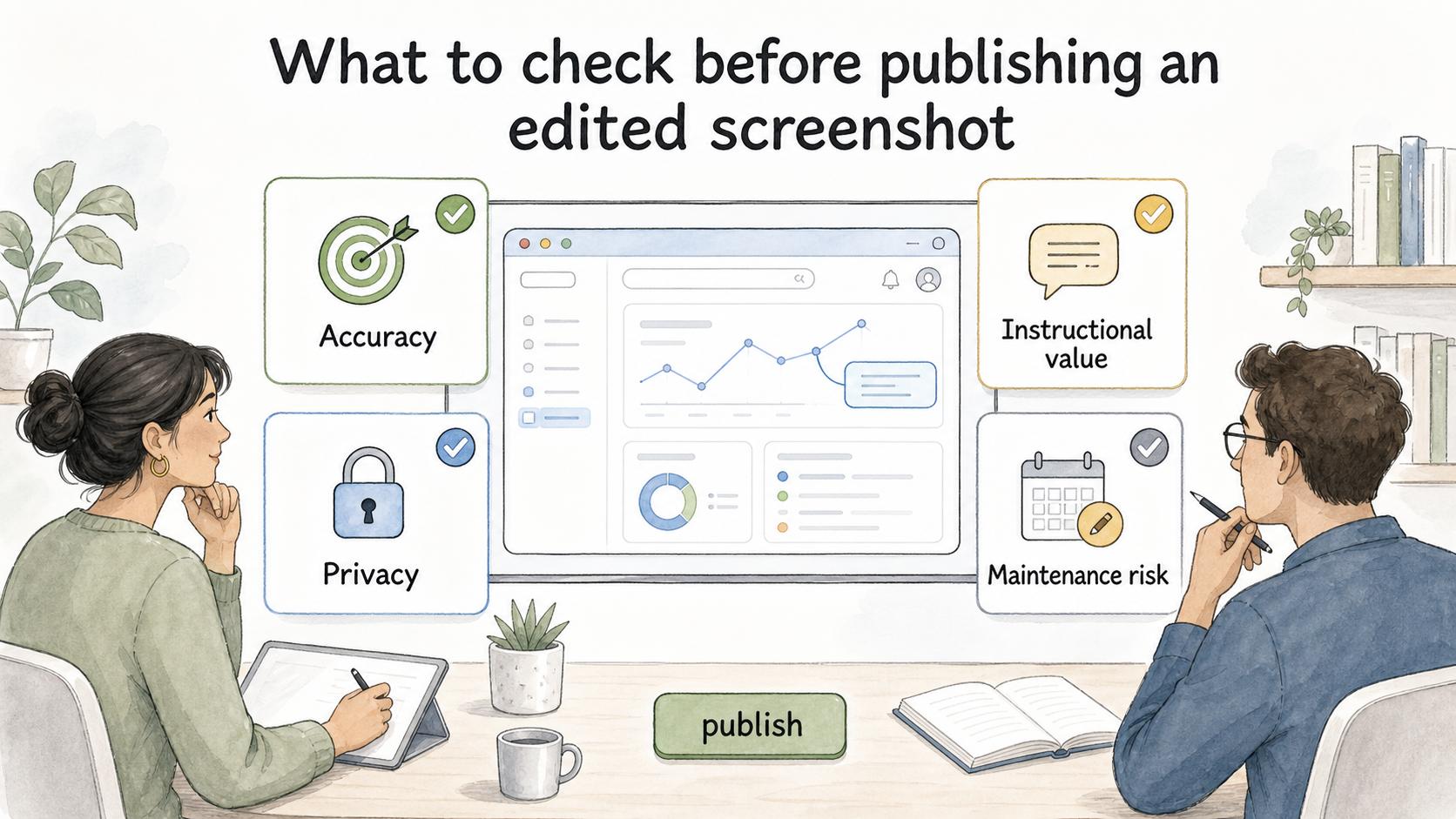
Before publishing, check four things:
- Accuracy: Does the edited image still represent the real interface or workflow?
- Privacy: Are customer details, credentials, emails, tokens, and internal notes removed? NIST's PII guidance is a useful baseline for deciding what information needs protection from inappropriate access, use, or disclosure.4
- Instructional value: Does every callout help the reader make a decision or take an action?
- Maintenance risk: Will this image become misleading after the next product or process change?
The best edited screenshot is usually the one that helps the reader act correctly without pretending the interface is simpler than it is.
Documentation takeaway
For process documentation, AI screenshot editing works best when it is tied to a repeatable workflow. Capture the actual process first, then use editing to clarify the moments that matter: the field that gets misread, the setting that must be enabled, the warning message that changes the next step, or the private data that should never appear in a public guide.
Avoid idealized screenshots that no user will actually see. That kind of polish can make documentation look cleaner while making it less useful. Readers need recognizable screens.
A practical rule is to edit for attention, privacy, and consistency. Don't edit away evidence, exceptions, or system behavior that the reader needs to understand.
How Trails helps
Trails helps when screenshots are part of documenting a real workflow. It captures a process as someone performs it, turns that workflow into a polished step-by-step guide, and can create an AI-narrated video version for training or sharing.
That gives teams a stronger starting point than a folder of disconnected screenshots. The visual assets stay connected to the process they explain, which makes the final guide easier to review, update, and trust.
Sources
- 1
C2PA. Verifying Media Content Sources. c2pa.org/.
- 2
NIST. AI Risk Management Framework: AI Risks and Trustworthiness. airc.nist.gov/airmf-resources/airmf/3-sec-characteristics/.
- 3
Nielsen Norman Group. Visual Hierarchy in UX: Definition. www.nngroup.com/articles/visual-hierarchy-ux-definition/.
- 4
NIST. SP 800-122, Guide to Protecting the Confidentiality of PII. csrc.nist.gov/pubs/sp/800/122/final.