
Glossary
Annotation Tool
 ChatGPT
 Perplexity
 Gemini
 Claude
What is an annotation tool?
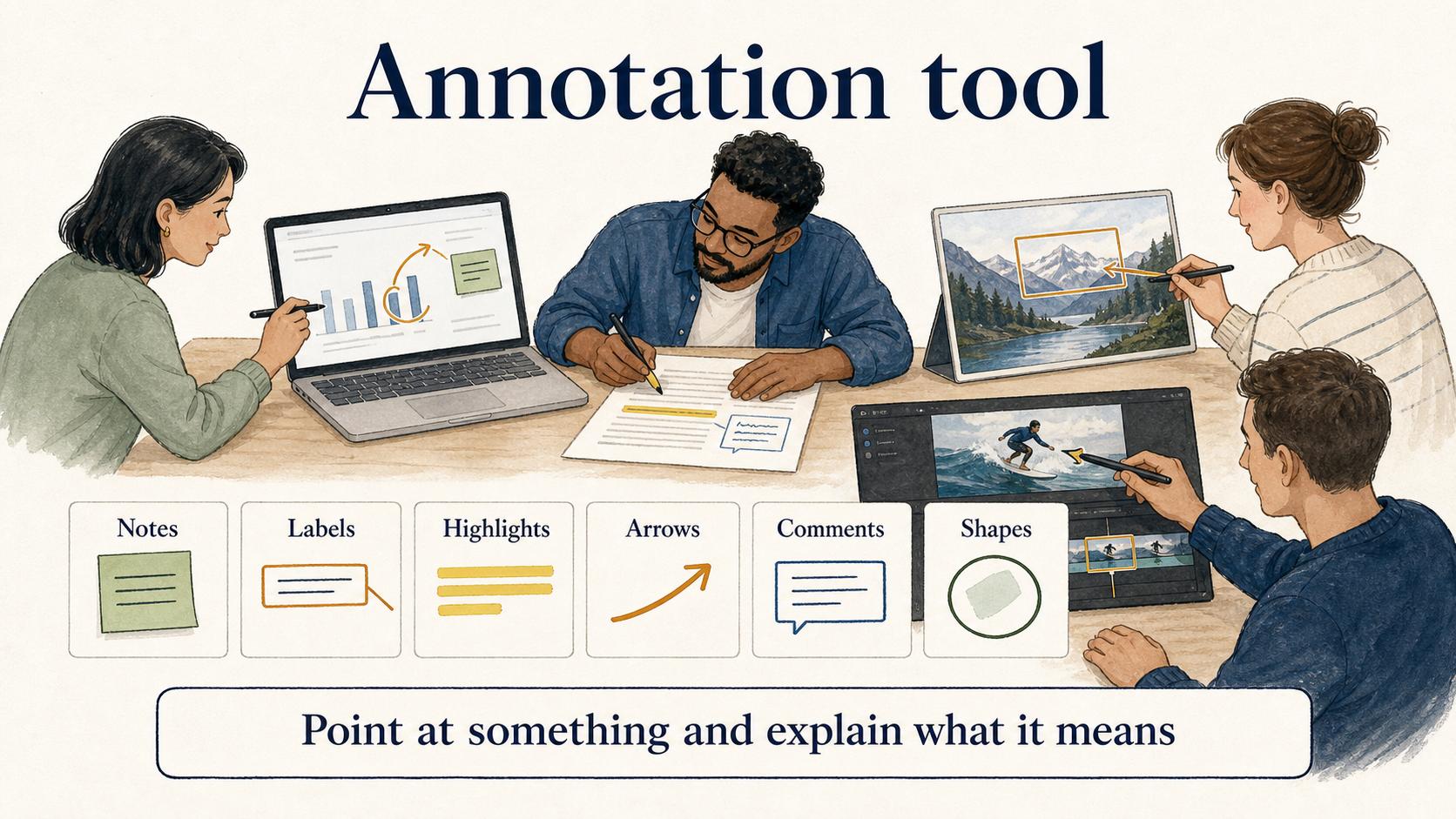
An annotation tool lets people add notes, labels, highlights, arrows, comments, shapes, or other context directly onto a file, screen, image, video, document, or dataset. It makes the important part visible so the reader doesn't have to infer it from a paragraph nearby.
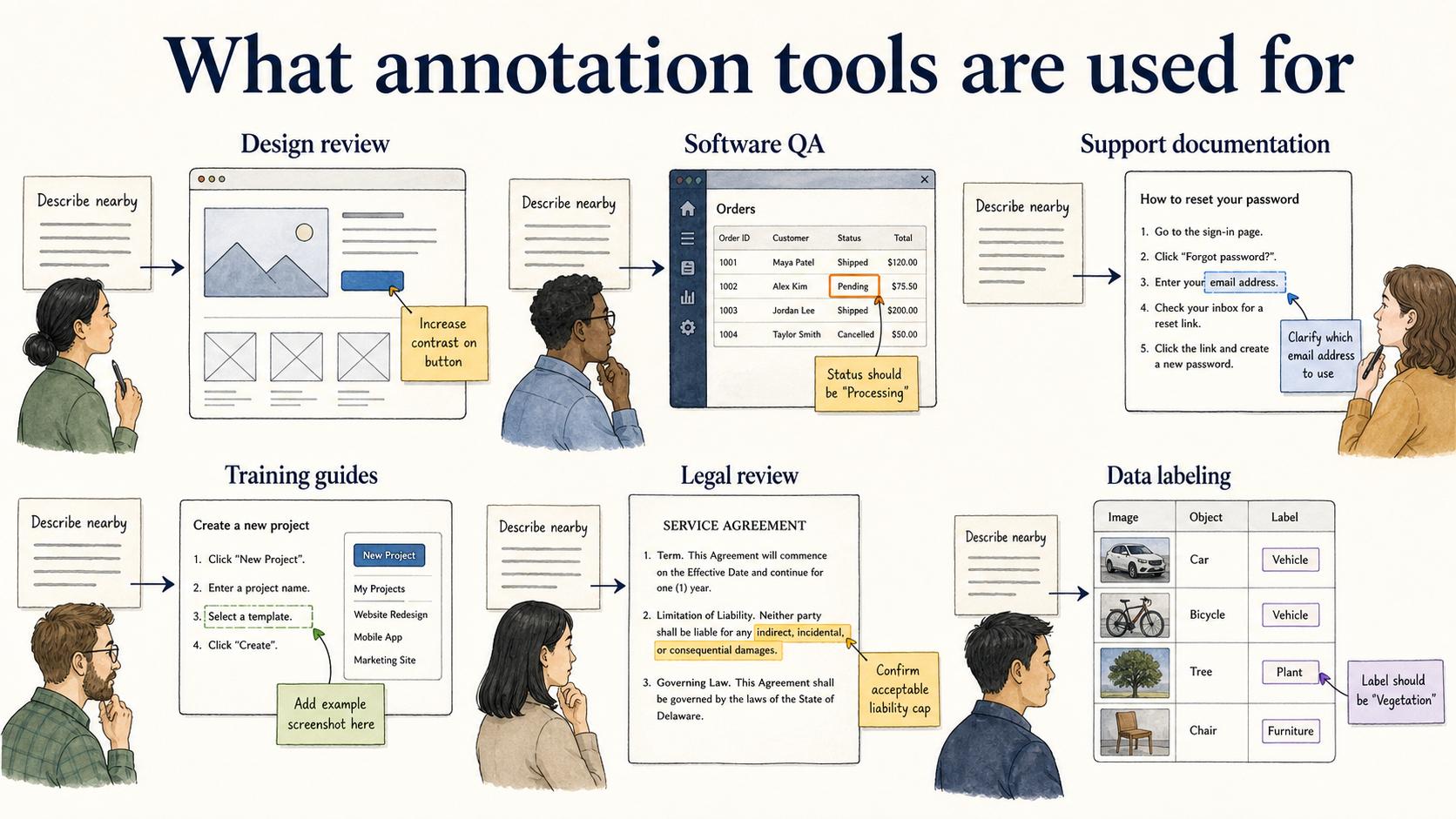
Teams use annotation tools for design review, software QA, support documentation, training guides, legal review, research, and machine learning data labeling. The shared job is simple: point at something and explain what it means. Research in engineering design has studied annotation as a way to reduce ambiguity in asynchronous design communication. 1
What annotation tools are used for
An annotation tool keeps the explanation close to the evidence. Instead of writing ‘click the small icon in the upper-right corner,’ a support team can put an arrow on the actual screenshot. Instead of sending a long review note, a product manager can comment on the exact part of a mockup that needs attention.
This matters most when the artifact is visual or spatial. Screens, forms, diagrams, contracts, and recordings contain details that are hard to describe cleanly in prose. Annotation gives the reader a shortcut to the evidence; Nielsen Norman Group similarly notes that relevant visuals placed near associated text can improve comprehension and memorability. 2
The failure mode is clutter. A screenshot with five arrows, three boxes, and a paragraph of tiny text may be annotated, but it's not easier to understand. Good annotation directs attention. It doesn't decorate the asset.
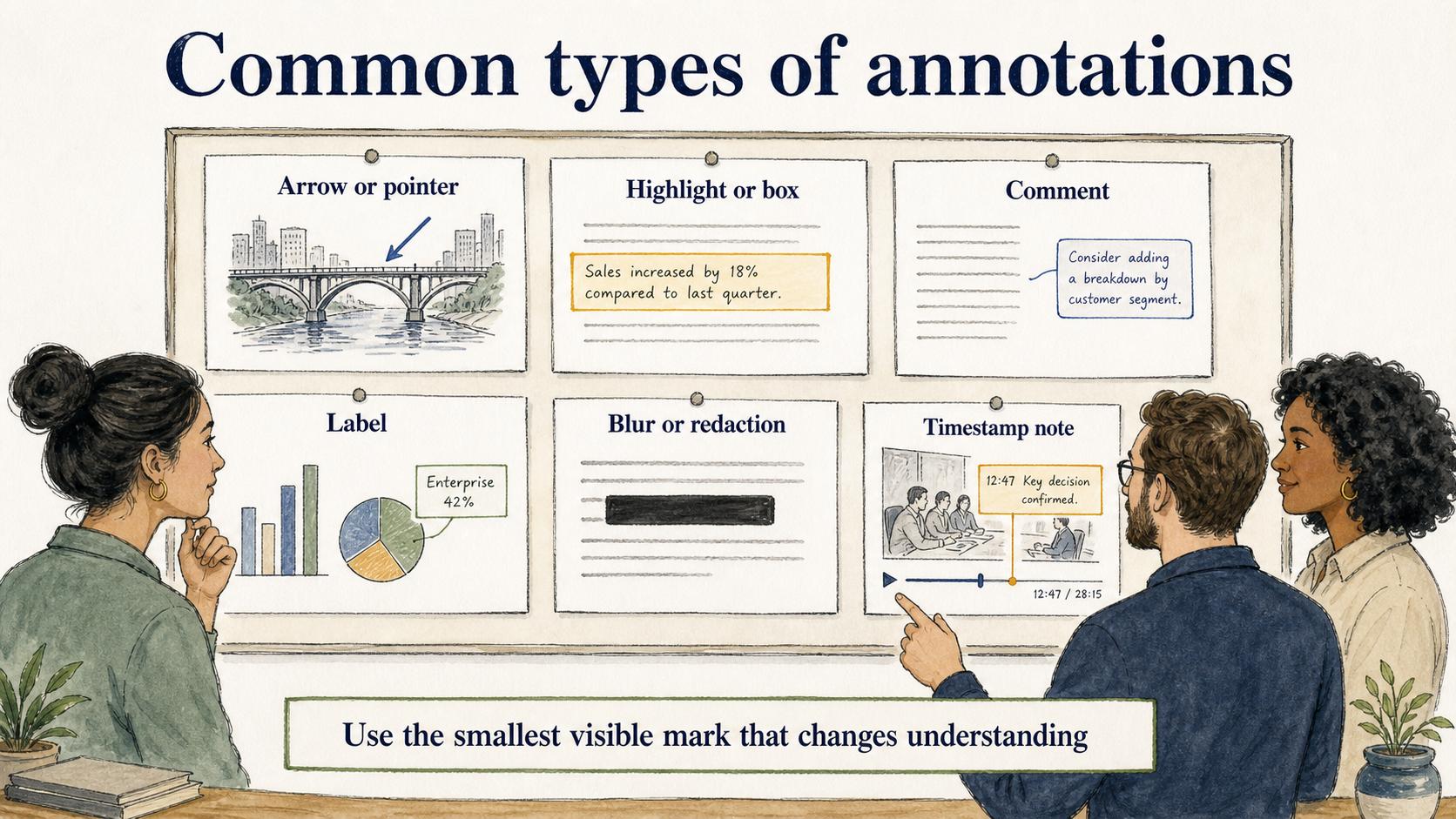
Common types of annotations
Different annotation styles answer different questions. Choosing the wrong one can make a guide feel cluttered or ambiguous.
| Annotation type | Best for | What to avoid |
|---|---|---|
| Arrow or pointer | Showing where to click, look, or focus | Pointing at several things at once |
| Highlight or box | Marking a region, field, or interface state | Boxing half the screen without a reason |
| Comment | Capturing review feedback or explanation | Burying key instructions in a side thread |
| Label | Naming parts of a diagram, screen, or process | Inventing labels the audience does not use |
| Blur or redaction | Hiding private, personal, or irrelevant detail | Removing context the reader needs to follow the workflow |
| Timestamp note | Explaining a moment in a video or recording | Linking to the wrong moment or leaving the note too vague |
The best annotation is usually the smallest visible mark that changes what the reader understands.
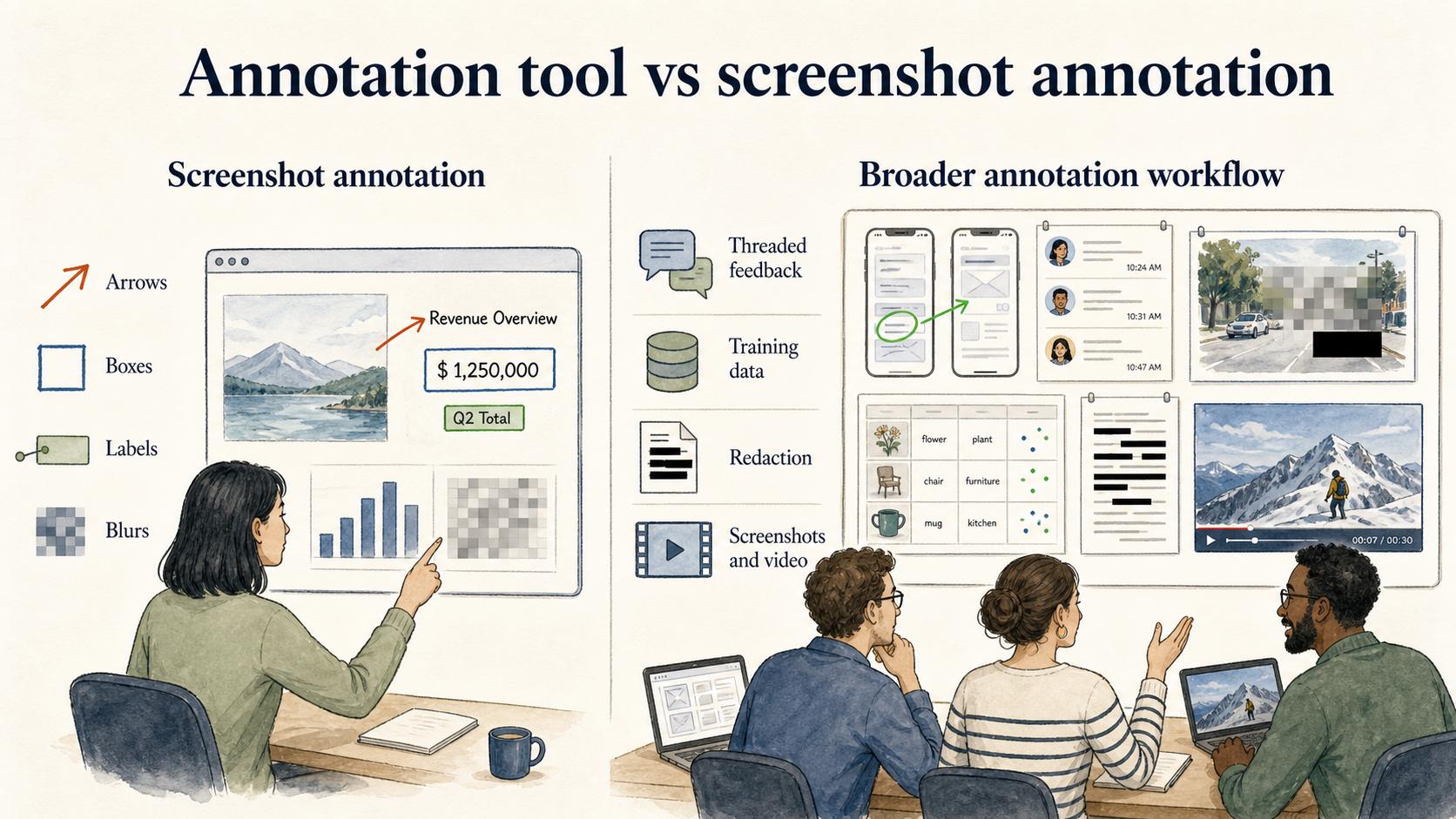
Annotation tool vs screenshot annotation
An annotation tool is the broader category. Screenshot annotation is one use case: adding arrows, boxes, labels, callouts, blurs, or notes to a captured screen. W3C's Web Annotation Data Model treats annotations as shareable structures that can travel across systems, not only as marks on one screenshot. 3
That distinction matters because teams often need more than screenshot markup. A design team may need threaded comments on mockups. A data team may need labels for training data. A support team may need quick redaction before sharing customer-facing instructions. A training team may need annotations on both screenshots and video.
Start from the artifact and the workflow. Do people need to mark a static screenshot, collaborate on feedback, redact sensitive information, or create repeatable training documentation? Those jobs can all involve annotations, but they don't need the same tool.
How to use annotations in documentation
In documentation, annotations should earn their place by reducing ambiguity. They work best when the reader needs to identify a specific interface element, compare two states, understand an exception, or avoid a common mistake.
A useful rule: annotate the decision point, not every step. If the screenshot and written instruction already make the step obvious, leave the image clean. If a user might click the wrong button, misread a label, or miss a required field, annotate that exact point.
Teams also need a maintenance rule. Product screens change. A callout that was accurate last quarter can become misleading after a UI refresh. That maintenance burden is the quiet cost of visual documentation, and it's why annotations should be used with intent.
Quick annotation checklist
Before publishing an annotated asset, ask:
- What should the reader notice first? If the answer is not obvious, simplify the annotations.
- Does the mark explain a choice, risk, or action? If it only repeats the written step, cut it.
- Will this still make sense after a small UI change? If not, document the owner and refresh trigger.
- Is sensitive information hidden without losing context? Redaction should protect data without breaking the lesson. NIST's PII guidance frames this as protecting personal information from inappropriate access, use, and disclosure.4
These questions keep annotation from becoming visual clutter disguised as help.
How Trails helps
Trails is useful when annotations are part of a repeatable workflow. A team can capture a process as someone performs it, turn that workflow into a polished step-by-step guide, and create an AI-narrated video version for training or sharing.
That keeps the annotation work connected to the process itself. Instead of collecting screenshots, marking them up, and rebuilding instructions from memory, teams can start from the actual workflow and refine the guide from there.
Sources
- 1
Hisarciklilar and Boujut. An annotation model to reduce ambiguity in design communication. link.springer.com/article/10.1007/s00163-009-0073-6.
- 2
Nielsen Norman Group. 7 Tips for Memorable and Easy-to-Understand Imagery. www.nngroup.com/articles/7-tips-memorable-imagery/.
- 3
W3C. Web Annotation Data Model. www.w3.org/TR/annotation-model/.
- 4
NIST. SP 800-122, Guide to Protecting the Confidentiality of PII. csrc.nist.gov/pubs/sp/800/122/final.