
Glossary
OCR
 ChatGPT
 Perplexity
 Gemini
 Claude
What is OCR?
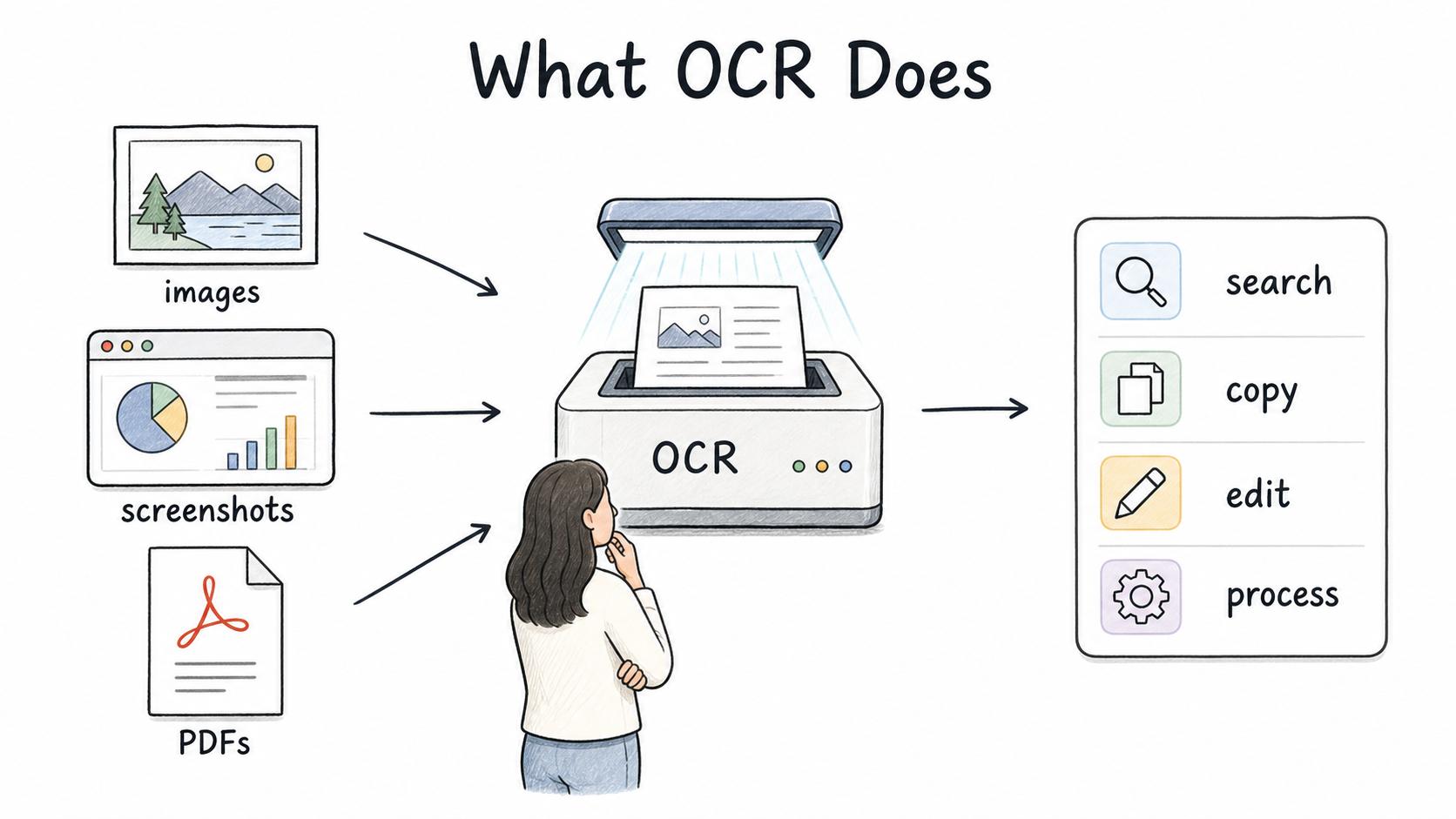
OCR stands for optical character recognition. It is technology that identifies text inside images, screenshots, scans, photos, or PDFs and converts that visual text into text a computer can search, copy, edit, or process. AWS describes OCR as converting an image of text into a machine-readable text format.1
OCR gets words out of places where they are otherwise trapped. A scanned contract, a photo of a printed form, a screenshot of an error message, or a PDF export can become searchable and reusable. The Library of Congress notes that OCR can make images searchable while still requiring care because quality may not be high enough to replace the original item.2 Treat OCR as a capture aid, not a perfect source of truth.
How OCR works
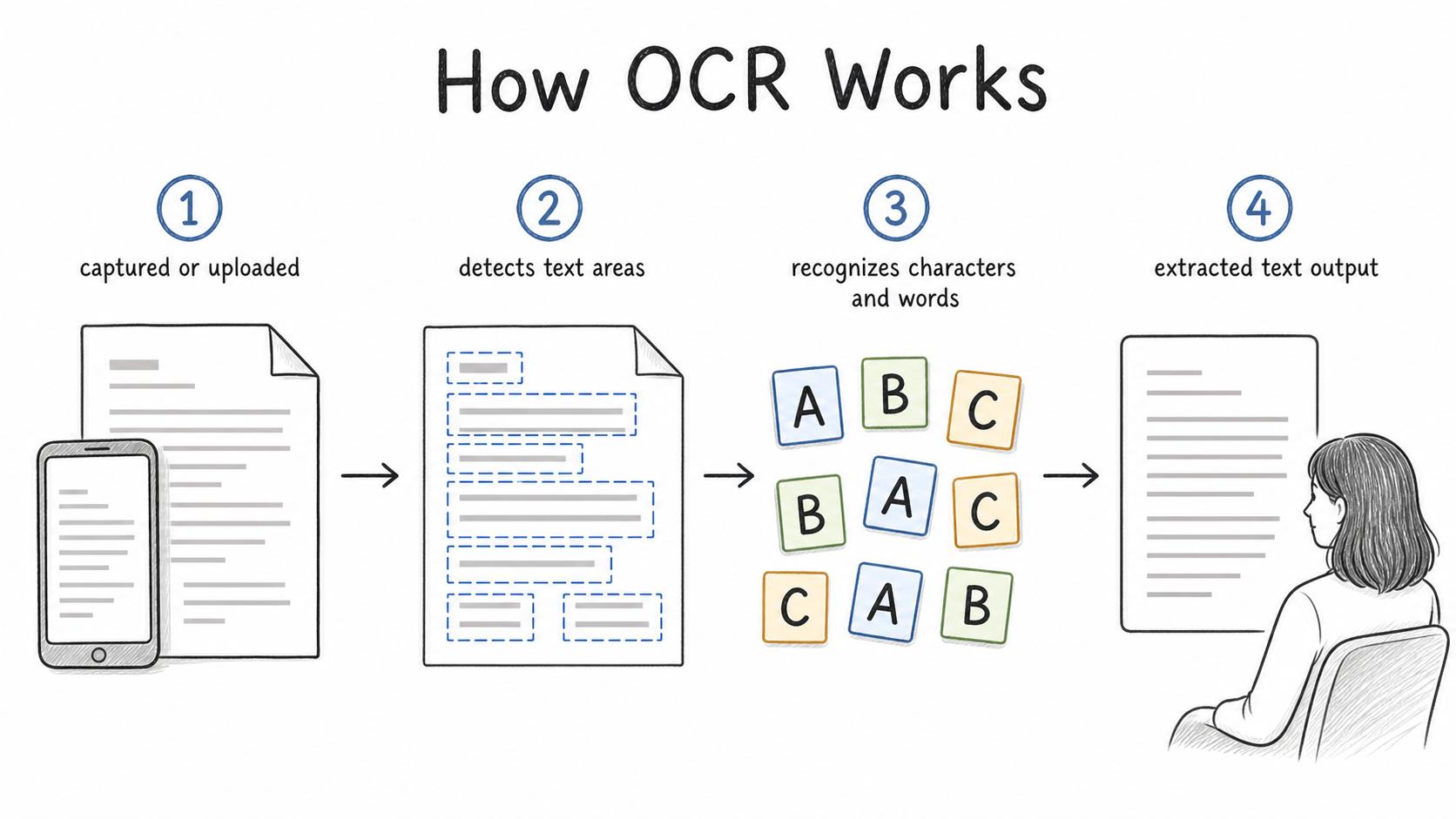
Most OCR workflows follow a recognizable sequence. A file is captured or uploaded: an image, screenshot, scan, or PDF. The OCR system detects areas that appear to contain text, recognizes the characters and words, and returns a text layer or extracted text output.
Modern OCR tools may also preserve layout, identify form fields, detect tables, handle multiple languages, or work with handwriting. Those features can be useful, but the core job stays the same: convert visible text into usable text.
That distinction matters because OCR does not understand a process the way a person does. It can read a button label, invoice number, or paragraph from a screenshot, but it does not know whether the captured text is current, complete, or safe to publish.
Common OCR examples
OCR shows up anywhere teams need to reuse or find information from visual files. Common examples include:
- Making scanned PDFs searchable
- Pulling text from screenshots for bug reports or support articles
- Extracting fields from invoices, forms, receipts, or order documents
- Converting old paper records into digital text
- Capturing UI labels from product screenshots
- Indexing archived documents so people can find them later
- Copying text from photos of whiteboards, signs, or printed instructions
For operations and documentation teams, the value is practical: less retyping, better search, easier migration, and cleaner reuse of legacy material.
OCR vs. transcription vs. manual data entry
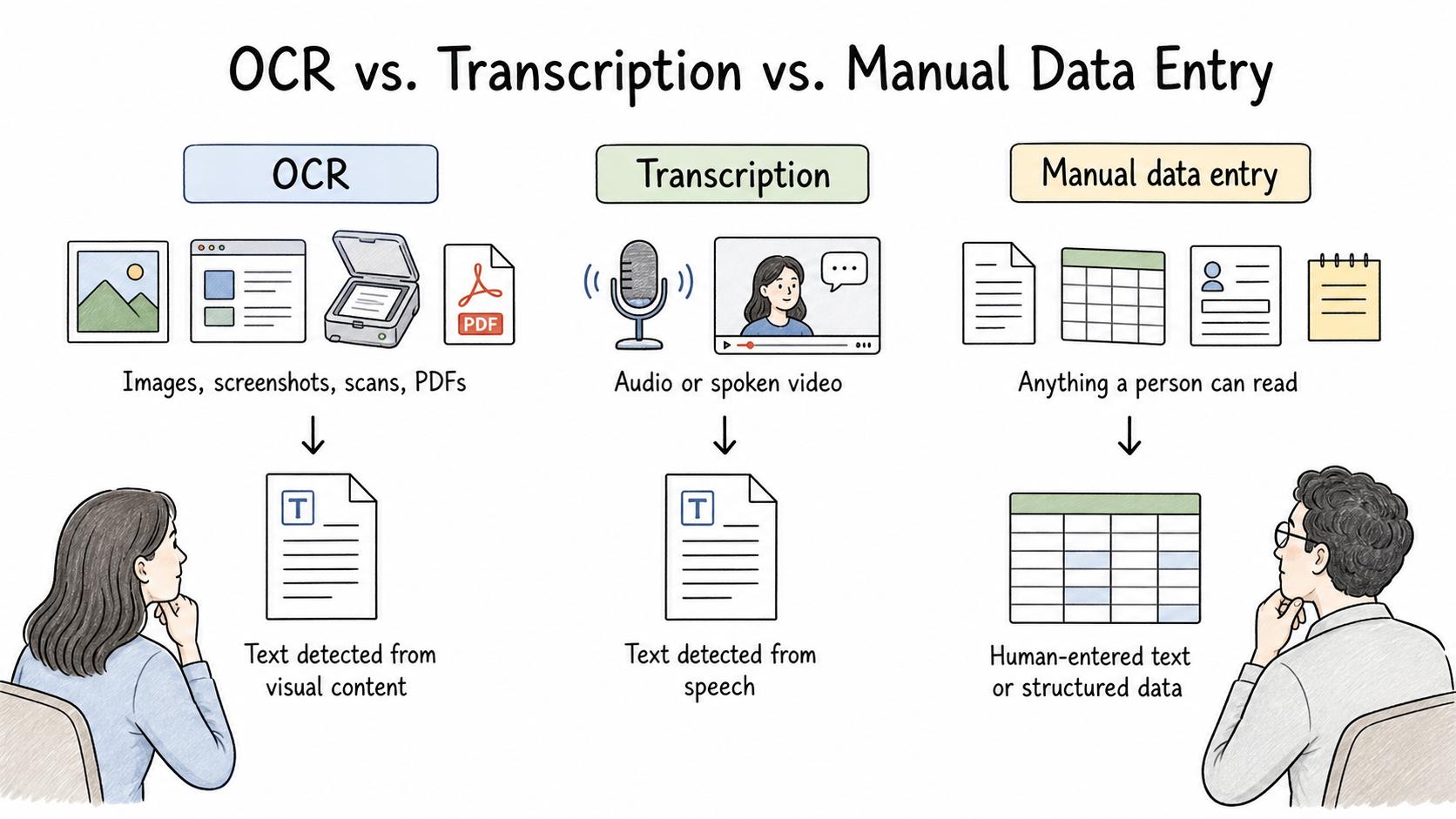
OCR is one type of capture technology. It is easy to confuse it with adjacent methods, especially when several are used in the same workflow.
| Method | Input | Output | Best fit |
|---|---|---|---|
| OCR | Images, screenshots, scans, PDFs | Text detected from visual content | Documents, forms, screenshots, printed material |
| Transcription | Audio or spoken video | Text detected from speech | Meetings, calls, narrations, training videos |
| Manual data entry | Anything a person can read | Human-entered text or structured data | High-judgment or high-risk records |
A product training video might use transcription for the narration and OCR for text visible on the screen. A scanned onboarding packet might use OCR to extract text, then human review before anything is stored in an HR system.
Where OCR helps documentation
Documentation often includes images because images show the real interface. The downside is that text inside an image is not automatically useful as text. If a help article only mentions an error message inside a screenshot, a support rep may not find that article when searching for the exact error.
OCR can capture visible text from screenshots, scans, and exported files. That can make documentation easier to search, audit, migrate, and maintain. It is especially useful when teams are turning legacy PDFs, screenshots, or paper binders into a searchable knowledge base.
A good documentation workflow treats OCR output as a draft ingredient. Use it to speed up capture, then review the extracted text before it becomes instructions, metadata, or searchable source material.
What to verify before trusting OCR output
OCR quality depends on image clarity, text size, contrast, layout, language, and the tool being used. Tesseract's project documentation similarly warns that better OCR results often require improving the input image quality.3 OCR can miss small labels, merge columns, skip text, or confuse similar characters like 0 and O.
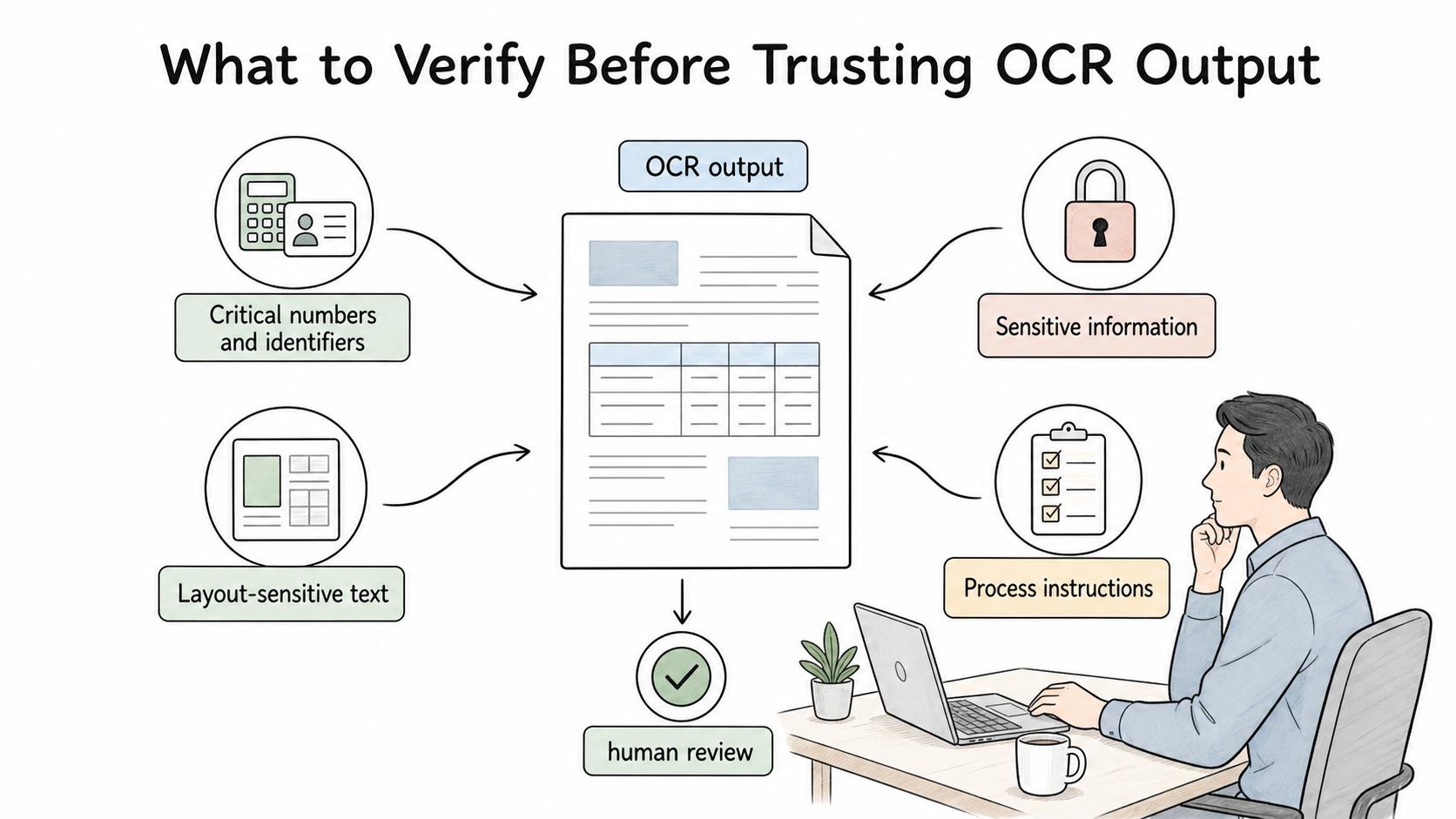
Before publishing or automating from OCR output, check:
- Critical numbers and identifiers: invoice numbers, order IDs, account numbers, dates, and codes are easy to misread and costly to get wrong.
- Layout-sensitive text: tables, forms, sidebars, and multi-column documents can be extracted in the wrong order. NIST's OCR research history included form recognition and document image understanding, which is a useful reminder that layout is part of the OCR problem, not just a visual detail.4
- Sensitive information: OCR may expose customer data, credentials, personal details, or confidential notes that were visible in a screenshot.
- Process instructions: one missed word in a workflow step can change what the reader does.
Let OCR reduce manual effort, but keep human review anywhere accuracy, privacy, compliance, or safety matters.
AI-ready OCR cleanup prompt
Use this after extracting OCR text from a document, screenshot, or scanned file:
## OCR Cleanup Prompt

**Glossary term:** OCR
**Source:** Trails Glossary — trails.so/glossary/ocr

---

### 01. Clean up OCR text

"Clean up this OCR text for internal documentation. Preserve the original meaning, remove duplicate line breaks, flag words or fields that look uncertain, and return a short list of items a human should verify before publishing.

Context: [what this document or screenshot is for]
OCR text:
[paste OCR output]"
How Trails helps
Trails helps teams capture workflows as they happen and turn them into polished step-by-step guides. OCR can support that workflow by making visible text in screenshots easier to search, reference, and clean up.
The larger goal is turning messy workflow evidence into usable documentation that someone can find and follow later. Text extraction is only useful when it helps that work.
Sources
- 1
Amazon Web Services. What is OCR?. aws.amazon.com/what-is/ocr/. Accessed July 24, 2026.
- 2
Library of Congress. Making Scanned Content Accessible Using Full-text Search and OCR. blogs.loc.gov/thesignal/2014/08/making-scanned-content-accessible-using-full-text-search-and-ocr/. Accessed July 24, 2026.
- 3
Tesseract OCR. Tesseract Open Source OCR Engine. github.com/tesseract-ocr/tesseract. Accessed July 24, 2026.
- 4
National Institute of Standards and Technology. Optical Character Recognition legacy project. www.nist.gov/itl/iad/image-group/programsprojects/legacy-projects/optical-character-recognition-ocr. Accessed July 24, 2026.