
Glossary
Screenshot Capture
 ChatGPT
 Perplexity
 Gemini
 Claude
What is screenshot capture?
Screenshot capture is the act of creating an image of what appears on a computer, browser, mobile, or software screen. Teams use screenshot capture to document workflows, explain product steps, report bugs, train employees, answer support questions, and preserve visual proof of a system state.1
A screenshot freezes context. It can show a button, setting, error message, confirmation screen, or completed state more clearly than text alone. The judgment work is choosing what to capture, what to leave out, and what to protect before the image is shared.
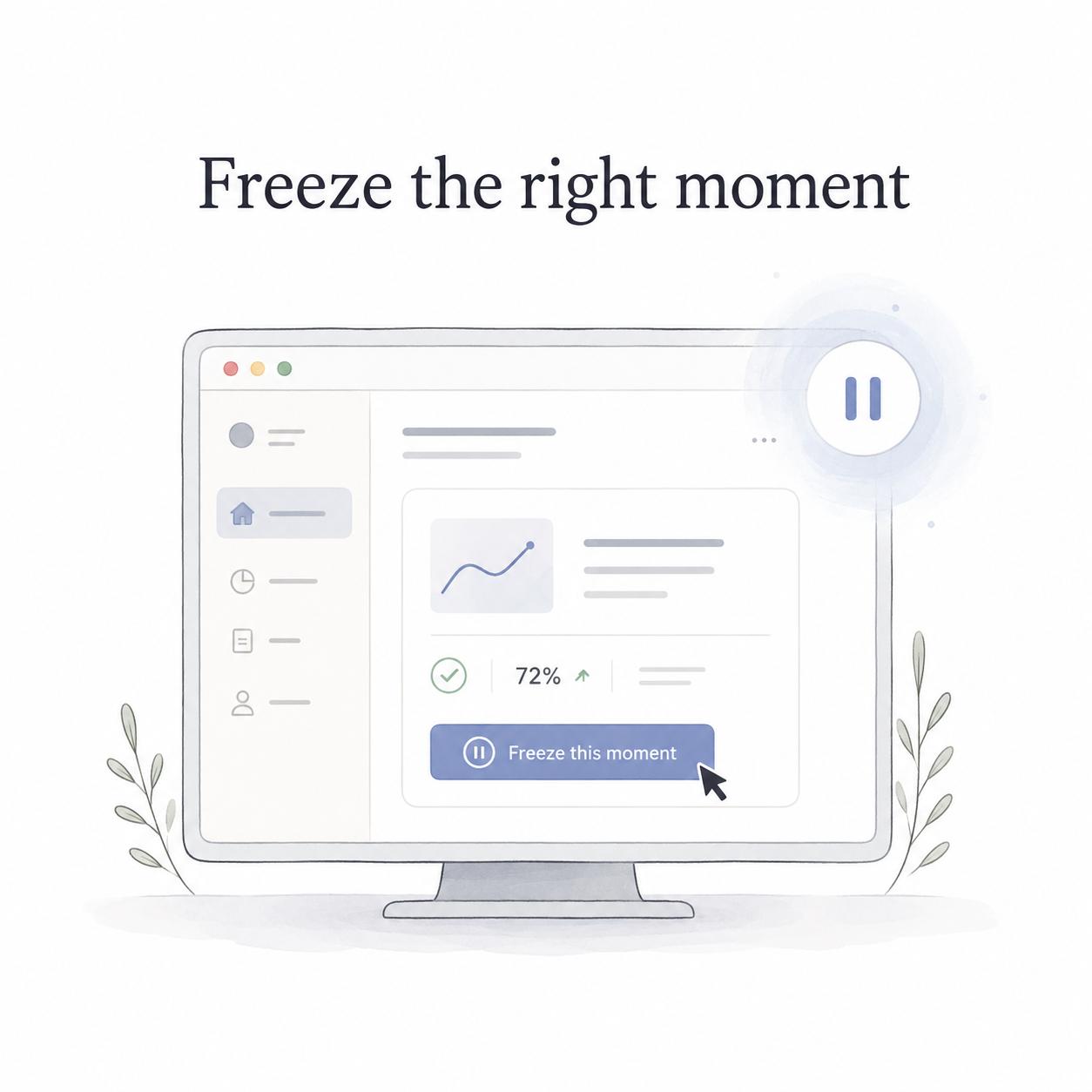
What screenshot capture is used for
Screenshot capture is common anywhere work happens inside software. A support agent may capture an error state. A product manager may capture a confusing settings screen. A QA tester may capture the exact bug behavior. An operations manager may capture a repeatable admin workflow for an SOP.
Good captures reduce ambiguity. Instead of saying "the button near the top," a screenshot can show the exact control. Instead of describing a broken layout in a bug report, a screenshot can show the visible failure. Instead of writing a long explanation for a training guide, a screenshot can anchor the written step.
Screenshots also carry baggage. They may include irrelevant browser tabs, account names, customer data, internal URLs, draft features, notifications, or outdated UI. Capture quality matters because the image often becomes the evidence other people trust.
Screenshot capture vs related formats
Screenshot capture is one visual documentation format. Use it when the reader needs to inspect a static state. Use another format when the sequence or interaction matters more than the still image.2
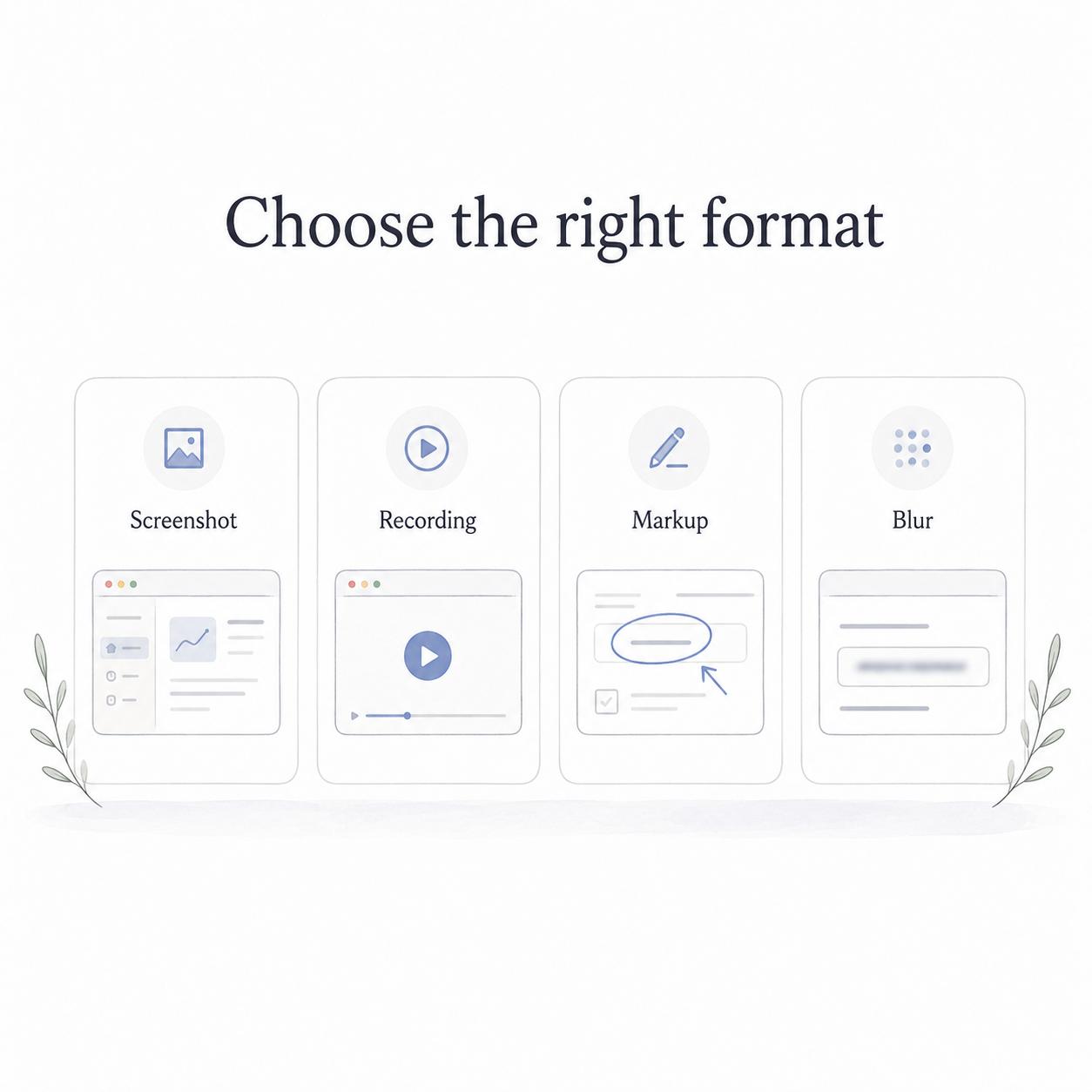
| Format | Best for | Use when |
|---|---|---|
| Screenshot capture | Static state, field, button, error, or confirmation | The reader needs to see exactly what is on screen |
| Screen recording | Multi-step motion, timing, or cursor movement | The path matters more than one individual screen |
| Screenshot markup | Drawing attention to one part of a captured image | The screenshot has too many competing details |
| Screenshot blur | Removing sensitive or distracting information | The image is useful but not safe to share as-is |
| OCR | Extracting text from an image | The screenshot contains text that needs to become searchable or editable |
A step-by-step guide often combines these formats. Static screenshots work well for decision points. Recordings work well for end-to-end demonstrations. Markup and blur make captured screenshots clearer and safer.
How to capture useful screenshots
Start by deciding what job the screenshot should do. Is it showing where to click, proving a bug, documenting a configuration, or confirming a final state? That job should determine the crop, timing, and amount of context.
Capture the smallest area that still gives the reader orientation. If you crop too tightly, the reader may not know where they are. If you capture the entire desktop, the relevant detail becomes tiny and distractions multiply. Browser tabs, bookmarks, chat notifications, and operating system alerts rarely belong in a documentation screenshot.

Use consistent window sizes when creating a guide. If every screenshot has a different zoom level or viewport, the guide feels stitched together from leftovers. A stable visual frame helps the reader compare screens and follow the process without re-learning the context every time.
Capture after the state is stable. A loading spinner, half-open menu, or temporary toast message can be useful if that is the thing being explained. Otherwise, wait until the page settles so the image represents what the reader should actually expect.
Privacy and screenshot capture
Privacy should be considered before the screenshot becomes part of a workflow. Screenshots can expose names, emails, customer records, payment details, internal notes, unreleased features, account IDs, API keys, URLs, or personal browser context.3
A useful habit is to stage the screen before capture. Use test data when possible. Close unrelated tabs. Hide side panels that aren't needed. Turn off notifications. Resize the window. If sensitive information must remain visible for context, plan to blur or redact it before sharing.
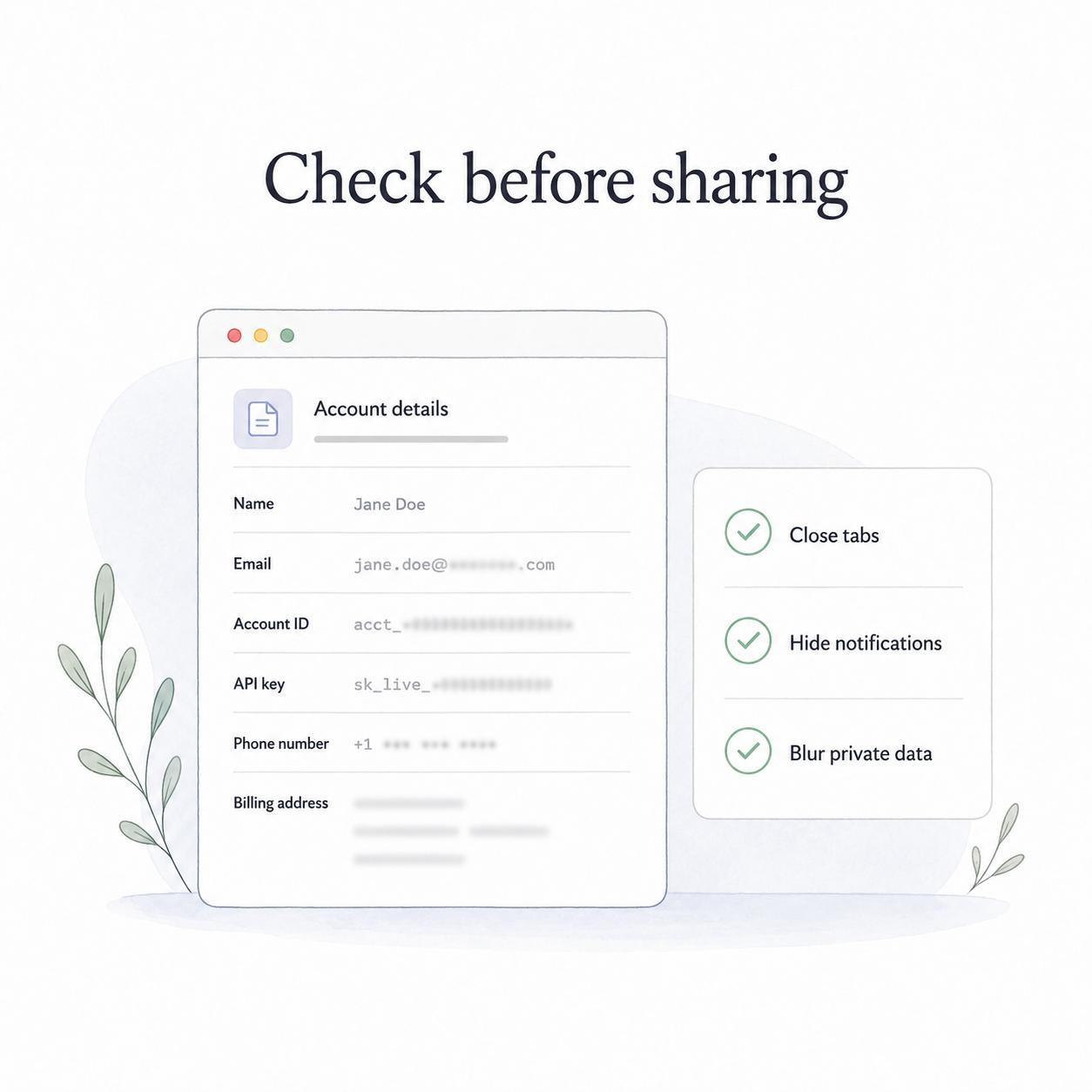
This matters even for internal docs. Internal screenshots are often copied into tickets, training decks, chat threads, and help centers. Once an unsafe screenshot moves through those channels, cleanup is much harder than a careful capture would have been.
What to capture in process documentation
For SOPs and training guides, capture the moments where the reader needs confidence. A screenshot should confirm a location, a required value, a choice, or an outcome. It should not document every tiny transition unless each transition changes what the reader must do.4
Good capture points include the starting screen, a key menu selection, a required form field, an unusual setting, an error message, a confirmation screen, and the final completed state. Weak capture points include obvious clicks, blank loading states, repeated screens, or visuals that duplicate the written step without adding certainty.
The best process screenshots answer one question at a time. Where am I? What should I choose? What should this look like? How do I know it worked?
Common mistakes
The first mistake is capturing too much. A full desktop capture may be quick, but it often makes the target small and exposes unrelated information.
The second mistake is capturing too little. If the image only shows a button with no surrounding UI, the reader may not know where the button lives.
The third mistake is treating capture as the final step. Most screenshots need at least a quick review for crop, clarity, and privacy before they become documentation.
The fourth mistake is letting screenshots age silently. Product UI changes quickly. If an old screenshot shows a button, layout, or setting that no longer exists, the guide loses credibility even if the written instructions are still mostly right.
How Trails helps
Trails captures a workflow as someone performs it and turns that sequence into a polished step-by-step guide. That reduces manual screenshot capture work because the visuals are already tied to the steps they explain. Trails can also create an AI-narrated video version for training or sharing.
For teams documenting SOPs, onboarding workflows, support steps, or product procedures, that makes the capture process easier to repeat and easier to maintain.
Sources
- 1
Microsoft. Microsoft Snipping Tool guidance. Microsoft. www.microsoft.com/en-us/windows/tips/snipping-tool. Accessed July 8, 2026.
- 2
Apple Support. Apple Support screenshot controls for Mac. Apple. support.apple.com/guide/mac-pro/take-a-screenshot-apdbc4019fdf/mac. Accessed July 8, 2026.
- 3
National Institute of Standards and Technology. NIST guidance on protecting sensitive information. NIST, 2024. www.nist.gov/news-events/news/2024/05/nist-finalizes-updated-guidelines-protecting-sensitive-information. Accessed July 8, 2026.
- 4
World Wide Web Consortium. W3C WCAG guidance on images of text. W3C. www.w3.org/WAI/WCAG22/Understanding/images-of-text.html. Accessed July 8, 2026.