
Glossary
Video to Text
 ChatGPT
 Perplexity
 Gemini
 Claude
What is video to text?
Video to text is the process of converting spoken or visible information in a video into written text. The output might be a transcript, captions, meeting notes, a summary, a how-to guide, a support article, or a step-by-step SOP based on what the video shows.1
At its simplest, video to text captures the words spoken in a recording. In more useful workflows, it turns the recording into structured information people can search, edit, share, and reuse. The value is not just extracting words from a video. It is turning recorded knowledge into something easier to find, trust, and act on.
How video to text works
Most video-to-text workflows start with transcription. A person or AI tool listens to the audio track and produces written text. Some tools also identify speakers, generate timestamps, add captions, summarize key points, or detect visible text on screen.
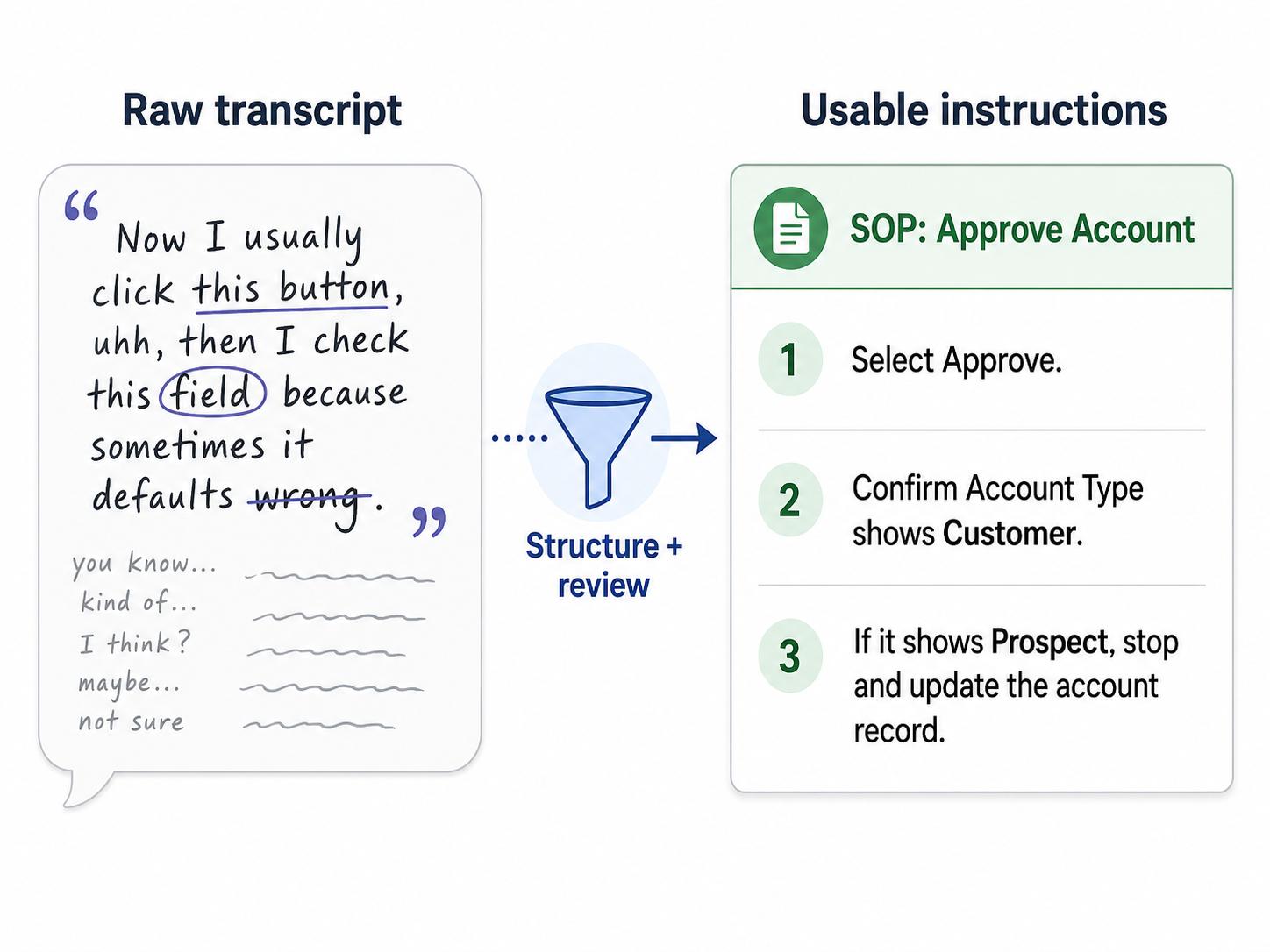
For process documentation, the workflow usually needs one more step. A raw transcript says what someone said while doing the work. A useful guide explains what the reader should do.
For example, a transcript might say, "Now I usually click this button, then I check this field because sometimes it defaults wrong." A good written procedure turns that into: "Select Approve. Before continuing, confirm that the Account Type field shows Customer. If it shows Prospect, stop and update the account record first."
That translation from spoken explanation to usable instruction is where many video-to-text projects either succeed or stall.
Common uses for video to text
Video to text is useful whenever important knowledge is trapped in recordings. Teams use it to make videos searchable, accessible, easier to review, and easier to convert into documentation.2
| Video source | Useful text output |
|---|---|
| Training video | Transcript, summary, checklist, or step-by-step guide |
| Product tutorial | Help article, user guide, captions, or support snippet |
| Process walkthrough | SOP, work instruction, or workflow documentation |
| Meeting recording | Notes, decisions, action items, and follow-up summary |
| Customer interview | Themes, quotes, objections, and research notes |
| Support demo | Troubleshooting steps, macro draft, or knowledge base article |
The best output depends on the job. A legal or compliance review may need a verbatim transcript. A new hire may need a cleaned-up checklist. A support team may need a searchable article that skips filler and preserves the actual fix.
Video to text vs transcription
Transcription is one type of video-to-text output. It captures speech in written form, usually in the same order it appears in the video.
Video to text is broader. It can include transcription, but it can also include summarization, formatting, step extraction, captioning, translation, or conversion into a different document type. Transcription answers, "What was said?" Video to text can also answer, "What should someone do with this?"
That distinction matters for operations and training teams. If the goal is a searchable archive, a transcript may be enough. If the goal is onboarding or process execution, the transcript usually needs to be edited into clear instructions.
What makes video-to-text output useful
Useful video-to-text output is accurate, structured, and matched to the reader's task. It should keep the important detail while removing the noise that naturally appears in spoken explanation.
A good output usually includes:
- A clear title and purpose.
- The audience or role the content is for.
- The key steps, decisions, or takeaways.
- Timestamps when the original video remains useful.
- Speaker labels when multiple people are talking.
- Screenshots or visual references when the video shows important UI or physical actions.
- A review pass by someone who understands the process.
The review pass matters. AI can produce a strong first draft, but speech-recognition quality is commonly evaluated by the errors that remain in the transcript, and audio quality can affect those errors.3 AI can also mishear product names, skip visual context, or turn a casual aside into an instruction. For process documentation, the person who owns the work should validate the output before teams rely on it.
How to turn a video into useful text
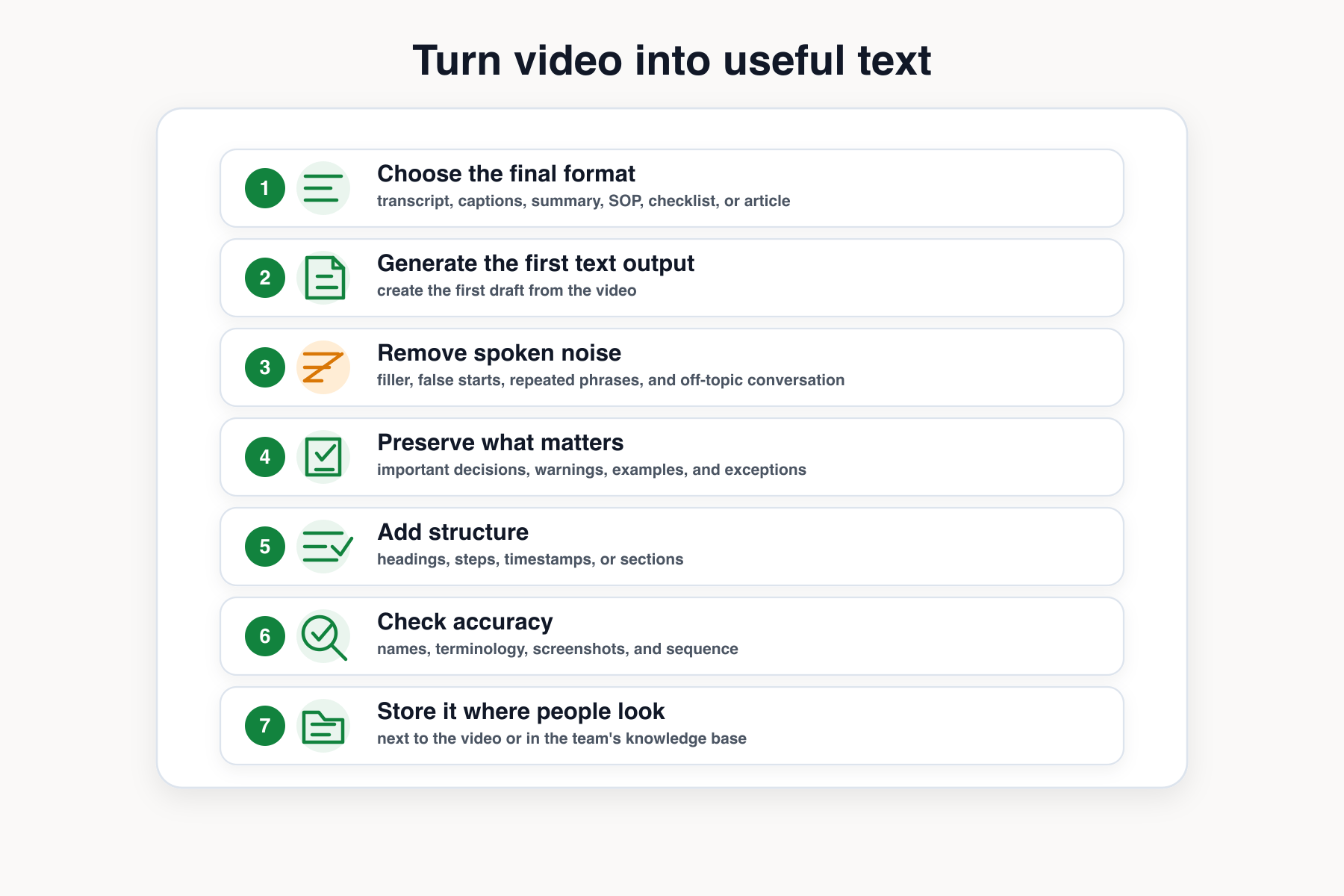
Start by deciding what the final text should do. If the reader needs to find one quote, create a transcript. If they need to perform a task, create a guide. If they need the gist, create a summary.
A practical workflow looks like this:
- Choose the final format: transcript, captions, summary, SOP, checklist, or article.
- Generate the first text output from the video.
- Remove filler, false starts, repeated phrases, and off-topic conversation.
- Preserve important decisions, warnings, examples, and exceptions.
- Add structure with headings, steps, timestamps, or sections.
- Check names, terminology, screenshots, and sequence accuracy.
- Store the text next to the video or in the team's knowledge base.
Do not skip the structure step. A wall of transcript text is technically searchable, but it is rarely easy to use.
AI-ready video-to-text prompt
Use this prompt after generating or pasting a transcript:
## Video-to-Text Transformation Prompt

**Glossary term:** Video to Text
**Source:** Trails Glossary — trails.so/glossary/video-to-text

---

### 01. Turn a transcript into a useful artifact

"Turn this video transcript into [final format: SOP, checklist, help article, training notes, summary].

Audience: [team, role, or customer type]
Goal: [what the reader needs to do or understand]
Context: [where the video came from]
Keep: [important terminology, warnings, examples, decisions]
Remove: filler, repeated phrases, unrelated conversation, false starts
Add: clear headings, numbered steps, and a short summary
Flag: any missing information, unclear step, or assumption that needs review

Transcript:
[paste transcript]"
For a process walkthrough, ask the tool to separate "what was said" from "what the worker should do." That produces cleaner SOPs and avoids copying narration quirks into official documentation.
Documentation takeaway
Video is a rich source of context, but text is easier to search, skim, update, and connect to a documentation system. The best video-to-text workflow does not stop at transcription. It turns recorded knowledge into an artifact someone can actually use.
That might mean a transcript for reference, a summary for review, or a step-by-step guide for repeatable work. The right format depends on the job the reader needs to do next.
How Trails helps
Trails is built for the moment when a video contains a repeatable workflow. Instead of leaving the process as a recording, Trails captures the workflow as someone performs it and turns it into a polished step-by-step guide.
Trails can also create an AI-narrated video version for training or sharing. That gives teams both sides of the video-to-text problem: the visual walkthrough for learners who need to see the work, and the written guide for people who need to search, skim, and follow the steps later.
FAQ
Is video to text the same as captions?
Captions are one possible video-to-text output. They display spoken words alongside the video. Video to text can also produce transcripts, summaries, SOPs, help articles, and other written formats.
Can AI turn a video into an SOP?
AI can help create a first draft, especially when the transcript is clear and the workflow is visible. A process owner should still review the sequence, terminology, exceptions, and final instructions before the SOP becomes official.
Why convert a video to text if the video already exists?
Text is easier to search, skim, edit, translate, and reuse; usability research also recommends captions and full transcripts so people can choose the relevant content without watching an entire video.4 The video may be better for learning the task the first time, while the text is better for reference and maintenance.
Sources
- 1
W3C Web Accessibility Initiative. Transcripts. W3C. www.w3.org/WAI/media/av/transcripts/. Accessed June 24, 2026.
- 2
Section 508. Captions and Transcripts. U.S. General Services Administration. www.section508.gov/create/captions-transcripts/. Accessed June 24, 2026.
- 3
MITRE. Effect of Audio Quality on Automatic Speech Recognition Word Error Rate. MITRE. www.mitre.org/sites/default/files/pdf/06_1154.pdf. Accessed June 24, 2026.
- 4
Nielsen Norman Group. Video Usability. Nielsen Norman Group. www.nngroup.com/articles/video-usability/. Accessed June 24, 2026.