
Glossary
Speech to Text
 ChatGPT
 Perplexity
 Gemini
 Claude
What is speech to text?
Speech to text is technology that converts spoken language into written text. Teams use it in dictation tools, meeting transcripts, captions, voice notes, call recordings, training videos, and documentation workflows where spoken knowledge needs to become searchable and reusable.
The output might be a rough transcript, cleaned-up notes, subtitles, or structured content. The important caveat is that speech to text does not create finished documentation by itself. It creates raw material that still needs review, structure, and context.
How speech to text works in practice
Most speech-to-text workflows start with audio from a microphone, screen recording, video file, phone call, webinar, or meeting recording. The tool analyzes the speech and produces text, often with timestamps and speaker labels.
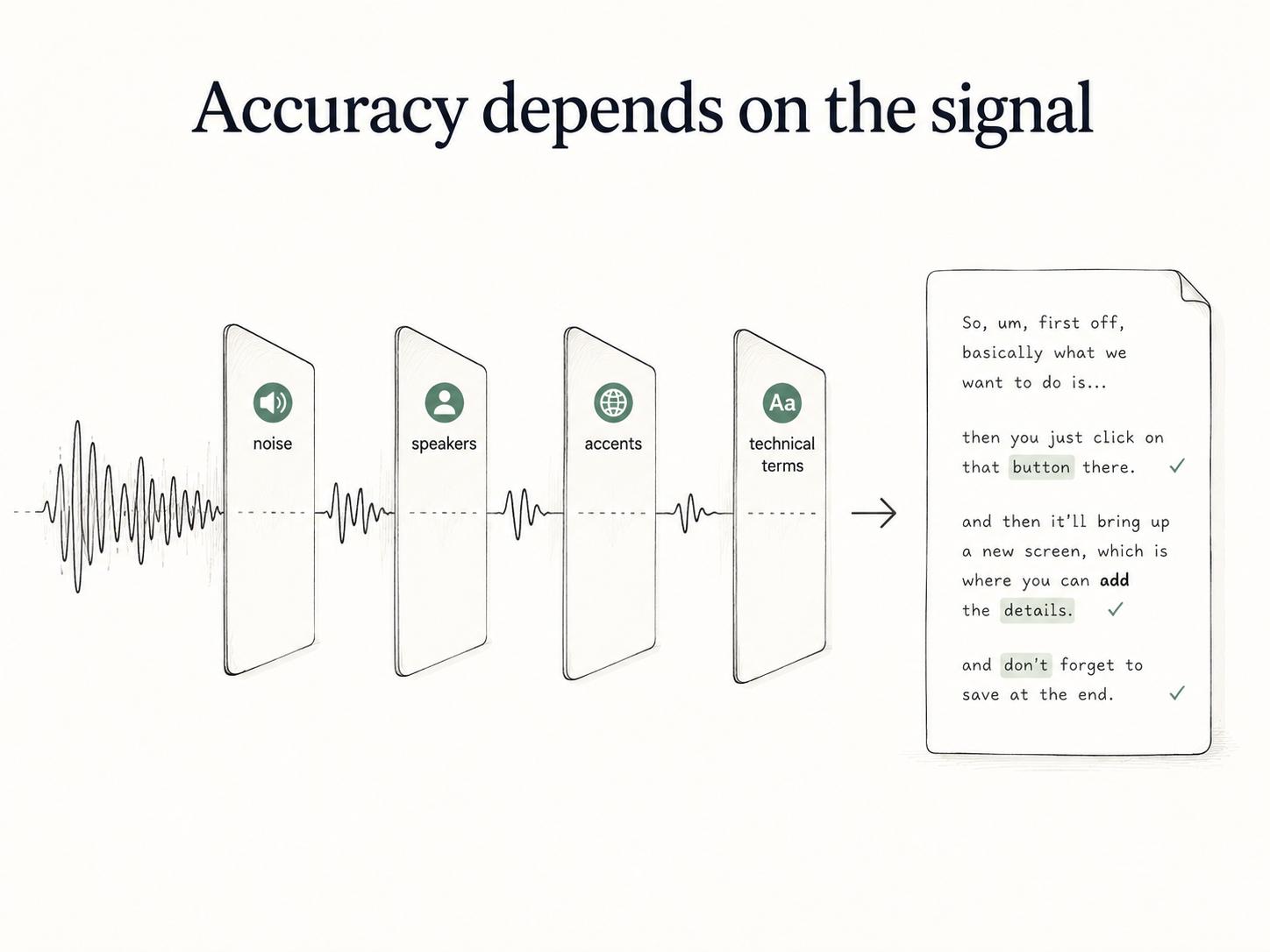
Accuracy depends on audio quality, speaker clarity, background noise, accents, domain vocabulary, and whether the tool recognizes names, acronyms, product terms, and numbers. Automatic speech recognition is commonly evaluated with word error rate, which counts substitutions, insertions, and deletions against a reference transcript.1 A clean recording of one person narrating a simple workflow is usually easier to convert than a noisy meeting with several people talking over each other.
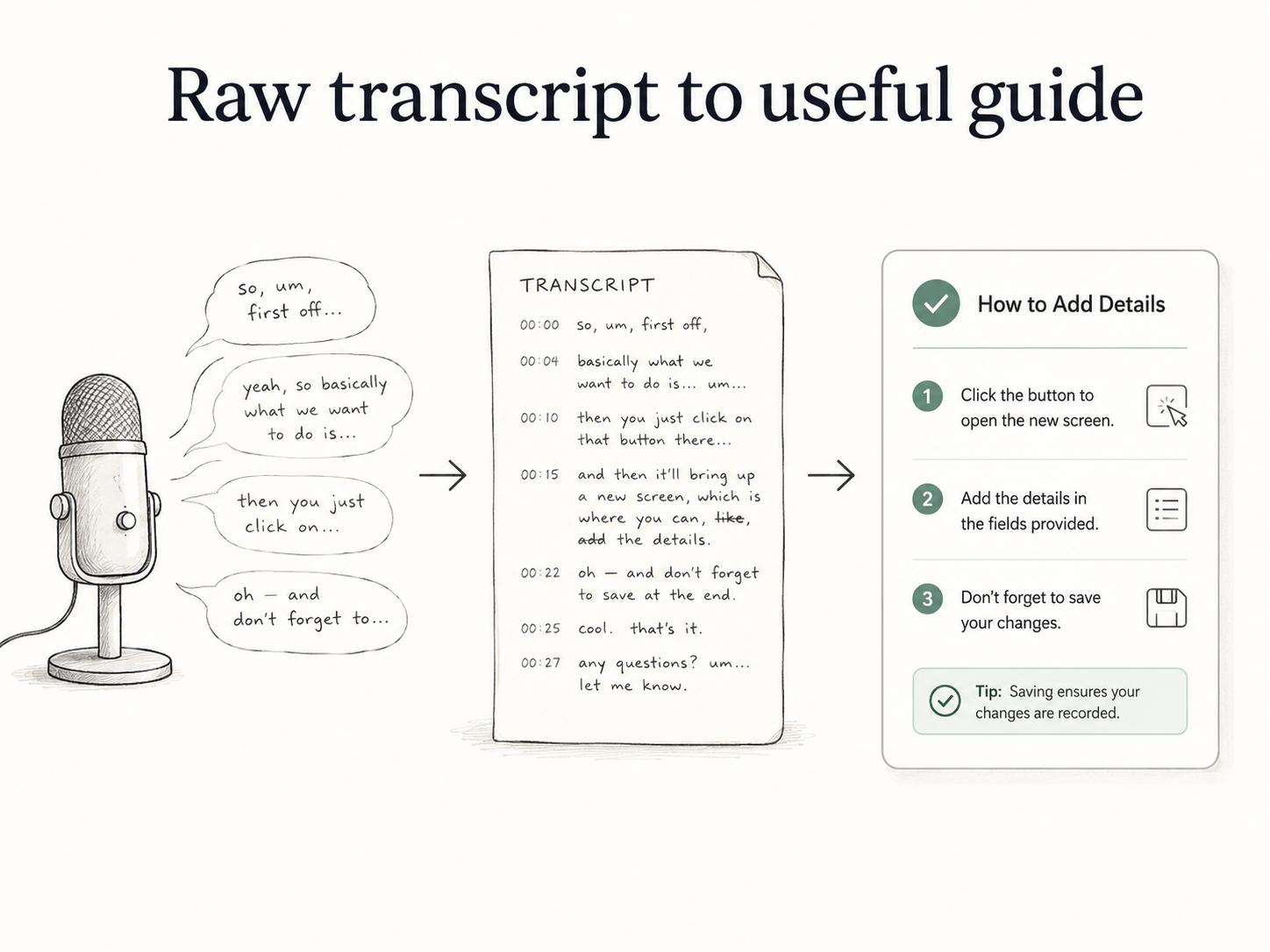
The transcript is useful because it makes spoken content searchable and editable. It still needs interpretation. Spoken language often includes filler, false starts, repeated ideas, unclear references, and misheard terms.
Where teams use speech to text
Teams use speech to text when spoken information needs to be useful after the moment passes.
In meetings, it can create a transcript or recap draft, but the team still has to identify decisions, owners, and next steps. In training, it can turn a recorded walkthrough into captions or notes, but the material still needs to become a lesson or guide. In customer support, it can make calls searchable, but the team still has to handle privacy, classify the issue, and decide what should become documentation.
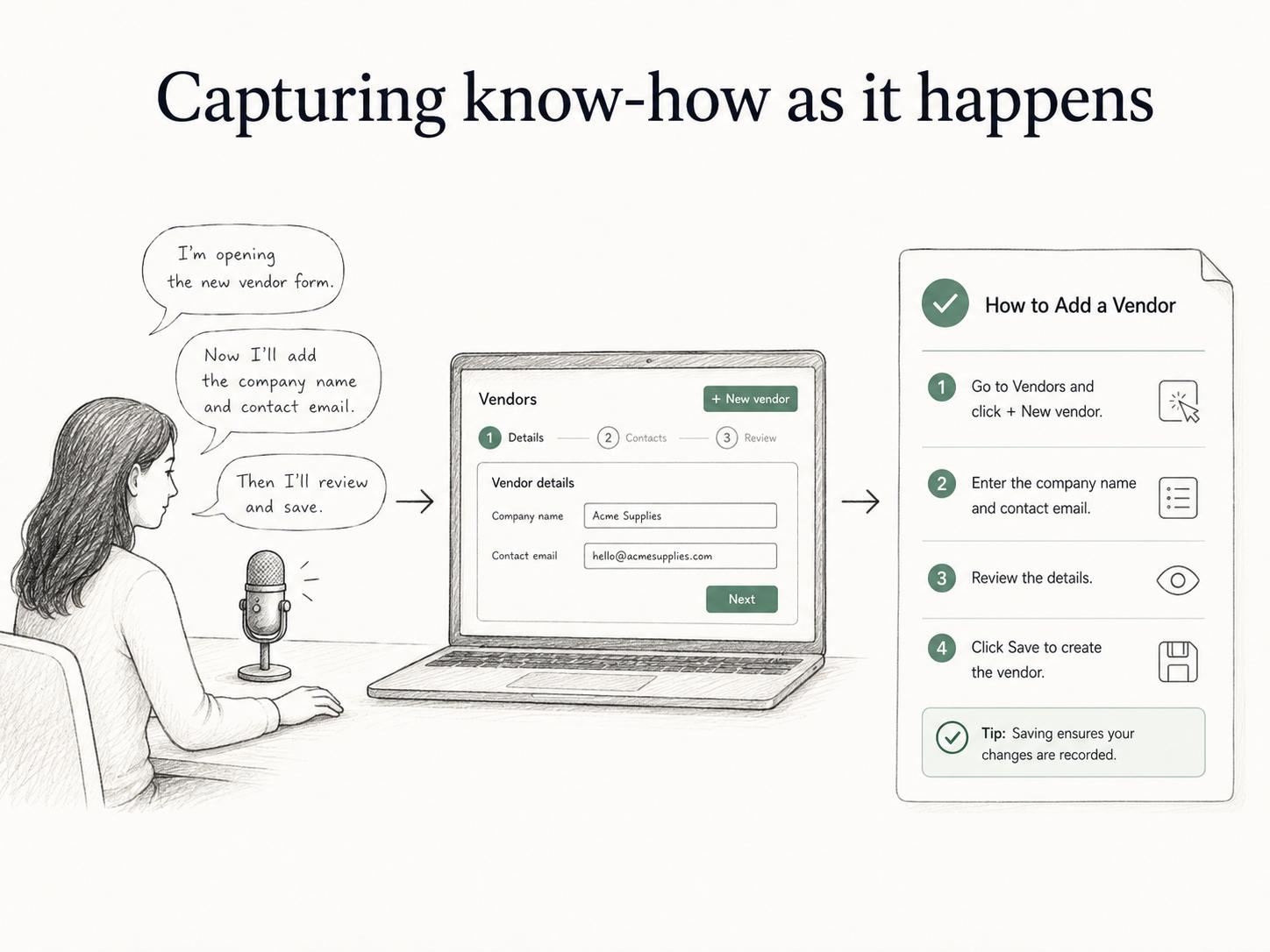
Speech to text also helps with process capture. A subject matter expert can narrate a workflow while performing it, giving the documentation owner both the visible steps and the reasoning behind them. After cleanup, that spoken explanation can become a guide, SOP, FAQ, or onboarding note.
Speech to text vs transcription vs captions
Speech to text is the technology or capability. Transcription is the process of turning speech into a written record. Captions are text synchronized to audio or video so viewers can follow along while watching.2
Those outputs overlap, but they serve different jobs. A transcript helps people review or search spoken content after the fact. Captions help viewers understand video as it plays. Documentation turns speech into a durable reference that answers a question or teaches a process.
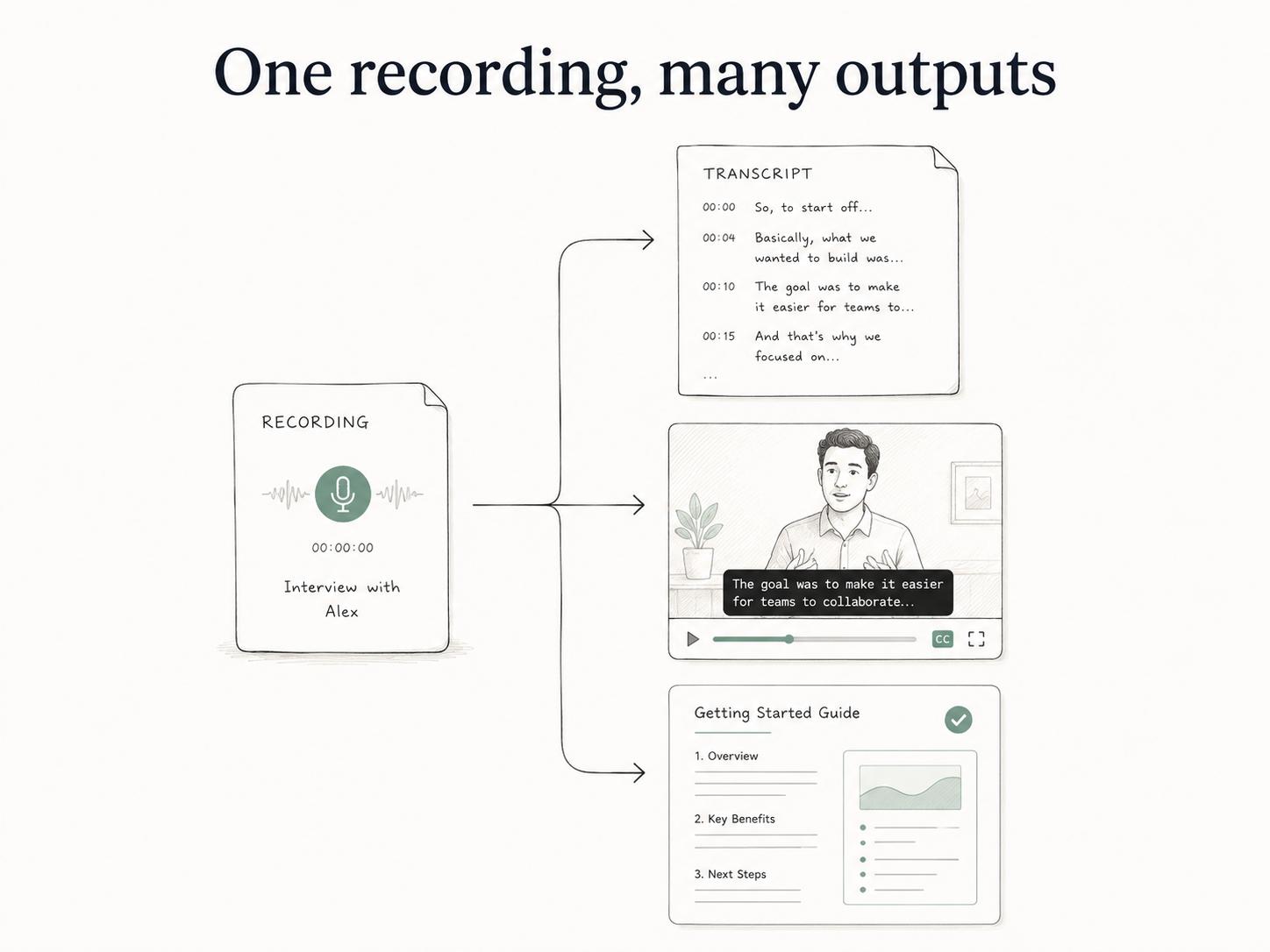
A recorded onboarding session might produce one transcript. That transcript can become captions for the video, a summary for the onboarding portal, and a step-by-step setup guide. Each output needs a different edit, even if the same speech-to-text file starts the work.
How to turn speech-to-text output into documentation
Start by deciding what the reader needs from the spoken material. A meeting recap needs decisions, owners, and deadlines. A training guide needs the task sequence, examples, screenshots, warnings, and common mistakes.
Then clean the transcript with a clear purpose: remove filler and unrelated discussion, identify the main topic and audience, group the content into sections or steps, verify names and numbers, add context the speaker assumed, mark uncertainties for subject matter expert review, and convert the cleaned text into the final format.
Verification is the step to protect. Speech-to-text tools can mishear words, especially technical terms, product names, customer names, and numbers; one Stanford-led study found substantial word-error-rate differences across speaker groups in commercial ASR systems.3 If the document will guide important work, don't publish it without review.
AI-ready transcript cleanup prompt
## Transcript Cleanup Prompt

**Glossary term:** Speech to Text
**Source:** Trails Glossary — trails.so/glossary/speech-to-text

---

### 01. Turn a transcript into documentation

"Turn this speech-to-text transcript into a clear documentation draft for [audience].

Goal of the document: [goal]
Preferred format: [SOP, step-by-step guide, FAQ, meeting recap, training notes]

Instructions:
1. Remove filler, repetition, and off-topic discussion.
2. Preserve important decisions, warnings, exceptions, and examples.
3. Organize the content with headings and logical steps.
4. Flag unclear terms, missing context, or claims that need verification.
5. Do not invent details that are not in the transcript.

Transcript:
[paste transcript]"
Common mistakes
One mistake is treating a transcript as finished content. A transcript contains the words, but readers need structure, context, and the right level of cleanup.
Another mistake is ignoring privacy. Meeting transcripts and call recordings can include personal data, customer details, credentials, or confidential business information. Teams should decide where transcripts are stored, who can access them, and what needs to be redacted before sharing; NIST frames privacy programs around identifying and managing privacy risk across data processing.4
A third mistake is assuming speech to text captures intent. It captures language. The team still has to decide what the words mean for a process, decision, training asset, or customer-facing answer.
Documentation takeaway
Speech to text turns spoken knowledge into something searchable and editable. Its weakness is that it preserves speech as speech: messy, contextual, and sometimes wrong.
Use speech-to-text output as the starting point, then edit it into the format the reader actually needs. For process documentation, that usually means turning the transcript into a clear guide with steps, context, decisions, and review notes.
How Trails helps
Trails captures a workflow as someone performs it and turns that workflow into a polished step-by-step guide. When narration or video is useful, Trails can also create an AI-narrated video version for training or sharing.
That helps teams move from spoken explanation to reusable process documentation without starting from a blank page.
Sources
- 1
National Institute of Standards and Technology. OpenSAT 2020 Evaluation Plan. NIST. www.nist.gov/document/2020opensat20evaluationplanv16. Accessed July 6, 2026.
- 2
W3C Web Accessibility Initiative. Captions/Subtitles. W3C. www.w3.org/WAI/media/av/captions/. Accessed July 6, 2026.
- 3
Koenecke et al.. Racial disparities in automated speech recognition. PNAS, 2020. pubmed.ncbi.nlm.nih.gov/32205437/. Accessed July 6, 2026.
- 4
National Institute of Standards and Technology. Privacy Framework. NIST. www.nist.gov/privacy-framework. Accessed July 6, 2026.