
Glossary
Chrome Extension
 ChatGPT
 Perplexity
 Gemini
 Claude
What is a Chrome extension?
A Chrome extension is a small software program that adds features, integrations, or interface changes to the Google Chrome browser. Extensions can add buttons, modify pages, connect browser activity to another tool, automate a workflow, capture information, or help users interact with web apps more efficiently.
The important detail is where the extension lives: inside the user's browsing experience. That makes it powerful, but it also raises practical questions about permissions, privacy, reliability, support, and trust.
How Chrome extensions work
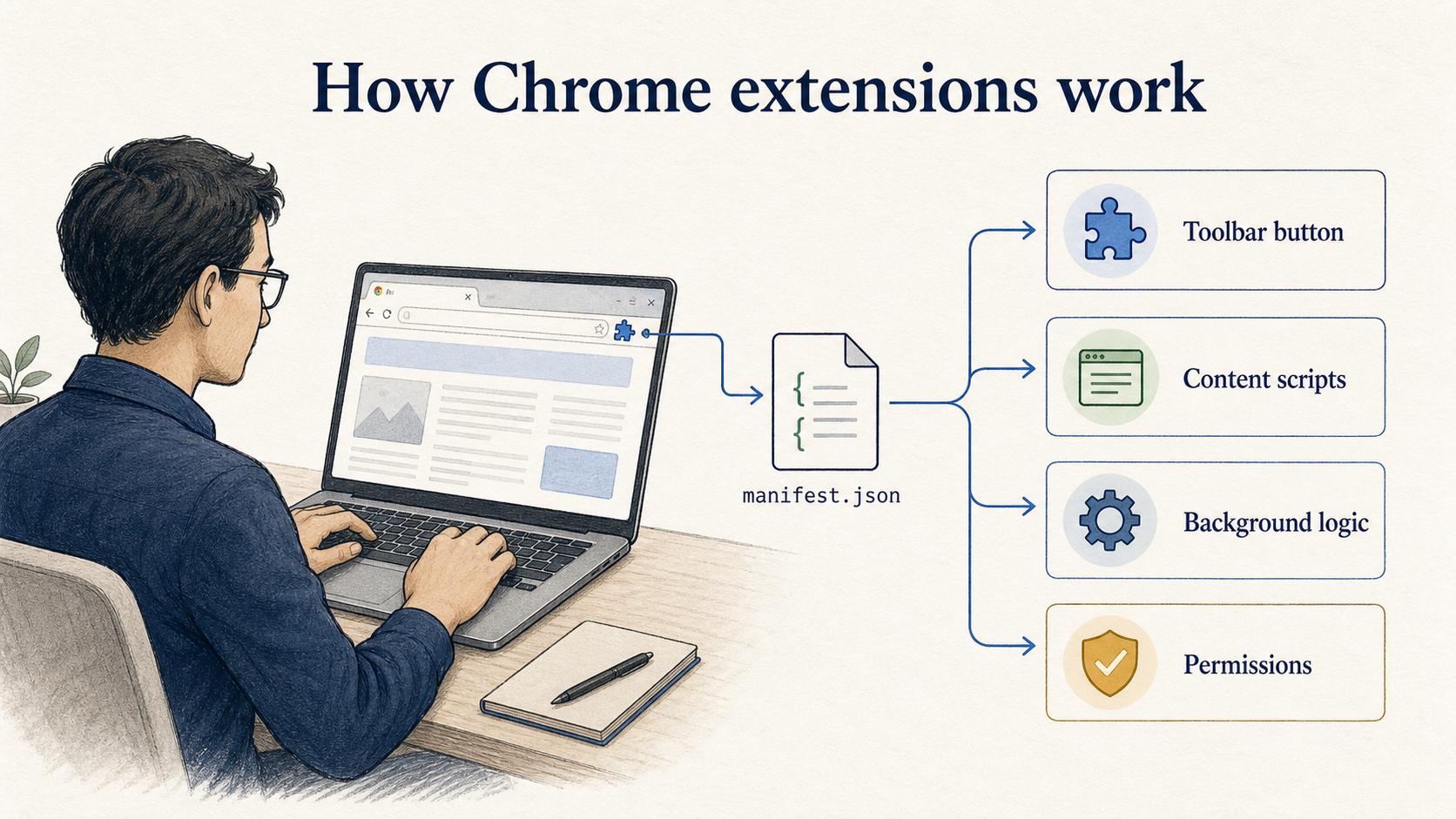
Chrome extensions are built from web technologies such as HTML, CSS, and JavaScript, but they run through Chrome's extension platform instead of behaving like a normal website. Every extension has a manifest.json file that tells Chrome important information about the extension's structure and behavior. 1
A Chrome extension may include a toolbar button, popup interface, content scripts that interact with web pages, background logic, storage, options pages, and permissions that allow access to browser features or specific sites. Modern Chrome extensions are expected to use Manifest V3, the current extension platform direction focused on privacy, security, and performance. 2
For users, most of that architecture is invisible. They see a browser icon, a permissions prompt, and a feature that either helps or gets in the way. For teams building or supporting extensions, the invisible parts matter because they determine what the extension can access, how it behaves across websites, and what can break when Chrome or a target web app changes.
Chrome extension vs browser extension vs web app
A Chrome extension is a type of browser extension, but the terms are not identical. A browser extension is the broader category. A Chrome extension is built for Chrome's extension platform and distributed or installed in ways Chrome supports.
| Term | What it means | Practical difference |
|---|---|---|
| Chrome extension | Extension built for Google Chrome | Must follow Chrome extension APIs, manifest requirements, and Chrome Web Store policies if published there |
| Browser extension | Extension for a browser such as Chrome, Edge, Firefox, or Safari | May need browser-specific changes even when the feature feels similar |
| Web app | Website or SaaS product used in the browser | Runs inside a tab and usually has less direct access to browser-level behavior |
| Desktop app | Installed application on the operating system | Can integrate with files, devices, and OS features in different ways than a browser extension |
The distinction matters for support. A customer who says ‘the app is broken’ may actually be dealing with an extension permission issue, a Chrome profile problem, a site access setting, or a conflict with another extension.
What Chrome extensions are used for
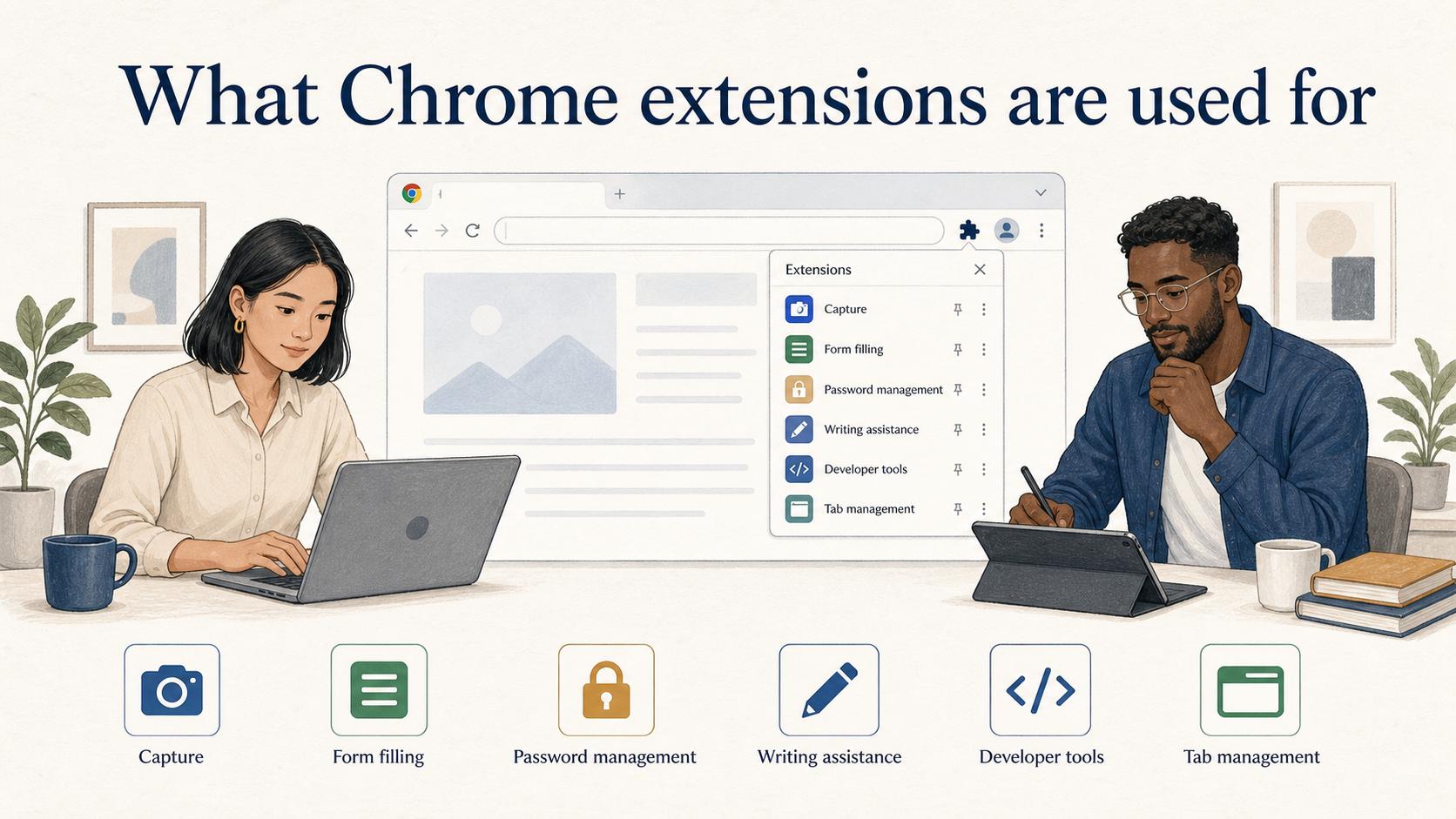
Chrome extensions are useful when a workflow happens inside the browser and needs a layer that a regular web app cannot provide cleanly. Common use cases include:
- capturing screenshots, screen recordings, or workflow steps
- filling forms or enriching pages with extra information
- password management and secure credential workflows
- grammar, writing, or accessibility assistance
- developer tools and debugging helpers
- productivity shortcuts and tab management
- sales, support, or research workflows that span multiple web apps
The best extensions earn their permissions by solving a problem where the user is already working. Weak extensions behave like a web app squeezed into the browser toolbar, asking for broad access without making the browser-level benefit obvious.
Permissions are the trust boundary
Chrome extension permissions are not a technical footnote. They are the trust boundary between the extension, the browser, the web pages a user visits, and any data the extension can read or change.
A good permissions model should be narrow, explainable, and tied directly to a user-facing feature. Chrome's own guidance notes that permissions can limit damage if an extension is compromised and that some permission warnings are shown to users before installation or at runtime. 3 If an extension needs access to a specific site, explain why. If it needs clipboard access, tab access, scripting, storage, identity, or downloads, the product and support documentation should make that understandable in plain language.
For internal teams, this is also a support issue. Users and IT administrators need to know what the extension touches, what data it handles, what settings are required, and how to remove or troubleshoot it. Vague permission language creates avoidable friction even when the extension is safe.
What to document for a Chrome extension
Chrome extension documentation should cover both user behavior and browser behavior. A polished feature guide is not enough if installation, permissions, or troubleshooting are unclear.
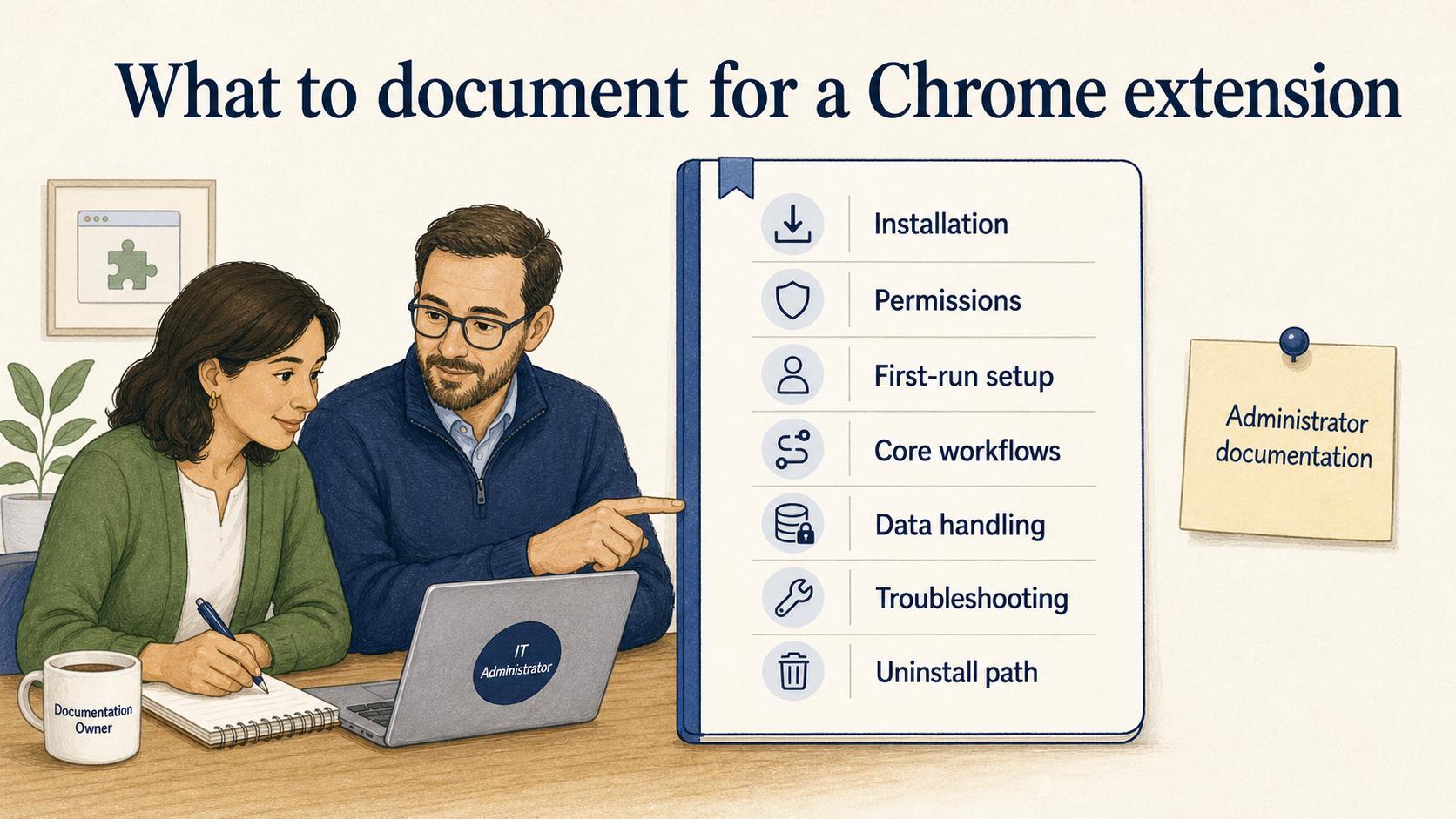
Useful documentation usually includes:
- Installation: Where to install it, supported browsers, and account requirements.
- Permissions: What the extension requests and why each permission exists.
- First-run setup: Login, pinning the extension, site access, and required settings.
- Core workflows: The tasks users perform with the extension, shown step by step.
- Data handling: What information the extension captures, stores, sends, or does not collect.
- Troubleshooting: Common issues such as disabled extensions, blocked permissions, site conflicts, incognito restrictions, or managed browser policies.
- Uninstall path: How to remove the extension and what happens to local or synced data.
The easy-to-miss piece is administrator documentation. In companies with managed Chrome profiles, rollout may depend on IT policy, extension allowlists, force-install rules, or security review. Chrome Enterprise's ExtensionSettings policy can control multiple extension settings and apply defaults or per-extension rules, which is why administrator documentation matters. 4 If the buyer is a business, document the admin path before support tickets force you to.
Common mistakes
The first mistake is asking for broad permissions too early. Users are more likely to trust an extension when the requested access lines up with the feature they just chose to use. Broad access may be technically convenient, but it raises review, adoption, and support costs.
The second mistake is treating Chrome extension support like normal web app support. Extension issues often depend on browser version, profile state, site access, other extensions, enterprise policy, operating system behavior, or the target page's structure. Support teams need a diagnostic path that collects those facts quickly.
The third mistake is burying privacy explanations in legal copy. The Chrome Web Store has developer policies around privacy and user data, but users also need clear product language. If the extension captures page content, browsing activity, screenshots, recordings, or user-generated data, explain that plainly.
Documentation takeaway
A Chrome extension should have documentation that mirrors the user's real journey: install, grant access, perform the workflow, troubleshoot, update, and remove. The browser is part of the product surface. If the docs only explain the feature after everything is working, they miss the moments where users actually need help.
For internal teams, keep a separate support runbook with permission explanations, known site conflicts, browser-policy notes, release rollback steps, and escalation paths. Browser extensions are small pieces of software, but they sit in a complicated environment.
How Trails helps
Trails helps teams document browser-based workflows by capturing steps as someone performs the work, turning the capture into a polished step-by-step guide, and creating an AI-narrated video version when training or sharing needs a more visual format.
That is useful for Chrome extension onboarding, support, and internal enablement. A team can document how to install the extension, grant the right access, run the first workflow, or troubleshoot a common browser issue without rebuilding the instructions manually every time the process changes.
FAQ
Is a Chrome extension the same as a Chrome app?
No. A Chrome extension adds capabilities to the browser. Chrome apps were a different app model and should not be confused with modern extensions.
Are Chrome extensions safe?
They can be, but safety depends on the developer, permissions, data practices, update behavior, and where the extension is installed from. Users and IT teams should review permissions and use trusted distribution paths.
Why do Chrome extensions ask for permissions?
Permissions let the extension use browser capabilities or interact with websites. A screenshot extension, for example, may need access related to the current tab or page. The key is whether the permission is necessary and clearly connected to the feature.
What should a support team ask when troubleshooting an extension?
Start with browser version, extension version, Chrome profile, site access settings, permissions, other installed extensions, managed browser policies, and the exact page or workflow where the issue occurs. Those details usually matter more than a generic error description.
Sources
- 1
Google Chrome for Developers. Chrome extension manifest file format. Chrome for Developers. developer.chrome.com/docs/extensions/reference/manifest.
- 2
Google Chrome for Developers. Chrome Extensions Manifest V3 overview. Chrome for Developers. developer.chrome.com/docs/extensions/develop/migrate/what-is-mv3.
- 3
Google Chrome for Developers. Chrome extension permissions guidance. Chrome for Developers. developer.chrome.com/docs/extensions/develop/concepts/declare-permissions.
- 4
Google Chrome Enterprise. ExtensionSettings policy. Google Support. support.google.com/chrome/a/answer/9867568?hl=en.