
How to Turn a Video Into an SOP With AI: 5 Methods Compared





- Manual documentation gives you the most control, but takes the most time.
- AI with a transcript is a fast text-first workflow, but it cannot see the interface.
- AI with screenshots or the full video adds visual context, but still needs careful review.
- Trails connects recordings, screenshots, annotations, written steps, and narrated video in one editable workflow.
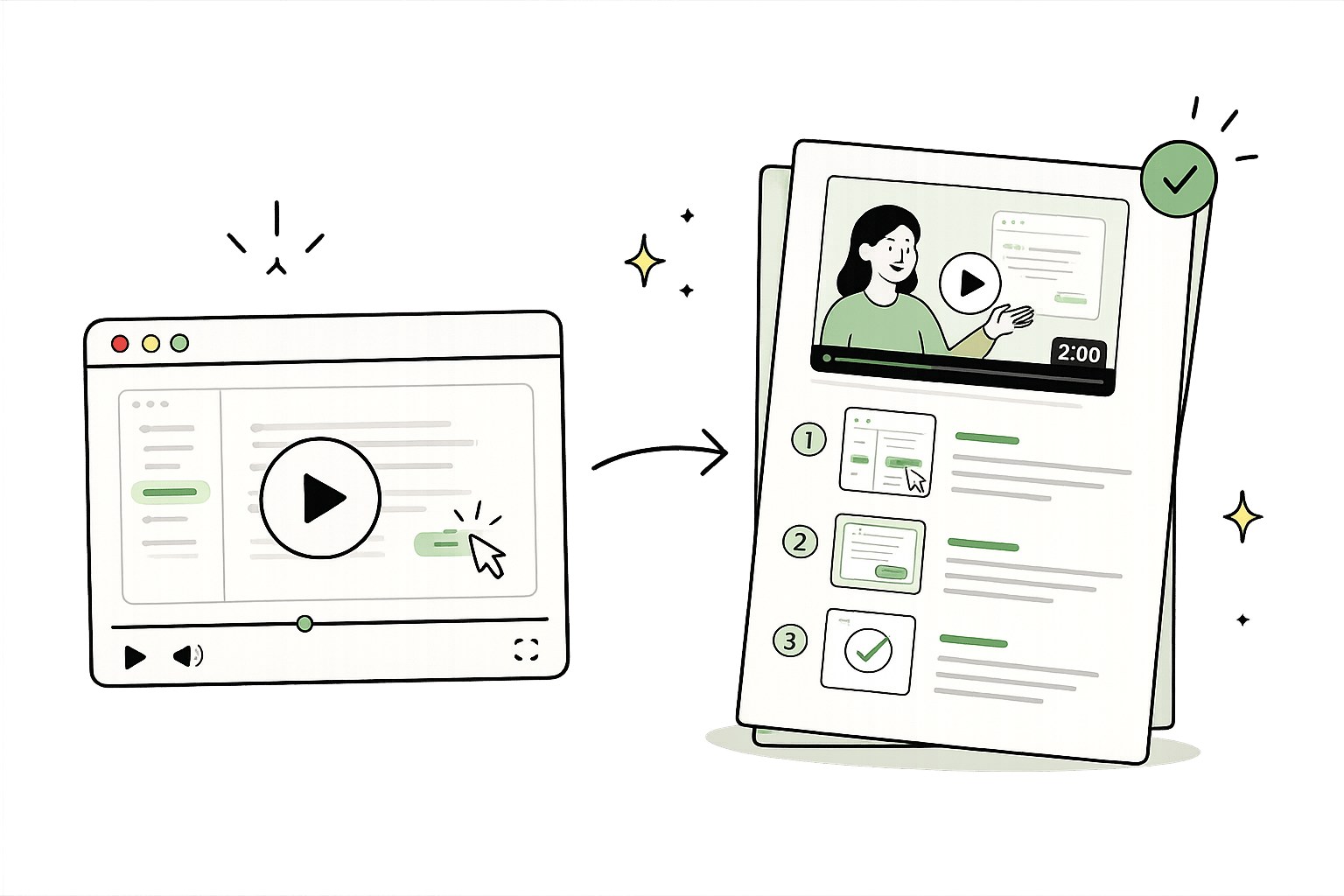
Disclosure:I'm the founder of Trails, a video-to-SOP tool. This guide compares Trails with manual and general-purpose AI workflows so you can choose the lightest method that fits your needs.
You recorded a teammate walking through a process, but weeks later, you're reopening the video, dragging the timeline around, and trying to find the one step you forgot.
The problem with using videos as documentation is that searching and referencing them later is a pain. That's why it's worth finding a way to turn them into SOPs.
Below are five ways to do that, from a fully manual workflow to a purpose-built video-to-SOP tool.
Quick recommendation
- If you want complete control and have plenty of time, use Method 1.
- If you only need written steps and already have a transcript, use Method 2.
- If you need visual context but can't upload the full video, use Method 3.
- If your AI tool can analyze video, use Method 4.
- If your team plans to share, update, or reuse the SOP, use Method 5.
How to choose the right video-to-SOP method
Five questions to ask before choosing a method:
- Who is the SOP for?It's all right for a personal doc to be messy, but an SOP for employees or customers needs clearer steps and useful screenshots. You'll also need to remove sensitive information.
- How accurate does it need to be? Depending on the importance of the process, it might be worth covering every action and decision point.
- Will the process change? Creating the SOP is only the beginning. If the process changes often, choose a method that makes the guide easy to edit later.
- How many SOPs do you need? Spending an hour on an SOP works if you only need to convert a handful. Anything more needs a faster workflow.
- Does the recording contain sensitive information? If you're working with screenshots of private customer data, make sure the method you choose has an easy way to redact it.
Regardless of the method you choose, review the final SOP against the original recording before publishing it. AI can accelerate the work, but it may still miss a click, combine separate actions, or misunderstand what happened on screen.
Method 1: Create the SOP manually
Creating an SOP manually gives you the most control, but requires the most time.
Watch the recording, pause whenever an important action happens, capture the screen, and write a short instruction explaining what the user should do. Add arrows, boxes, or numbered annotations where they help. Blur sensitive information before publishing the guide.
Tools like Snagit, CleanShot X, Shottr, or the Windows Snipping Tool are useful for capturing and editing screenshots.
How it works
- Watch the video at 1.5× speed.
- Pause when an important action or screen change occurs.
- Capture the full screen or relevant application window.
- Write one clear, action-oriented step.
- Annotate the screenshot to show where the user should click.
- Blur any sensitive information.
- Assemble the steps in your SOP template.
- Review the SOP against the original recording.
Plan for roughly 60–90 minutes of documentation work for every 10 minutes of video, depending on the number of actions and screenshots.
Best when:
- You need one important, highly accurate SOP.
- You want complete control over the steps and screenshots.
- The recording is sensitive and needs to stay on your computer.
Breaks down when:
- You have many recordings to convert.
- The process changes often.
- Capturing, annotating, and organizing screenshots takes too much time.
Method 2: Use AI with a transcript
If the recording already has a transcript, use a general-purpose AI tool to turn the narration into a structured first draft.
Export the transcript from a tool such as Loom, Zoom, Microsoft Teams, or Google Meet. Then paste it into ChatGPT, Claude, Gemini, or another approved AI tool and ask it to organize the process into clear steps.
Use a prompt like this:
## Transcript to SOP Prompt

**Guide:** Video to SOP
**Source:** Trails Guides — trails.so/guides/how-to-turn-a-video-into-an-sop

---

### 01. Turn a transcript into an SOP

"Convert the transcript below into a clear, step-by-step SOP.

For each step:
1. Write a short, action-oriented title.
2. Explain exactly what the user should do.
3. Identify any button, field, menu, or page the transcript mentions.
4. Include important prerequisites, warnings, and decision points.
5. Ignore rambling, repetition, loading time, and mistakes the speaker corrected.
6. Don't invent actions or interface details the transcript doesn't mention.
7. Flag anything unclear as "Needs review."

Also include:
- Purpose
- Prerequisites
- Expected result
- Troubleshooting notes

Transcript:
[PASTE TRANSCRIPT]"
The limitation: A transcript doesn't show the interface
A transcript captures what the speaker said, but phrases such as "click here" or "open this menu" may not identify the button or menu shown on screen. You'll still need to review the recording, capture screenshots, annotate them, blur sensitive information, and assemble the final document.
Best when:
- You already have a clean transcript.
- You need the lowest-cost AI workflow.
- The process is mostly text-based.
- Screenshots aren't important.
Breaks down when:
- The narration asks viewers to "click here" or "go there."
- The SOP needs exact screenshots or click locations.
- The process contains many small interface actions.
- You want a finished SOP rather than a written first draft.
Method 3: Use AI with a transcript and screenshots
If your AI tool can't analyze the full video, give it the transcript plus screenshots from the most important moments. The transcript explains the process while the screenshots provide visual context.
How it works
- Export the video transcript.
- Watch the video and capture the main actions and screen changes.
- Redact sensitive information from the screenshots before uploading them.
- Upload the transcript and screenshots to your approved AI tool.
- Ask the AI to match each instruction with the correct screenshot.
- Review the draft against the original video and add anything it missed.
Use a prompt like this:
## Transcript and Screenshots to SOP Prompt

**Guide:** Video to SOP
**Source:** Trails Guides — trails.so/guides/how-to-turn-a-video-into-an-sop

---

### 01. Turn a transcript and screenshots into an SOP

"Create a step-by-step SOP using the transcript and screenshots I provided.

For each step:
1. Write a short, action-oriented title.
2. Explain exactly what the user should do.
3. Identify the relevant button, field, menu, or page.
4. Match the step with the most relevant screenshot.
5. Describe where to place an arrow, box, or numbered annotation.
6. Include important prerequisites, warnings, and decision points.
7. Ignore rambling, repetition, loading time, and corrected mistakes.

Don't invent missing actions or interface details. If the screenshots don't show an action the transcript mentions, label it "Screenshot needed." If you can't confidently match a screenshot to a step, label it "Needs review.""
The limitation: you still have to select the right screenshots
The quality of the SOP depends on the screenshots you provide. If you miss an important click or screen change, the AI may miss it too. You may also need a separate image editor to add annotations and blur sensitive information.
Best when:
- Your AI tool can't analyze the full video.
- The video is too large or long to upload.
- You need more visual detail than a transcript can provide.
Breaks down when:
- The workflow contains many small clicks.
- Selecting and organizing screenshots takes almost as long as writing the SOP manually.
- You need every screenshot and annotation to be exact.
- You have many recordings to convert.
Method 4: Use AI with the full video
If your AI tool can analyze both the narration and the visual content of a video, upload the recording and ask it to create the SOP.
This can be faster than using a transcript because the AI has access to both what the person said and what appeared on screen. It may be able to identify actions, organize the instructions, and select useful frames from the recording.
Use a prompt like this:
## Video to SOP Prompt

**Guide:** Video to SOP
**Source:** Trails Guides — trails.so/guides/how-to-turn-a-video-into-an-sop

---

### 01. Turn a full video into an SOP

"Convert this video into a clear, step-by-step SOP.

For each distinct action:
1. Create a separate step with a short, action-oriented title.
2. Explain exactly what the user should do.
3. Identify the relevant button, field, menu, or page.
4. Select a screenshot from the moment the action occurs.
5. Describe the annotation needed to show where the user should click.
6. Include important prerequisites, warnings, and decision points.
7. Ignore rambling, loading time, repeated actions, and mistakes the presenter corrected.

Don't merge separate actions into one step. Don't invent interface details the video doesn't show or mention. Flag uncertain steps as "Needs review."

Also include:
- Purpose
- Prerequisites
- Expected result
- Troubleshooting notes"
The limitation: maintaining the SOP takes additional work
The AI might miss a click, select the wrong frame, combine two actions, or misunderstand the sequence. Editing the output can also get awkward since the annotations on the images are unlikely to be easily editable.
If the process changes, you'll need to upload a new recording, regenerate the SOP, and manually move the changes into the version you already published.
Best when:
- The recording is short and clearly shows the process.
- You want a fast first draft.
- Your AI tool can analyze the video's visual content.
- You only need to do this occasionally.
Breaks down when:
- The video exceeds the tool's upload or processing limits.
- You need precise screenshots, annotations, or redaction.
- You struggle to edit the generated SOP.
- The process will change after you publish the SOP.
Any of the methods above can work for a single SOP. For SOPs your team will share, reuse, or update, choose a workflow that also supports maintenance, which is what we'll get to in the next method.
Method 5: Use Trails to create the SOP
The Trails AI SOP generator turns process recordings into editable SOPs.
Upload an existing recording or record the process, and Trails creates a step-by-step guide, matches screenshots to each action, and generates an AI-narrated video from the same content.
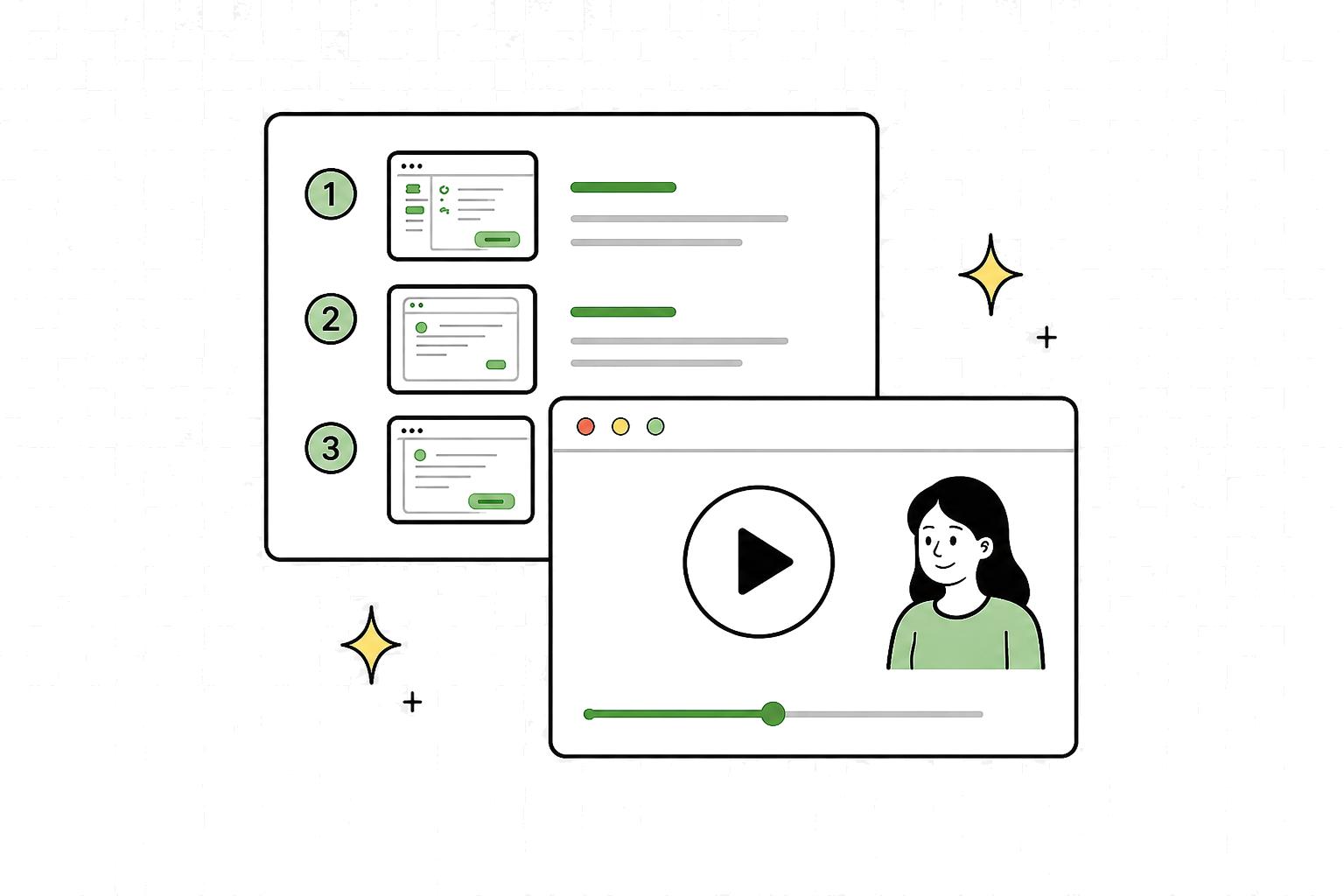
After Trails creates the draft, you can review and edit the steps, adjust the annotations, and blur sensitive information before sharing. The recording, written steps, screenshots, annotations, and final guide stay connected inside one workflow.
What Trails helps you do
- Pull relevant screenshots from the recording.
- Match screenshots with written steps.
- Add clear annotations to show where users should click.
- Edit, reorder, add, or remove steps.
- Blur sensitive information before publishing.
- Create a written guide and an AI-narrated video together.
- Update the SOP without rebuilding the entire document from scratch.
Best when:
- You want a fast first draft without building and refining prompts.
- The SOP needs screenshots and clear annotations.
- You need to review and blur sensitive information before sharing.
- The process may change later.
- You have a backlog of recordings to convert.
- Multiple people will create or maintain SOPs.
Breaks down when:
- The recording doesn't clearly show the process.
- The workflow depends on judgment or context the screen doesn't reveal.
- You only need a one-time text summary without screenshots.
- A dedicated SOP tool is more than the job requires.
Video-to-SOP methods compared
| Method | Cost | Manual work | Screenshots | Sensitive information | Best for |
|---|---|---|---|---|---|
| Manual | Low | High | You capture them | You keep control | One important SOP |
| AI with a transcript | Low | High | You add them | Check before uploading | Text-first drafts |
| AI with screenshots | Low–medium | Medium | You select them | Redact before uploading | When you can’t upload the video |
| AI with full video | Medium | Medium | AI may select them | Check before uploading | Fast first drafts |
| Trails | Starts at $29/month | Low | Trails matches them | Review and blur before sharing | Standardizing processes across teams |
Frequently asked questions
Can ChatGPT turn a video into an SOP?
Check whether your version can analyze both the screen and narration. If it can, it may produce a useful first draft. Otherwise, export the transcript and use the transcript workflow above. In either case, review the steps and screenshots before sharing the SOP.
Can I turn a Loom, Zoom, Teams, or Google Meet recording into an SOP?
Yes. You can use the existing recording if the screen and narration are clear. If a long meeting buries the process in unrelated discussion or reveals too much sensitive information, record a shorter walkthrough instead. It'll usually be faster and safer.
For Loom recordings, follow the Loom-to-SOP workflow to export the video, upload it to Trails, and review the resulting guide.
Do I need screenshots in an SOP?
If the process takes place in software, screenshots are usually helpful. They show users where to click and what they should expect to see. For simple or primarily text-based processes, written steps may be enough.
Is it safe to upload a process recording to an AI tool?
It depends on the recording, the tool, your account settings, and your company's policies. If the video contains customer data, employee data, pricing, account numbers, internal URLs, or other confidential information, check with your IT or security team before uploading it. Remember that blurring information in the final SOP doesn't remove it from the original video you uploaded.
What is the fastest way to create an SOP from a video?
A purpose-built video-to-SOP tool is usually the fastest option when you need written steps, screenshots, annotations, and an editable guide. General-purpose AI can quickly create a written draft, but plan additional time to capture screenshots, assemble the document, and update it later.
What makes a good process recording?
A good recording focuses on one process, shows the entire application window, and explains important decisions out loud. Move through the workflow at a steady pace and avoid unrelated discussion. Before recording, close unnecessary tabs and remove sensitive information that doesn't need to appear.
Final recommendation
Choose the lightest method that produces an SOP people can actually use.
For one simple process, a transcript and an AI prompt may be enough. If accuracy matters and you have time, create the SOP manually. If you need repeatable documentation with screenshots, annotations, redaction, and easy updates, use a purpose-built workflow such as Trails.
The goal is documentation that people can follow without reopening the video. Try Trails freewhen you're ready to turn your next recording into a reusable guide.