
Glossary
Team Permissions
 ChatGPT
 Perplexity
 Gemini
 Claude
What are team permissions?
Team permissions are access rules that determine what people can see, create, edit, approve, share, delete, or administer inside a shared workspace, documentation system, software tool, or process. They help teams collaborate without turning every document, setting, or workflow into an open edit surface.
In access-management language, permissions connect an identity to allowed actions. The UK National Cyber Security Centre describes identity and access management as policies, processes, and systems that bind an individual or system to a set of permissions.1
Why team permissions matter
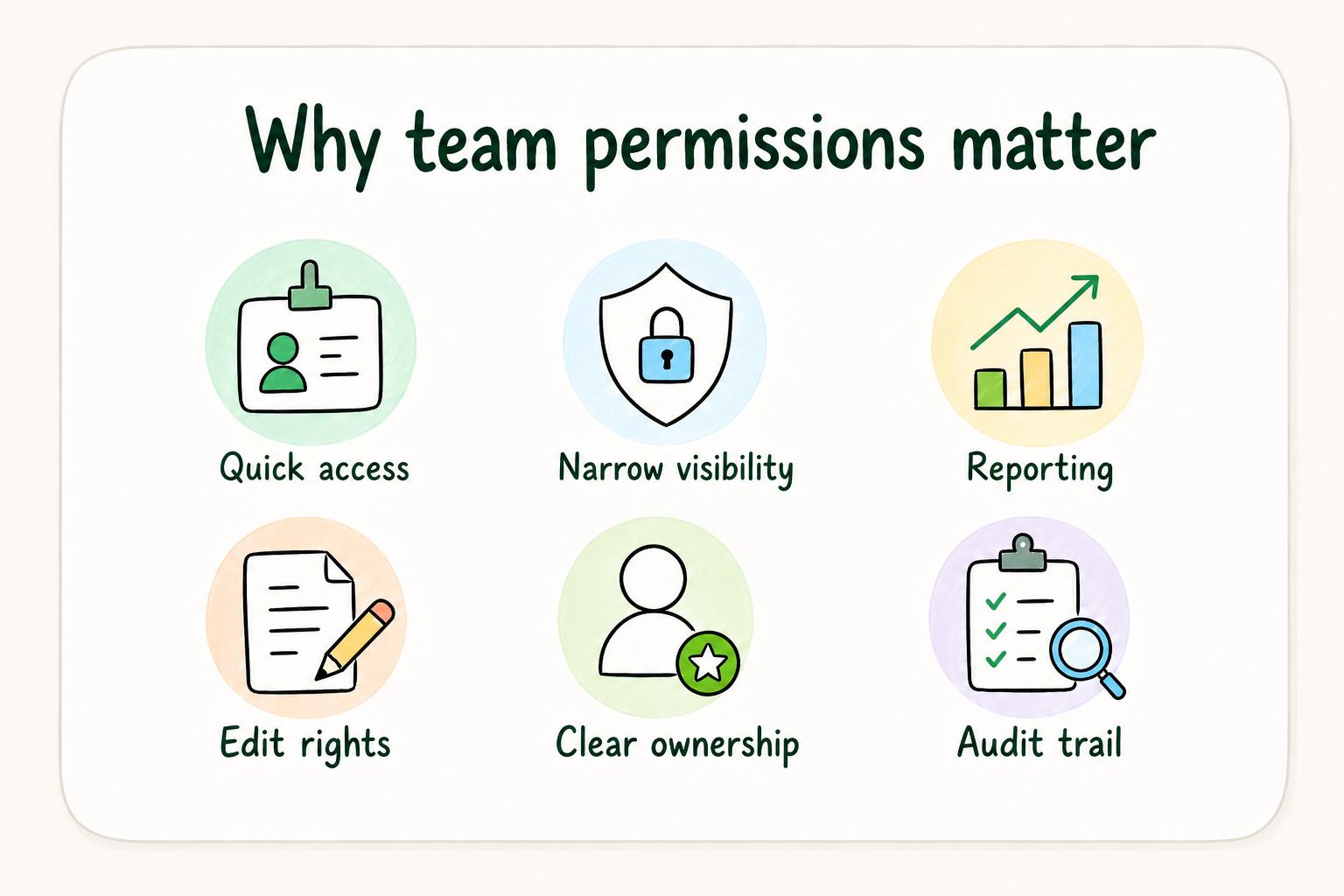
Permissions feel like a small admin setting until a team grows. New hires need access quickly. Contractors need narrow visibility. Managers need reporting. Process owners need edit rights. Some documents should be easy for everyone to read but hard for anyone to change. Other spaces need tighter restrictions because they contain HR, finance, customer, legal, or security information.
Team permissions give those choices a structure. They reduce bottlenecks, clarify ownership, and protect source-of-truth content from casual edits.
The tradeoff is access friction. If permissions are too open, sensitive content and official procedures can change without review. If they're too restrictive, people work around the system, duplicate files, or rely on outdated copies.
Common team permission levels
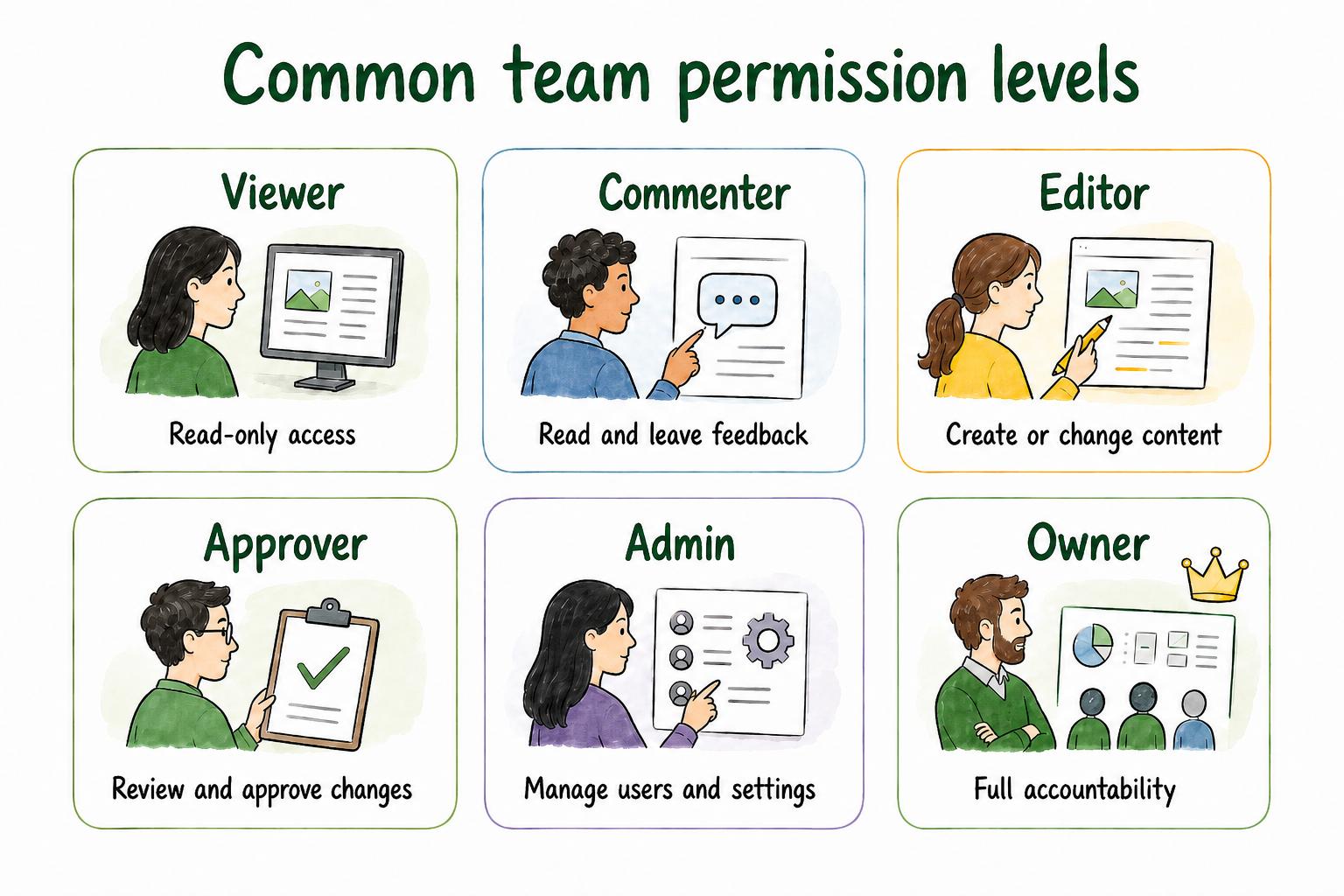
Most shared tools use some version of these permission levels.
| Permission level | What it usually allows | Best fit |
|---|---|---|
| Viewer | Read-only access | Published guides, policies, reference material |
| Commenter | Read and leave feedback | Stakeholders, reviewers, subject matter experts |
| Editor | Create or change content | Document owners, active contributors, process owners |
| Approver | Review and approve changes | Managers, compliance owners, governance leads |
| Admin | Manage users, settings, and permissions | IT, workspace owners, system administrators |
| Owner | Full accountability for a space, process, or document set | Team leads, function owners, accountable operators |
Tool labels vary, but the practical question is steady: what does this person need to do, and what would be risky if they could do more?
Role-based permissions vs. individual access
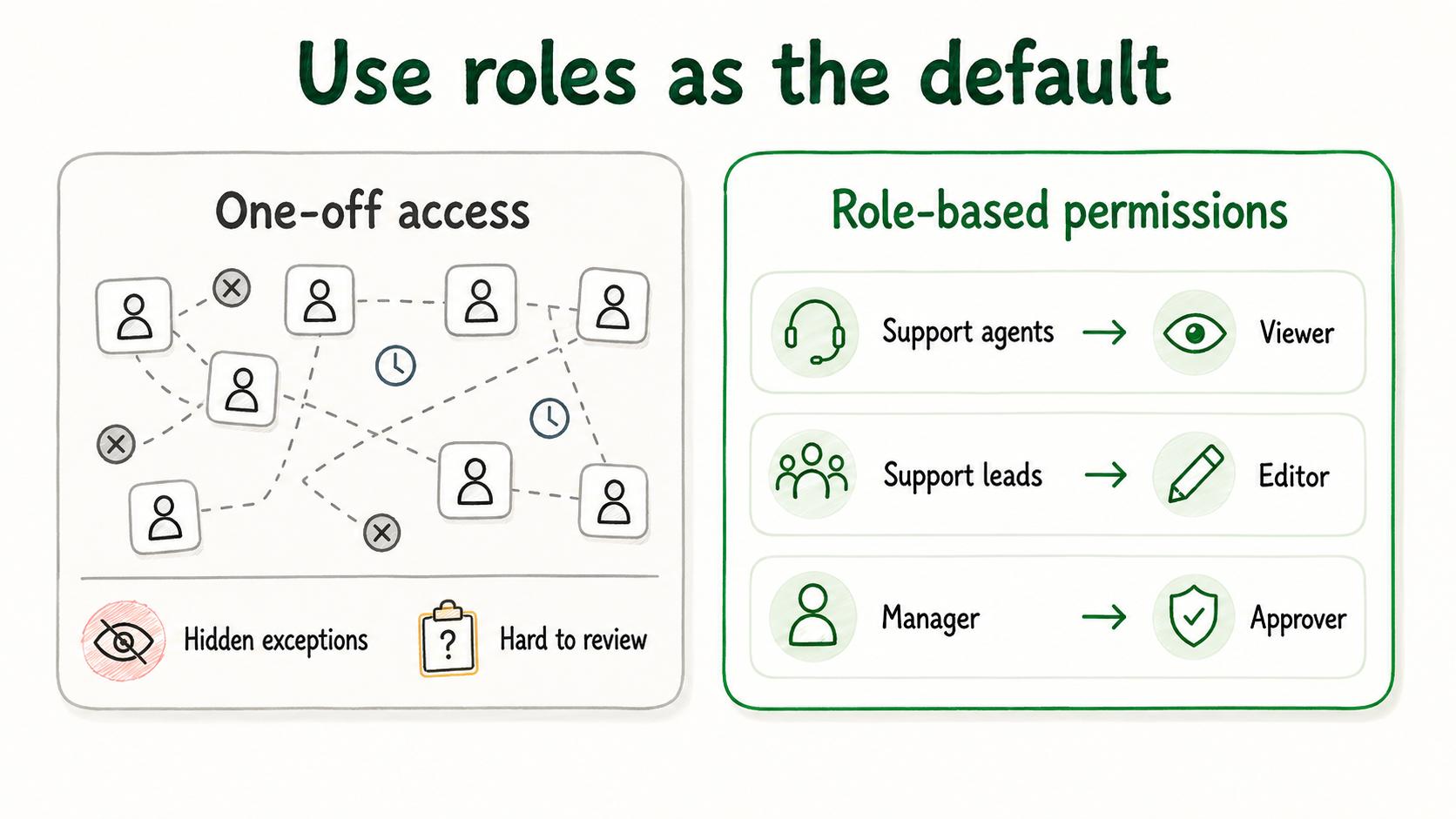
Permissions are easier to maintain when they follow roles instead of one-off individual requests. NIST defines role-based access control as access based on user roles, where role permissions typically reflect the functions people perform in an organization.2
For example, support agents might be viewers of a refund SOP, support leads might be editors, and the support operations manager might be the approver. Contractors might have access only to a specific workspace. HR and legal might have restricted access to sensitive people-operations documentation.
Individual exceptions still happen, but they should be visible and time-bound. The more exceptions a team carries, the harder it becomes to know who can see or change what.
How to manage team permissions
Start by naming the spaces and content that matter: team workspaces, SOP folders, knowledge bases, customer data, admin settings, templates, sensitive workflows, and published documentation.
Then define access by role. Decide who should view, comment, edit, approve, administer, or own each space. Keep admin access narrow. NCSC's network security fundamentals describe least privilege as giving users and systems access only to the resources needed to do their job.3
Document the permission workflow after that. People should know how to request access, who approves it, when it expires, who removes it, and how permissions are reviewed. This matters most during onboarding, role changes, contractor engagements, and offboarding.
Team permissions in documentation
Documentation systems need permission design because they contain both helpful reference material and official process instructions.
A refund SOP might be readable by the whole support team, editable by support operations, and approvable only by the support manager. A termination SOP might be restricted to HR, legal, IT, and specific leaders. A technical troubleshooting guide might be editable by support leads but readable by all agents.
That structure keeps documentation useful while protecting the official process. It also gives teams a cleaner review model: readers can suggest improvements, owners can edit, and approvers can protect the source of truth.
Team permissions prompt
Use this prompt to design permissions for a workspace or documentation set:
## Team Permissions Prompt

**Glossary term:** Team Permissions
**Source:** Trails Glossary — trails.so/glossary/team-permissions

---

### 01. Design permissions for a workspace or documentation set

"Workspace or documentation set: [name]
Sensitive content included: [HR, customer, financial, security, legal, none]
User groups: [roles or teams]
For each group, define:
- View access: [yes/no/scope]
- Comment access: [yes/no/scope]
- Edit access: [yes/no/scope]
- Approval authority: [who can approve changes]
- Admin rights: [who can manage users/settings]
Access request owner: [person or team]
Access removal trigger: [offboarding, role change, project end]
Review cadence: [monthly, quarterly, semiannual, event-based]
Exception process: [how temporary or unusual access is handled]"
The useful output is a permission model people can apply when someone joins, changes roles, or needs temporary access.
Common mistakes
The first mistake is giving everyone editor access because it is faster. That works early, then fails when important content is changed, duplicated, deleted, or contradicted.
The second mistake is over-restricting practical knowledge. If employees cannot access the guide they need, they will ask someone else, copy old instructions, or invent a workaround.
The third mistake is not reviewing permissions after role changes. Access should change when responsibilities change. Otherwise people accumulate permissions long after they need them. NIST account-management controls include reviewing accounts, disabling accounts when users leave or accounts are no longer needed, and aligning account management with termination and transfer processes.4
Documentation takeaway
Team permissions are part of documentation governance. They decide who can read the source of truth, who can improve it, and who can approve changes.
For process-heavy teams, permissions should be documented like the process itself: role, access level, approval path, review cadence, and offboarding rule. Good permission design gives people the access their role needs, with named ownership for changes.
How Trails helps
Trails helps teams capture workflows and turn them into polished step-by-step guides, with optional AI-narrated video versions for training or sharing. Team permissions determine who can view, edit, and share those process guides.
That matters for sensitive workflows. A team can make repeatable process knowledge easier to create and maintain while still controlling who has access to it.
- Team lead
- Technical documentation
- Termination SOP
- Role based access control
- Software documentation
- Access control
- Permission matrix
Sources
- 1
National Cyber Security Centre. Introduction to identity and access management. NCSC. www.ncsc.gov.uk/guidance/introduction-identity-and-access-management. Accessed July 2, 2026.
- 2
National Institute of Standards and Technology. Role Based Access Control. NIST CSRC Glossary. csrc.nist.gov/glossary/term/role_based_access_control. Accessed July 2, 2026.
- 3
National Cyber Security Centre. Network security fundamentals. NCSC. www.ncsc.gov.uk/guidance/network-security-fundamentals. Accessed July 2, 2026.
- 4
NIST. SP 800-53 Rev. 5 AC-2 Account Management. CSF Tools. csf.tools/reference/nist-sp-800-53/r5/ac/ac-2/. Accessed July 2, 2026.