
Screen Studio Alternatives: Which Tool Should Your Team Use for Demos, Tutorials, and Training?





Screen Studio makes Mac screen recordings look expensive. You record a product flow, and it adds zooms, cursor smoothing, captions, and device frames until a SaaS demo feels edited.
The trouble starts when the video isn't the only deliverable. A success team often needs the same workflow as a help article, a training video, and an SOP it can update next month. Screen Studio gives you a polished file or a share link. It doesn't give you a living process document.
So the real question isn't which recorder has smoother zooms. It's what people need after they watch. Some want a prettier hosted video, some want a real editor, some want written steps. If your documentation has to double as training, start with a tool built for that job.
The quick answer
- Trails: Best for guide + video documentation.
- Tella: Best for polished hosted product videos.
- Loom: Best for async video explanation across teams.
- Camtasia: Best for formal tutorial and training video production.
- ScreenFlow: Best for Mac-only timeline editing and one-time desktop licensing.
- Snagit: Best for screenshot-heavy visual documentation and short clips.
- Scribe: Best for quick screenshot guides.
How we evaluated
Our test case was a 12-step onboarding workflow: sign into a SaaS account, change two settings, invite a teammate, finish a task, and publish instructions for support. We judged each tool on capture speed, editing burden, clarity, sharing, updateability, and pricing at 5, 10, and 25 users.
Trails makes this guide, so we have a point of view, and a reason to be honest about tradeoffs. Trails is wrong for you if you want Screen Studio's cinematic control, a full timeline editor, or a raw free recorder. It's right when one workflow has to become both a written guide and a narrated training video.
How we chose what to test
We focused on tools that turn screen work into reusable demos, tutorials, support content, or process docs: polished recorders, async video tools, training-video editors, screenshot tools, and guide creators. We left out general video editors and broadcasters.
A tool made the list if it kept showing up in Screen Studio alternative searches, overlapped with demo or tutorial work, or carried real customer signal. We added Scribe and Snagit because many people hunting for a Screen Studio alternative are really trying to document a workflow, not make a social video.
We skipped OBS, Final Cut Pro, Premiere Pro, and DaVinci Resolve. OBS is great for free raw capture and streaming, but it does nothing for documentation or guide maintenance. The pro editors make better finished media, but they ask a team to become video editors before it can ship a single training asset.
Why do customers look for Screen Studio alternatives?
Screen Studio gets the first job right: it turns an ordinary Mac recording into a polished video with almost no editing. People rarely leave because it does that job badly. They leave because the workflow around the video changes.
Across its pricing and roadmap pages, its Product Hunt and G2 presence, and recurring Reddit threads, three reasons come up most.
Reason #1: Your team isn't all on Mac
Screen Studio is a macOS-only recorder, and its download page asks for Ventura 13.1 or higher. Fine for a solo Mac creator, awkward for a support or training team with Windows users. G2 reviews flag the missing Windows support, and plenty of Reddit threads open with someone asking for a cross-platform option.
Reason #2: A polished video still isn't a maintainable training asset
Screen Studio's strength is the finished recording. The handoff gets harder when the same workflow needs written steps, localized narration, or a guide you can change without re-recording. Its own docs cap shareable recordings at 30 minutes, and its roadmap still lists AI voiceover, annotations, and team accounts as planned. None of that makes Screen Studio weak. It just means teams that need durable documentation should compare tools built for it.
Trails
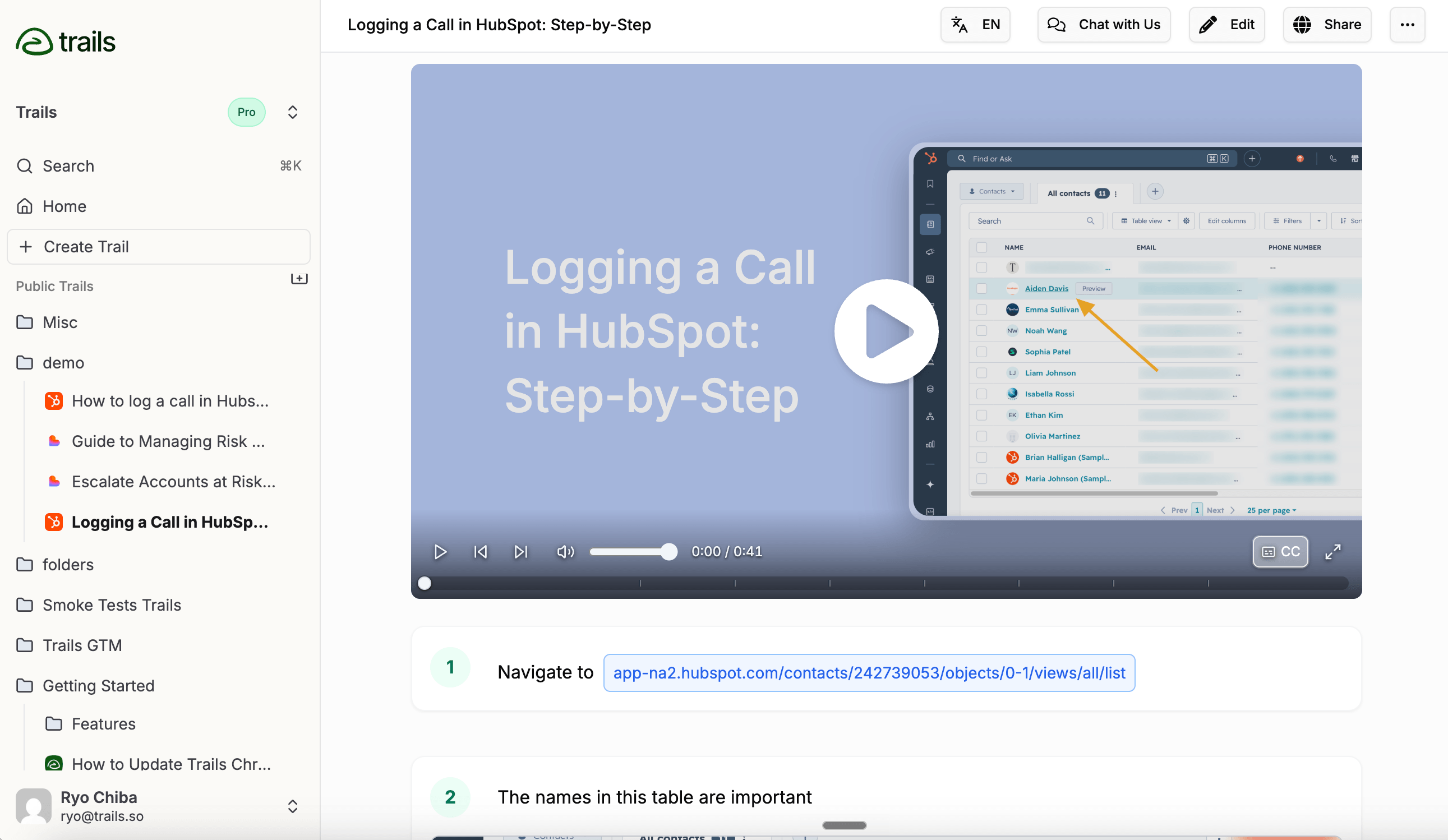
Best for: Guide + video documentation
Test Trails first if Screen Studio's polish isn't enough because your team also needs written documentation. One capture becomes a step-by-step guide and an AI-narrated video. Edit the guide text and the video regenerates, so a product change doesn't force a re-record.
That's the fork in this category. Screen Studio helps a creator make a beautiful recording. Trails helps a team turn a recurring workflow into training people can read, watch, embed, and update. The video is built from the guide, with narration, captions, and brand styling, not a raw screen capture.
Pricing starts at $29/month for Creator and $49/month for Team, which covers five users. Extra Team users are $10/month, and the Business plan is sales-priced with unlimited seats. Ten Team users runs $99/month before annual discounts; at 25, compare the Team math against Business pricing.
Trails won't beat Screen Studio on cinematic cursor polish or Mac-native demo gloss. It wins when the output has to outlive the launch video: onboarding, SOPs, product education, and support docs that change as the product does.
Choose Trails if: one workflow needs to be both a written guide and a narrated video. It's strongest for support, onboarding, and operations teams that want one source of truth instead of separate video and doc workflows.
Skip Trails if: you only want the most cinematic Mac demo. Screen Studio, Tella, Camtasia, or ScreenFlow give you more manual styling control.
Tella
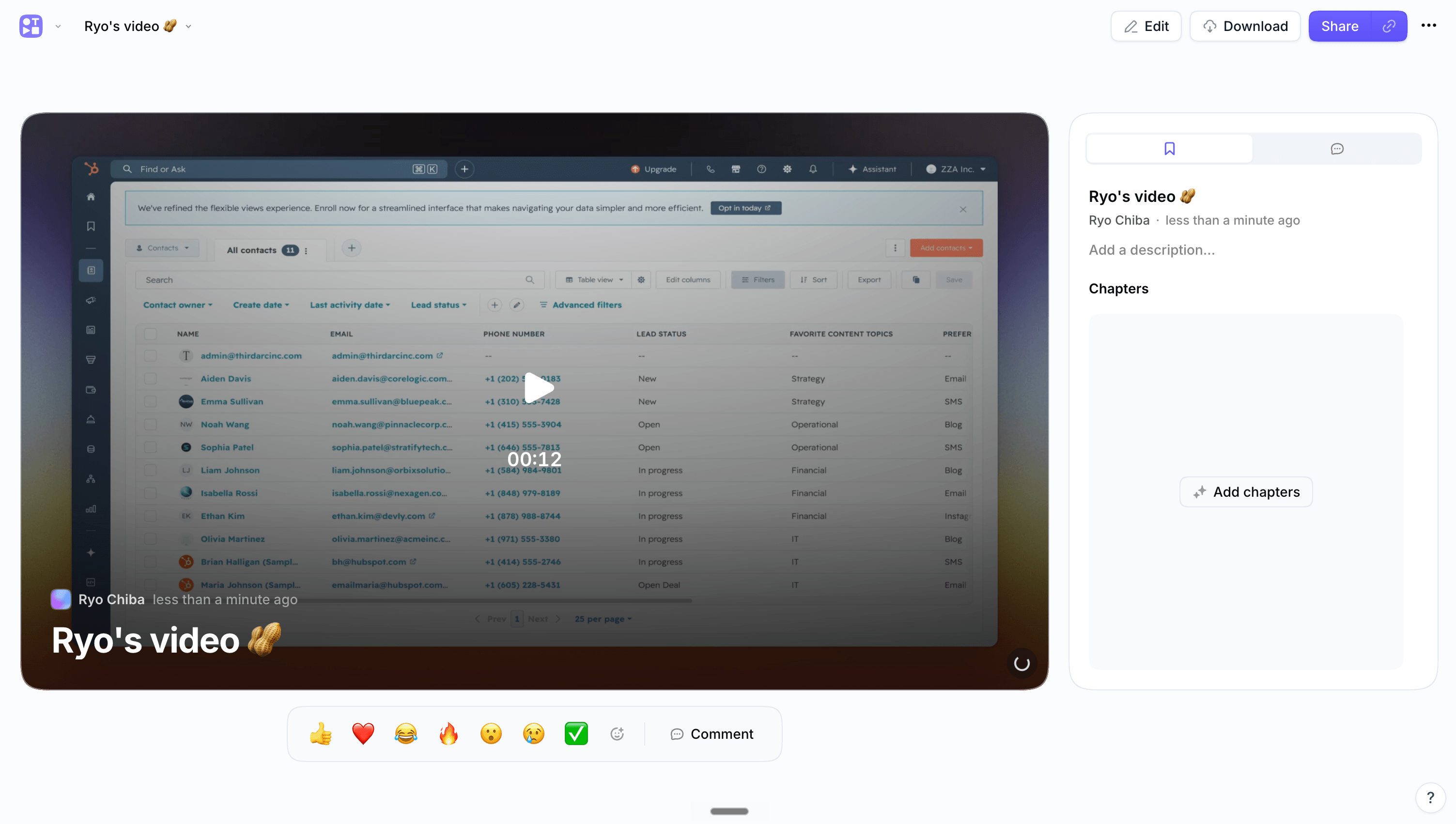
Best for: Polished hosted product videos
Tella fits when the real ask is simpler: I still want a good-looking video, but I need better hosting and sharing than a local export. It records through the web, a Chrome extension, macOS, and Windows, then hands you a clip-based editor with layouts, auto zoom, subtitles, and branded video pages.
The cloud workflow is the point. Screen Studio can make share links, but Tella is built around hosted video libraries, embeds, analytics, custom domains, and team workspaces. It connects to Slack, Notion, Linear, and Intercom, with an API for teams that want videos to flow through other systems.
Pricing runs from a Free plan with 7-day expiry to Pro at $13/user/month and Premium at $19/user/month on annual billing, plus custom Enterprise. Premium is where custom domains, white-labeling, 60 FPS export, and advanced analytics live. Ten creators land between $130 and $190/month.
The catch is that Tella is still video-first. It can turn videos into documents and save them to Notion, but that isn't a written guide and video synced from one editable document. Reviewers also raise reliability and export complaints, so test your real workflow before you move a whole library.
Choose Tella if: you want Screen Studio-like polish with stronger hosting, analytics, and cross-platform recording. It suits product marketing, customer education, and creator-style tutorials.
Skip Tella if: the deliverable is a maintained SOP or step-by-step guide. Trails, Scribe, or Snagit fit that better.
Loom
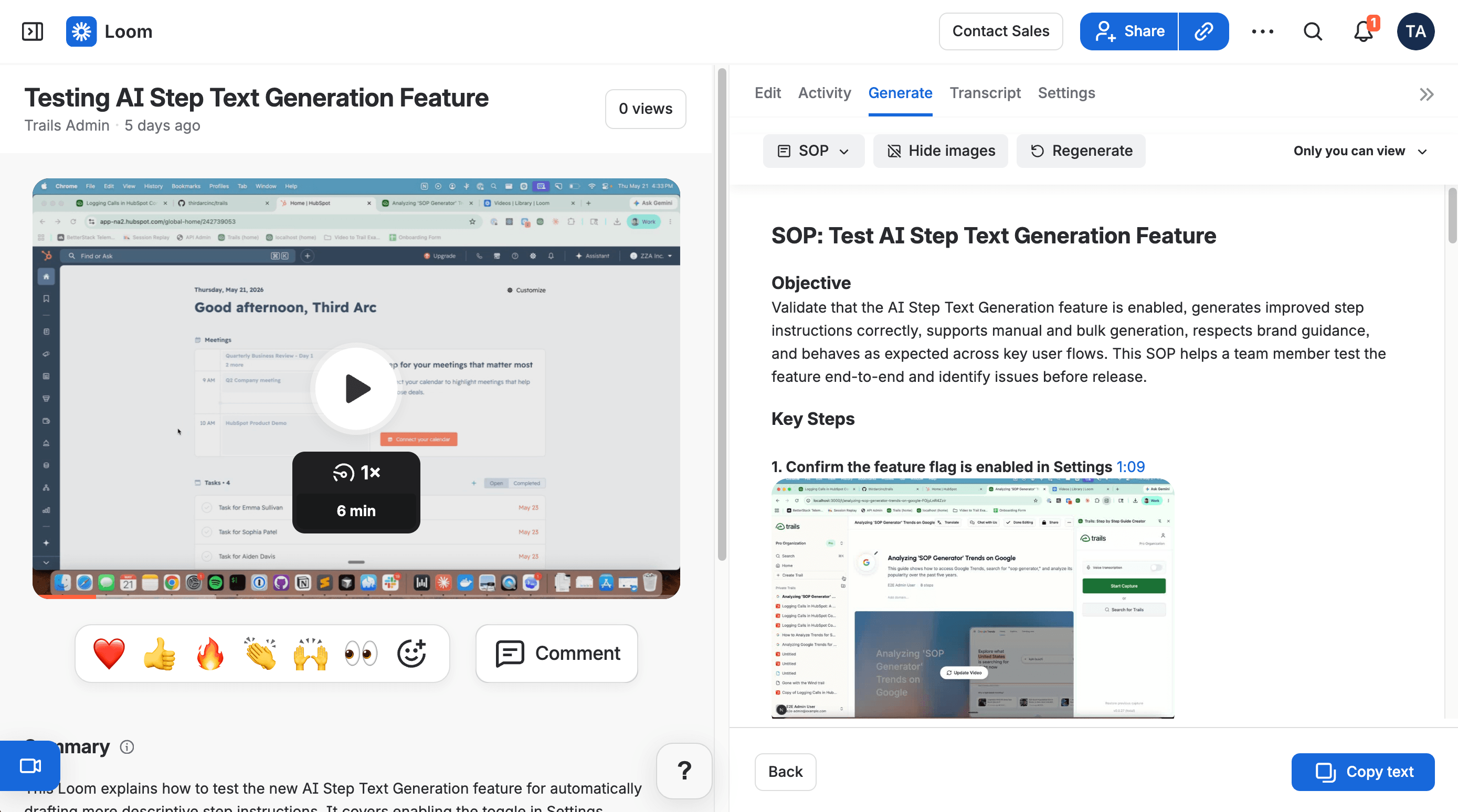
Best for: Async video explanation across teams
Loom wins when the goal isn't cinematic output but speed and adoption. A teammate records screen and camera, gets a link right away, and drops it into Slack, Jira, or a support thread without exporting anything.
That makes it handy for bug reports, design feedback, and quick customer explanations. Its newer AI layer can add titles, summaries, chapters, and tasks, and on Atlassian-heavy teams the Jira and Confluence ties are a real edge.
A free Starter plan covers 25 recordings with a 5-minute cap. Business is $18/user/month and Business + AI is $24/user/month, with up to 17% off annually. Ten creators run $180 to $240/month before discounts.
Loom is less polished than Screen Studio and less structured than Trails, Scribe, or Snagit for durable docs. It shines when a video replaces a meeting or a long message, and fades when the output has to be skimmed, updated, or followed step by step.
Choose Loom if: your team mostly needs fast async explanations and already lives in Loom links. It is the safest broad pick here.
Skip Loom if: you came looking for prettier public-facing videos or maintainable training docs. Tella is stronger on hosted polish, Trails on guide-plus-video training.
Camtasia
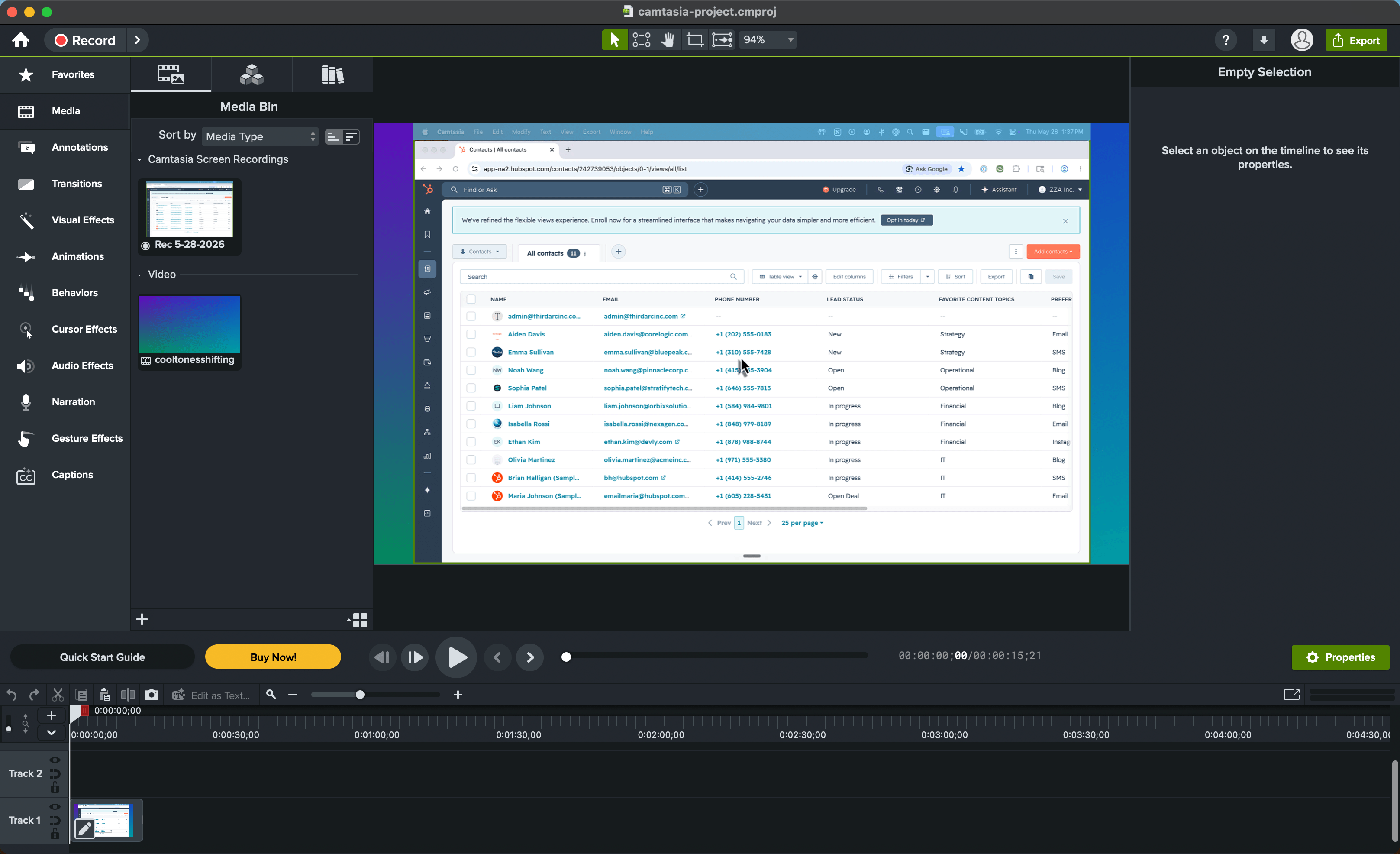
Best for: Formal tutorial and training video production
Camtasia is the serious editor here, built for teams that accept more production work in exchange for polished training videos, course modules, SCORM export, and a mature desktop editing workflow.
That depth suits learning-and-development teams, educators, and technical trainers. It records screen, camera, mic, and system audio, then lets you edit tracks, cursor paths, zooms, captions, and narration. Higher tiers add AI scripts and voices, translation, and stock assets through the TechSmith suite.
Public pricing starts at $39/year for Starter, but that tier exports with a watermark. Watermark-free work begins at Essentials for $179.88/year, then Create at $249 and Pro at $599. Five Essentials seats run about $899/year, ten about $1,799, and teams should expect a separate purchasing process.
Camtasia doesn't solve Screen Studio's maintenance problem. When a UI changes, you revise a video project rather than edit a guide that regenerates the video. Fine for finished training modules, heavy for support docs and SOPs that need frequent small edits.
Choose Camtasia if: training video quality, LMS compatibility, and editor depth matter more than capture speed. It's the right tool for formal tutorial production.
Skip Camtasia if: you want the documentation to appear as someone performs the workflow. Trails, Scribe, and Snagit all cut the timeline editing.
ScreenFlow
Best for: Mac-only timeline editing and one-time desktop licensing
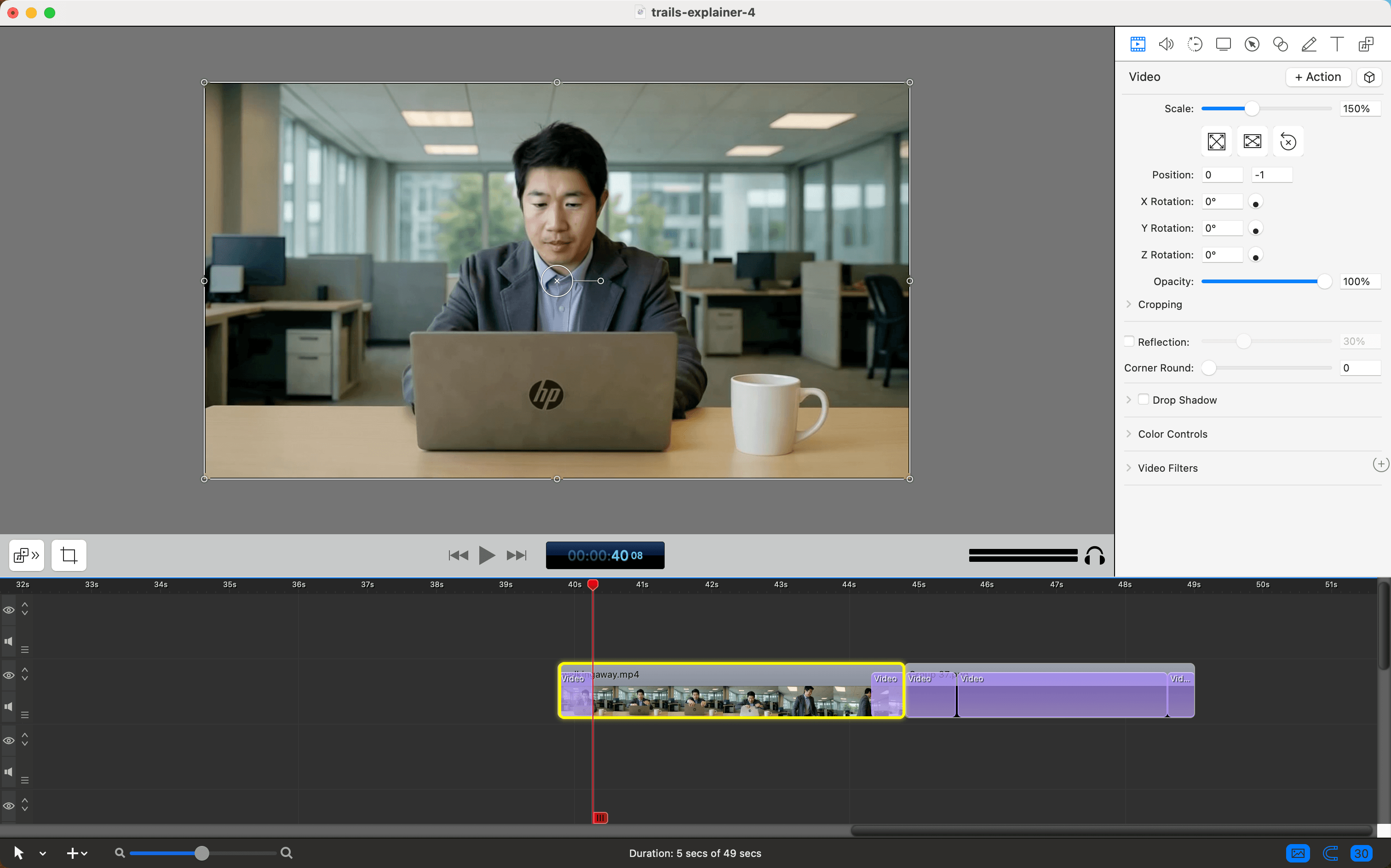
ScreenFlow is the traditional Mac editor option. It records screen, camera, mic, and iOS devices, then gives you a timeline with transitions, annotations, zooms, and multi-track editing.
It beats Screen Studio when you want more manual control over a finished screencast, and it feels familiar to anyone who thinks in timelines and local project files. For software tutorials, app demos, and creator videos, it is still a credible Mac-native pick.
Telestream lists ScreenFlow at $199, the Super Pak at $275, and Super Pak + at $325, with the bundles adding a stock media library and premium support. This is desktop software with optional add-ons, not per-seat SaaS.
The limit is that ScreenFlow doesn't fix why teams outgrow Screen Studio. It's still Mac-only, still built around record, edit, export. There's no maintained written guide, no synced video, no team documentation library.
Choose ScreenFlow if: you're a Mac creator who wants more timeline control than Screen Studio and prefers desktop software pricing over a creator SaaS workflow.
Skip ScreenFlow if: your team needs cross-platform capture, fast hosted sharing, or process docs that can be updated without opening a video project.
Snagit
Best for: Screenshot-heavy visual documentation and short clips
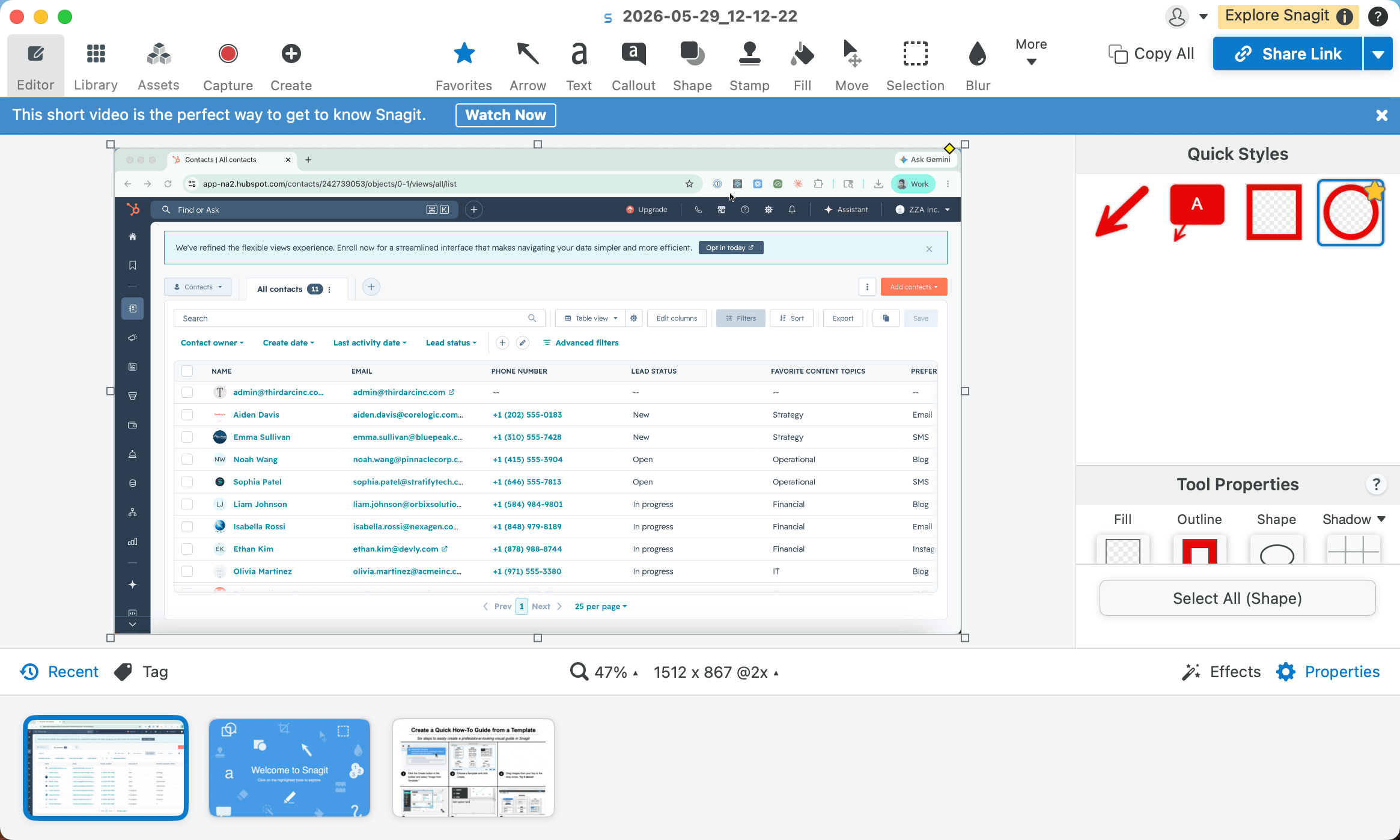
Snagit isn't chasing a cinematic demo. It's for people who explain a screen, an issue, or an instruction visually all day: screenshots, scrolling capture, annotated UI, redaction, and quick share links.
That makes it useful for technical writers, support and QA teams, and IT. Its AI Step Capture turns clicks into visual step-by-step guides, and its editor runs circles around a built-in snipping tool when you need callouts, Smart Redact, or a searchable capture library.
Individual pricing is $39/year, with business and education packaging sold separately. Every plan covers Mac and Windows and includes live chat support and a 14-day money-back guarantee.
The tradeoff is video depth. Snagit records and trims short clips, but TechSmith points serious video work toward Camtasia. Step Capture narrows the gap with guide tools, yet it still isn't Trails' synced guide-and-video model.
Choose Snagit if: the job is visual clarity, not video polish. It excels at screenshot-first documentation, bug reports, and UI instructions.
Skip Snagit if: the artifact needs to feel like a polished demo or a reusable training video. Pick Screen Studio, Tella, Camtasia, or Trails by output.
Scribe
Best for: Quick screenshot guides
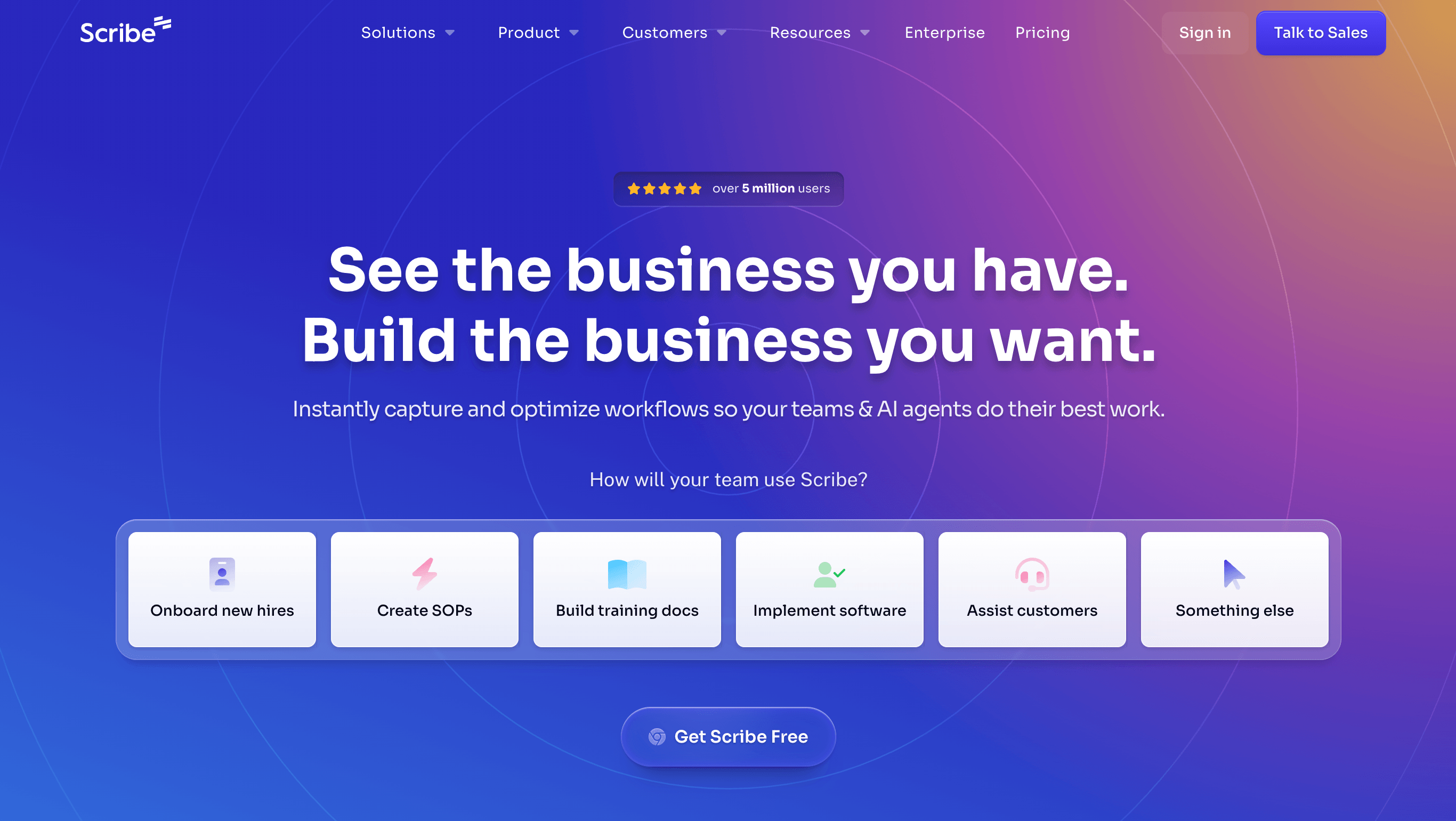
Scribe is the fastest option when the artifact should be a written procedure, not a video. You capture a browser or desktop workflow, and Scribe turns it into a step-by-step guide with screenshots, click targets, and editable instructions.
That helps when a team doesn't need motion, just someone to follow the process correctly. Scribe adds Pages for longer documents, browser walkthroughs, exports to PDF and Word on paid plans, and embeds into Confluence, Notion, and SharePoint.
The Basic plan is free. Pro Team starts at $59/month for five users on annual billing, with extra seats at $12/month and higher rates month to month. That's affordable for small teams, though pricing gets more serious once you need enterprise controls or many creators.
What makes Scribe fast also limits it: it's screenshot-guide first. Its Movie and walkthrough features help, but they aren't a narrated training video that updates from guide edits. If you still need video as a primary format, Trails is the closer documentation alternative.
Choose Scribe if: you need fast, clean, screenshot-based process documentation and your audience prefers written steps over video.
Skip Scribe if: you need the guide and video to be equal outputs from one workflow. Trails is stronger there, and Screen Studio, Tella, Camtasia, or ScreenFlow are stronger for standalone video production.
The bottom line
Screen Studio's mismatch isn't quality. It's format. The product solves presentation better than operations: record a Mac workflow, make it look polished, share the video.
If you want Screen Studio polish plus hosted team video, choose Tella. If you want quick async explanations, choose Loom. If you need formal training production, choose Camtasia. If you want a one-time Mac timeline editor, choose ScreenFlow. If your work is mostly visual instructions, choose Snagit or Scribe.
If one workflow has to become a written guide, a narrated video, and reusable training content, choose Trails. That is the cleanest fork: Screen Studio helps you make the video look better. Trails helps the workflow become something a team can follow, update, and reuse.