
Camtasia Alternatives: Which Tool Should Your Team Use for Training and Process Docs?





Camtasia is built for people who need polished screen-first videos. It records your screen, camera, and audio, then hands you a real editing workspace for cuts, zooms, captions, quizzes, and SCORM exports.
That depth is why many training teams like it, and why others start looking elsewhere. When the job is a reusable SOP or a help article that has to stay current, a full timeline editor is more tool than the work requires.
Our video tutorial software comparison covers the broader choice between timeline editing, quick screen recordings, and tools that create a guide alongside the video.
The right alternative depends on what you want the output to do next. Pick a video editor if the final asset is a polished lesson. Pick a recorder if you only need async explanation. Pick a process documentation tool if the same workflow has to become a guide people can read, share, and follow later.
The quick answer
- Trails: Best for guide + video documentation.
- ScreenPal: Best for affordable screen recording, editing, and hosting.
- Guidde: Best for AI-assisted video documentation.
- Loom: Best for quick async video explanations.
- Snagit: Best for screenshot-based visual instructions.
- Scribe: Best for quick screenshot guides.
- ScreenFlow: Best for Mac-only tutorial video production.
How we evaluated
We ran each tool through one workflow. We documented a 12-step customer onboarding process in a web app, then tried to turn it into something a new teammate or customer could use without a live walkthrough. We judged creation speed, editing burden, guide and video quality, sharing, how easily the output updates, and pricing at team scale.
We make Trails, so this guide has a point of view. We have tried to make it useful by being specific about where Trails fits and where it does not. If you need a full timeline editor, Camtasia or ScreenFlow may be better. If you need a quick video message, Loom is cleaner. If you need one workflow to become both documentation and training, Trails is the strongest fit.
How we chose what to test
We focused on tools that capture screen-based work and turn it into reusable training, documentation, or visual explanation. That covers video-first recorders, screenshot documentation tools, and guide-plus-video tools. We left out full LMS platforms and general video suites unless they show up often in Camtasia replacement searches.
A tool made the list when it appeared repeatedly in alternative articles, customer comparisons, and review discussions, and when it solved a real neighboring job. We also favored tools with enough market presence to evaluate through pricing pages, review sites, Reddit threads, and our own competitive research.
We left OBS Studio, Final Cut Pro, and Descript off the main list. OBS gives you free broadcast-grade control but solves nothing about documentation or training handoff. Final Cut Pro is a capable editor built for video production, not workflow documentation. Descript is strongest at transcript-based video editing, not step-by-step capture.
Why do customers look for Camtasia alternatives?
Camtasia is good at its core job. It gives trainers, educators, and marketers far more editing control than a lightweight recorder. The alternatives search starts when that control turns into friction. Usually the friction is cost, performance, suite complexity, or the gap between video production and living documentation.
Drawing on G2, Capterra, Reddit discussions, and TechSmith's current Camtasia pricing, a few reasons come up most often.
Reason #1: The price can feel high once you need real editing
Camtasia's cheapest public plan, Starter at $39 per year, exports with a watermark. The first watermark-free editing tier, Essentials, runs $179.88 per year, and Pro reaches $599. G2 reviews surface price as a con again and again, and TechRadar calls Camtasia premium-priced rather than budget.
That price may be fair for a dedicated video creator. It feels different when an operations manager documents a workflow twice a month, or when most of the team only needs to read and update training material.
Reason #2: Larger projects can turn into editing and rendering work
Camtasia's timeline gives creators control, and the tradeoff is weight. Reviewers report lag on larger projects, heavy resource use, and long render times. Reddit threads go further, with complaints about slow playback, crashes, and newer versions that feel harder to use.
That matters most when speed is the point. If a workflow changes every week, a tool that makes you re-record, cut, render, and republish leaves your documentation behind the actual process.
Reason #3: The suite can be more complex than the job requires
TechSmith's ecosystem is broad, spanning editing, screenshots, audio cleanup, hosting, quizzes, SCORM, captions, and AI voices. That range helps formal video production, but it is a lot for a team that just wants a clean SOP or a customer-facing guide.
The mismatch is about output, not quality. If you need a polished video lesson, the suite makes sense. If you need a living guide that updates without rebuilding the video, a documentation-first tool is usually faster.
1. Trails
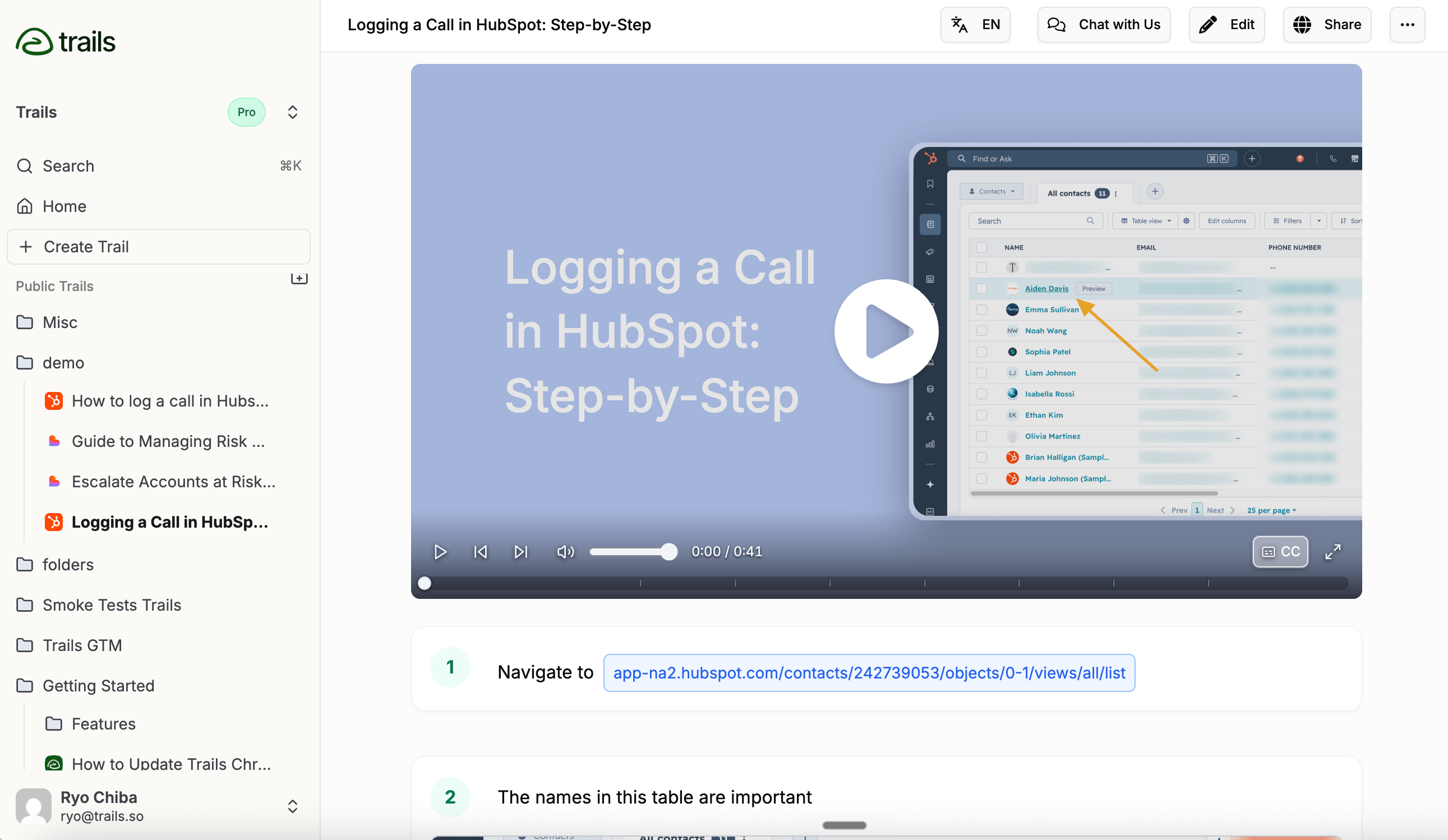
Best for: guide + video documentation
Trails is the best Camtasia alternative when the problem is documentation, not video editing. Instead of making you record, cut, caption, and export from scratch, it captures a workflow and turns it into a written step-by-step guide and an AI-narrated video.
That difference matters for recurring work. An onboarding flow or a support procedure needs more than a video file. People need screenshots, steps they can skim, a link they can share, and a version that still makes sense after the product changes. In Trails, the guide is the source. You edit the text, reorder steps, blur sensitive details, update screenshots, and regenerate the video from the guide.
Trails also covers the places where documentation tends to spread out. You can export to PDF, HTML, Markdown, and MP4, embed guides, turn old recordings into guides, and add translations on higher plans. That makes it a strong fit for operations, support, and onboarding teams that need training content without building a small video-production function.
The tradeoff is that Trails is not a timeline editor. Skip it for frame-by-frame cuts, SCORM quizzes, or avatar-heavy production. For SAML SSO, SOC 2 Type II compliance, and department workspaces, explore Trails enterprise security and access controls. Confirm any specific audit-log and LMS analytics requirements with the Trails team.
Trails pricing starts with Creator at $29 per month for one user, with a 20% annual discount. Team is $49 per month for five users and adds unlimited guides, video-to-guide conversion, and branding. Enterprise is quote-based for translations, priority support, and organization-wide rollout. Creator and viewer access is scoped to your package.
Choose Trails if:
- You need SOPs, onboarding flows, customer education, or internal training that people can read and watch.
- You want one capture to become both a step-by-step guide and a narrated video.
- You want text edits and guide updates to drive the training video, instead of rebuilding the video timeline.
- You want an SMB-friendly tool for process documentation, not a specialist video editor.
Skip Trails if:
- You need polished long-form video editing with fine timeline control.
- You need SCORM quizzes, LMS-grade assessment, or detailed training analytics.
- You need audit-log or specialized provisioning capabilities beyond the controls confirmed for your Trails Enterprise package.
2. ScreenPal
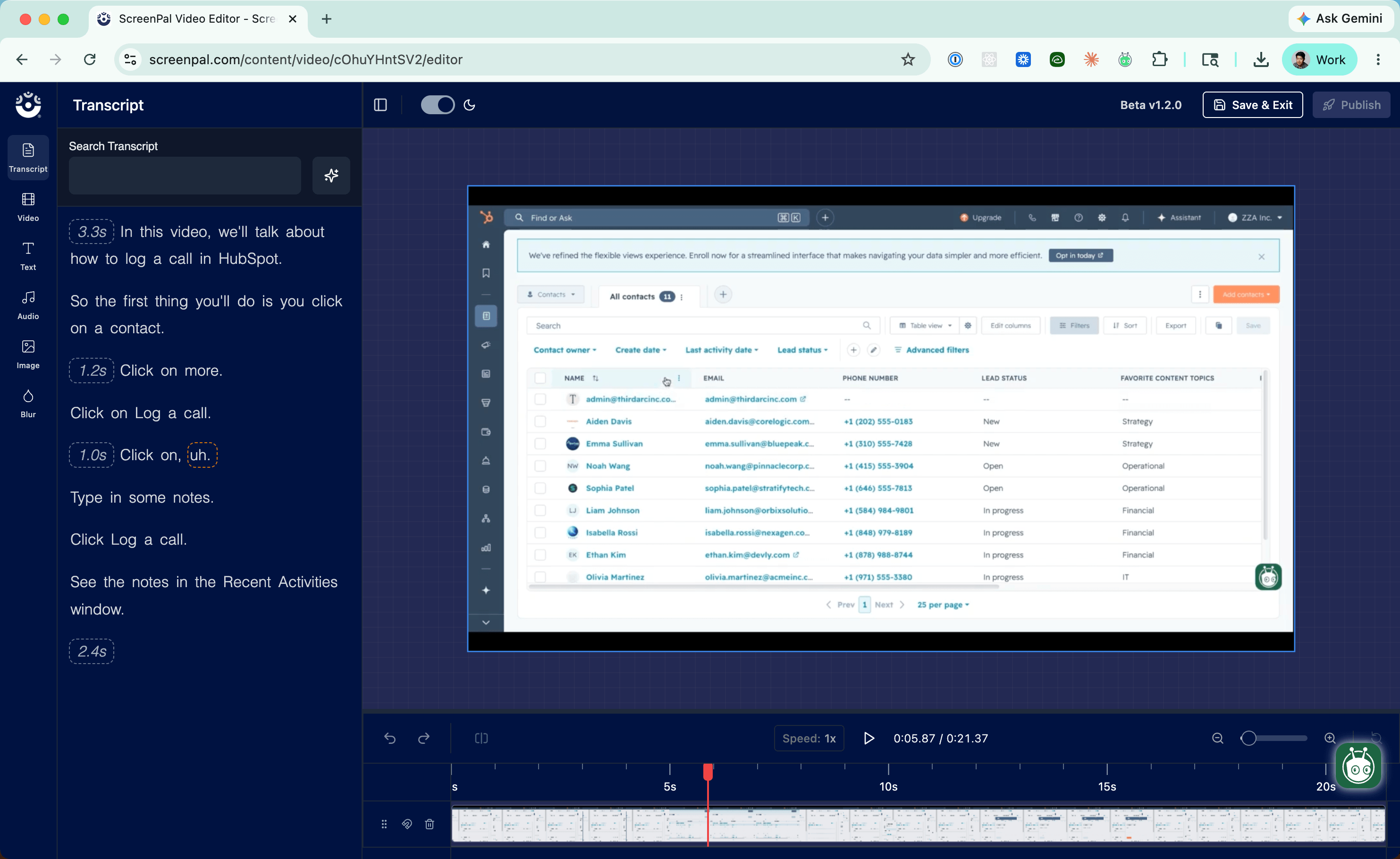
Best for: affordable screen recording, editing, and hosting
ScreenPal is the most straightforward alternative for teams that still want video but want a lower-cost recorder and hosting workflow. It handles screen and webcam recording, editing, captions, quizzes, and analytics, with channels and team management on higher plans.
Price is the main reason to consider it. ScreenPal's public plans run from a free 15-minute tier to Deluxe at $4 per month, Max at $10, and Team Business at $8 per user, all billed annually. For educators, support teams, and solo creators, that is easier to justify than Camtasia's editing tiers.
ScreenPal leans more toward web and hosting than a classic desktop editor. It fits teams that record a process, clean up the video, add captions, share a link, and watch basic engagement. Its education roots make it a natural fit for classrooms, training libraries, and lightweight customer education.
The limitation is that ScreenPal is still video-first. It handles screenshots and simple written context, but it will not turn a workflow into a living written SOP and a synced video from one source. When the process changes, you are still maintaining video.
Choose ScreenPal if:
- You want an affordable screen recorder with editing and hosting.
- You need captions, quizzes, polls, channels, or basic analytics.
- You work in education, customer support, or lightweight training where video is the main output.
Skip ScreenPal if:
- You need a structured written guide as much as you need a video.
- You want one workflow source that can update guide and video content together.
- You need Camtasia-level timeline control for polished tutorial production.
3. Guidde
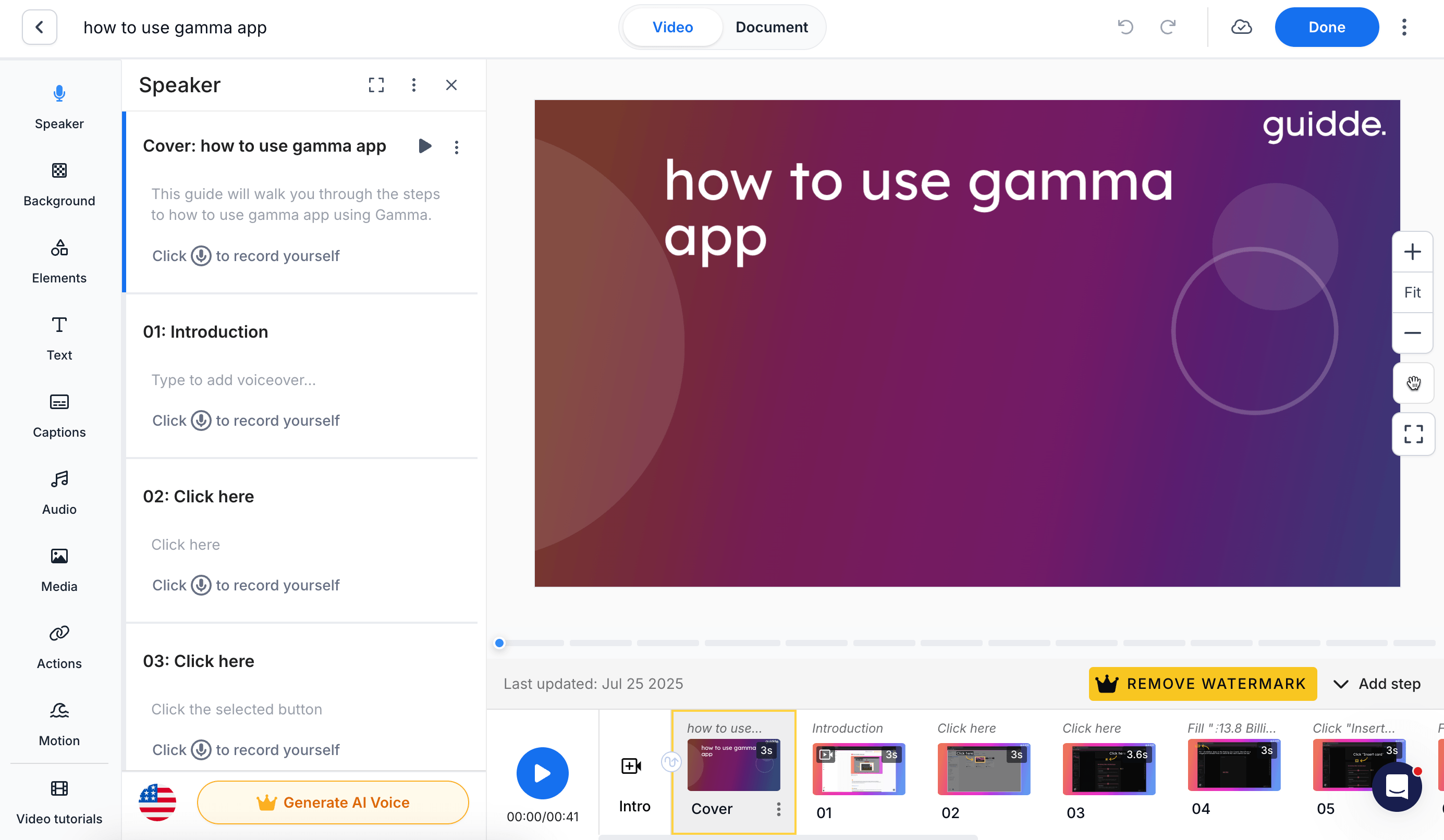
Best for: AI-assisted video documentation
Guidde sits closest to Trails because it treats documentation as more than a raw recording. A captured workflow becomes a narrated video guide with steps, captions, callouts, and branding. For teams leaving Camtasia for faster output with less manual editing, Guidde is a real contender.
It is strongest when the finished asset should feel like a short branded video. The product covers AI voiceover, callouts, redaction, brand kits, translations, analytics, and a wide range of exports, including SCORM. Guidde also sells Broadcast for in-app delivery, which may appeal to teams moving beyond documentation into digital adoption.
Guidde pricing starts with a free plan of 25 guiddes, then Pro at $29 per creator per month and Business at $59, both lower annually, with Enterprise by quote. Business adds desktop capture, analytics, privacy controls, and content review.
The tradeoff is that Guidde can feel like a video-documentation product with more moving parts. Reviewers flag AI voice quality, translation gaps, version issues, missed clicks, and pricing friction as teams add creators. It is a better replacement when video polish and AI narration are the point, not when you want the simplest source of truth for process docs.
Choose Guidde if:
- You want AI-generated video documentation with narration, branding, and exports.
- You need SCORM or presentation-style exports that lightweight guide tools may not cover.
- You are exploring in-app guidance or digital adoption workflows.
Skip Guidde if:
- You want the simplest tool for internal SOPs and recurring process updates.
- You need transparent, predictable pricing for broad SMB rollout.
- You do not want to manage AI voice, video styling, and export choices for routine documentation.
4. Loom
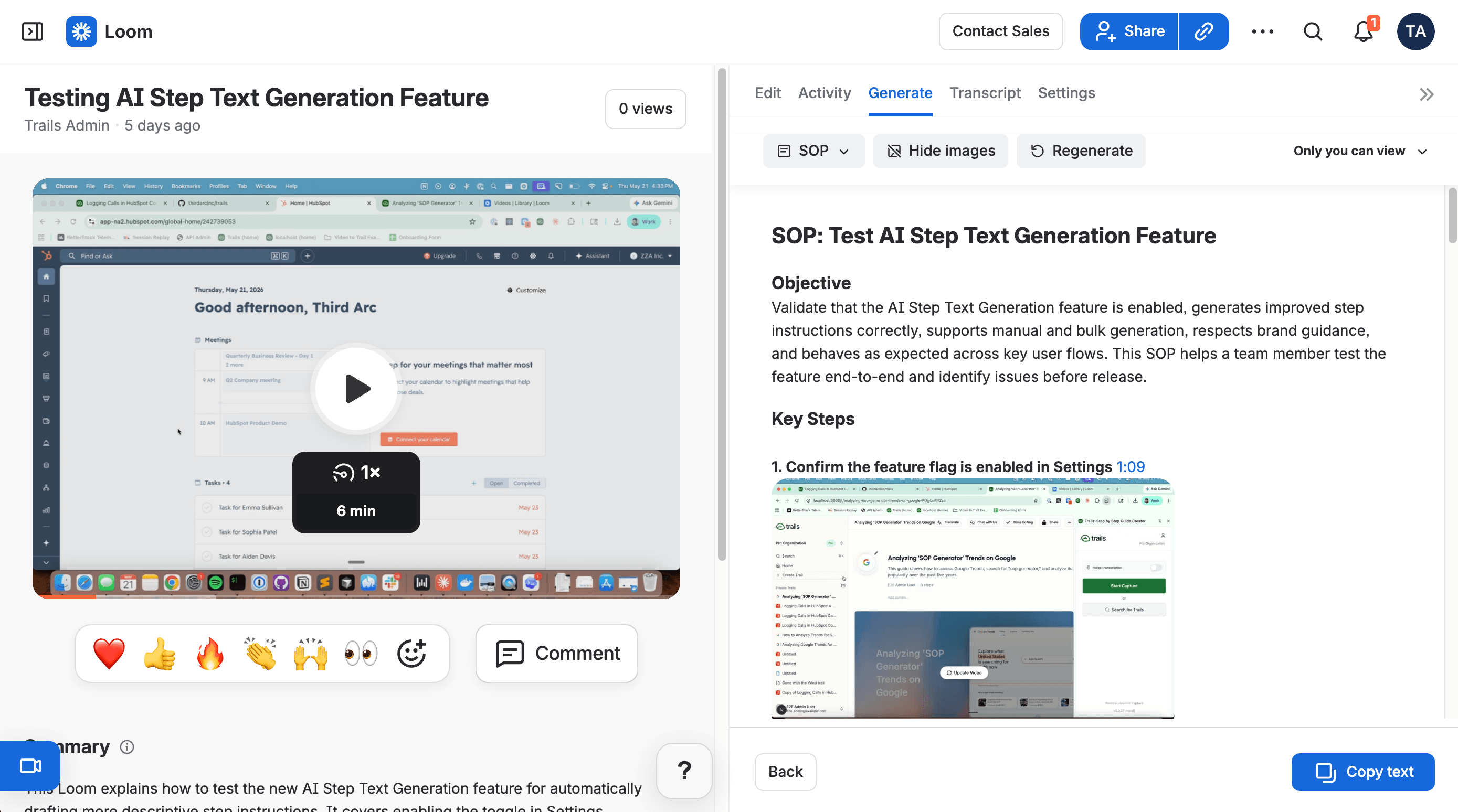
Best for: quick async video explanations
Loom is not a Camtasia-style editor, and that is the point. It is best when someone records their screen and face, narrates naturally, sends a link, and keeps work moving without opening a timeline. For bug reports, design reviews, or quick internal training, Loom is often faster than Camtasia.
Loom's strength is communication, not formal tutorial production. It offers screen and camera recording, comments, transcripts, and a familiar viewer that most teams already understand, which reduces adoption friction.
Loom pricing shows Starter at $0 with limits and Business at $18 per user per month, discounted annually. That is easy for a small group, but it adds up once many people need paid creator seats.
The main limitation is maintenance. Loom videos are linear. They are easy to create but hard to skim, version, localize, or update one step at a time. Newer documentation features help, but the product is still strongest at async communication, not long-lived SOPs.
Choose Loom if:
- You need fast async screen and camera explanations.
- You want natural voice, face cam, comments, reactions, and quick sharing.
- You are replacing Camtasia for informal communication, not formal process documentation.
Skip Loom if:
- You need step-by-step documentation that people can skim and follow without watching a full video.
- You need one source that can create both a written guide and a training video.
- You need repeatable exports, localization, and structured process handoff.
5. Snagit
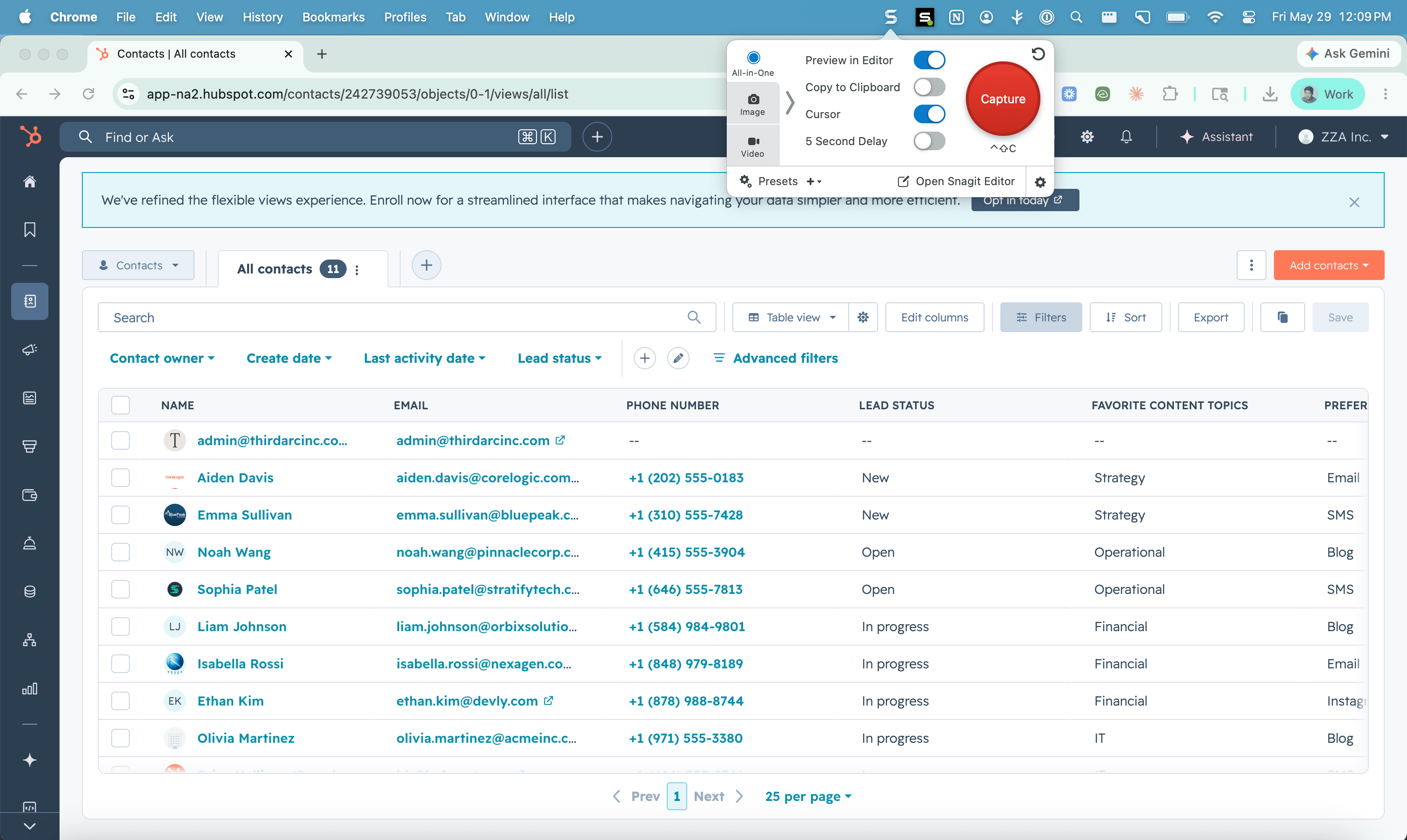
Best for: screenshot-based visual instructions
Snagit is also a TechSmith product, but it solves a different problem. If Camtasia is for polished videos, Snagit is for fast visual communication through screenshots, annotations, scrolling captures, short videos, and GIFs.
That makes Snagit a sensible pick when the real complaint is that Camtasia is too much. A support rep can capture a screen, add arrows, blur sensitive data, and drop the result into a ticket. A trainer can make short clips without opening a full editor.
Snagit pricing lists the individual plan at $39 per year and Business at $48 per user per year, with discounts at 10 or more users. That is far cheaper than Camtasia's editing tiers, though it still runs on TechSmith's annual subscription.
The limitation is that Snagit is not a documentation system. It captures and marks up visuals, but it will not maintain a living guide and a narrated video from the same workflow. It also will not replace Camtasia for multi-track editing, quizzes, SCORM, or polished video.
Choose Snagit if:
- You need fast screenshots, annotations, redaction, short videos, and GIFs.
- You support customers or teammates with visual instructions inside tickets, docs, or chat.
- You like TechSmith's capture quality but do not need Camtasia's full editor.
Skip Snagit if:
- You need automatic SOP generation from a captured workflow.
- You need a guide-plus-video output that stays synced over time.
- You need polished long-form training video production.
6. Scribe
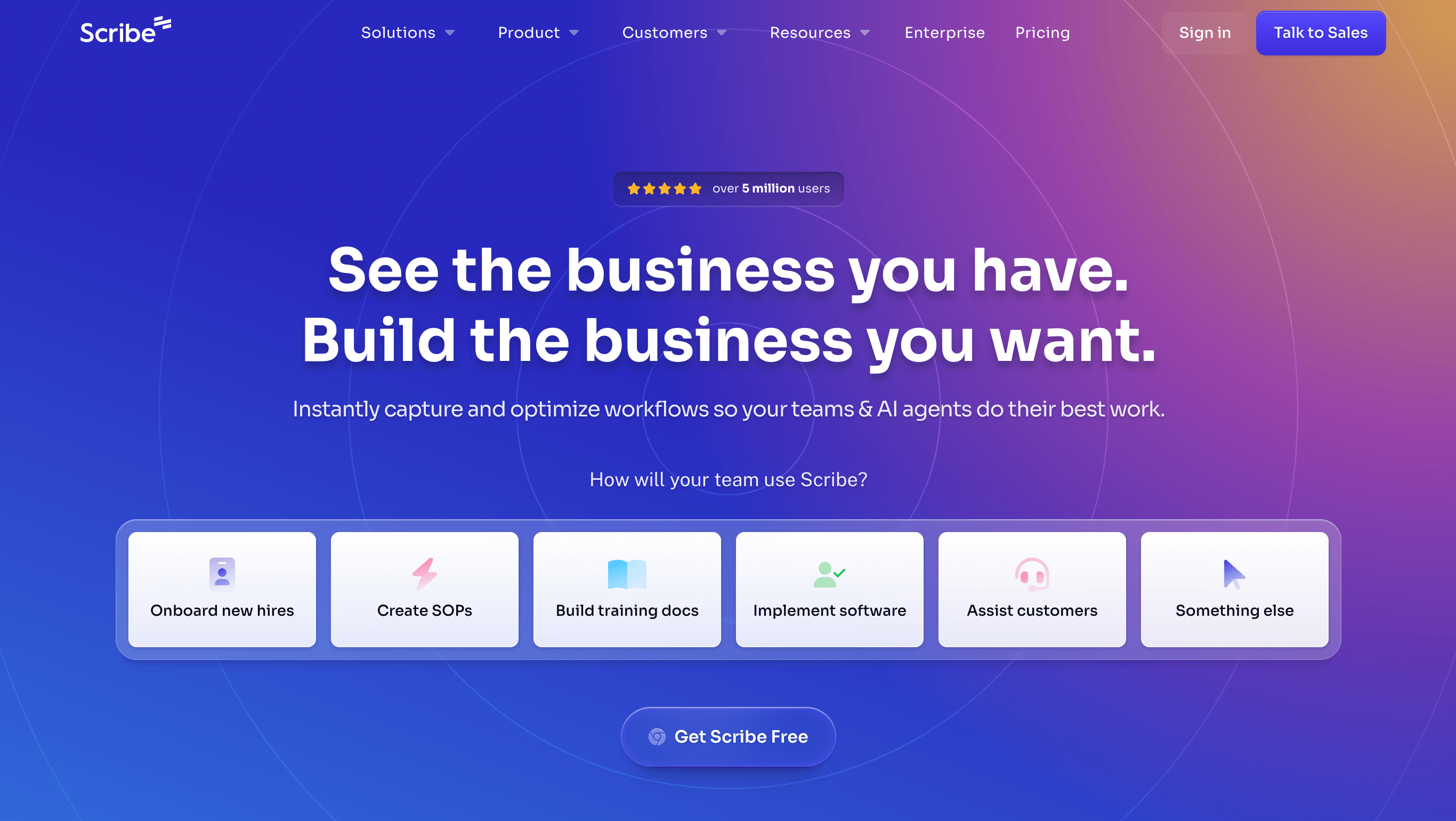
Best for: quick screenshot guides
Scribe is one of the fastest tools for turning clicks into a step-by-step written guide. You start a capture, run the workflow, and Scribe generates the screenshots and instructions. For teams that never needed a video editor in the first place, it is often a cleaner fit.
It shines on internal SOPs, customer instructions, and onboarding checklists that can live as a sequence of screenshots. Scribe also supports Pages, embeds, exports, branding, screenshot redaction, and desktop capture on paid plans.
Scribe pricing shows a free Basic plan, Pro Personal at $25 per seat per month, and Pro Team at $13 per seat with a five-seat start. Enterprise is custom and adds governance, translations, and security controls.
The tradeoff is output. Scribe is excellent for screenshot guides, but it is not built around narrated video the way Trails or Guidde are. It can render guides into video-like formats, but that is not the same as treating video as a first-class asset. Reviewers also mention over-capture, generic AI step text, permissions friction, and pricing jumps as teams grow.
Choose Scribe if:
- You need fast step-by-step guides from browser or desktop workflows.
- Your team wants screenshot-first SOPs, not polished training videos.
- You rely on embeds and exports into existing documentation tools.
Skip Scribe if:
- You need narrated video as a first-class output alongside written documentation.
- You want guide edits to regenerate a polished training video automatically.
- You need transparent pricing and advanced controls without moving into enterprise packaging.
7. ScreenFlow
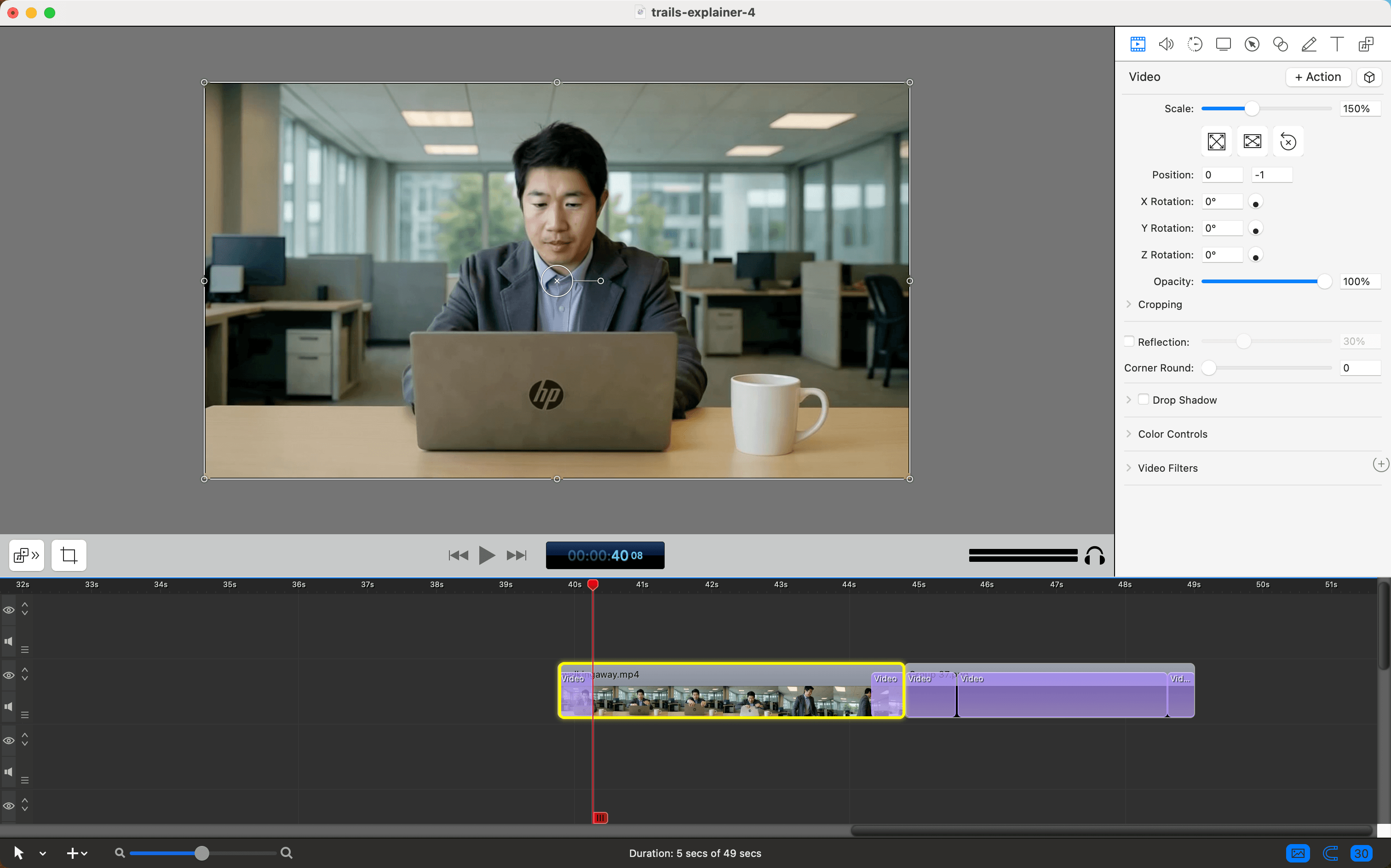
Best for: Mac-only tutorial video production
ScreenFlow is the closest alternative if you like Camtasia for its editor but work on Mac and want a local tool. It records screen, camera, microphone, and iOS devices, then gives you a timeline for callouts, zooms, captions, and transitions.
That suits trainers, course creators, and solo creators who want finished videos, not living guides. If your final output is a polished walkthrough, a YouTube tutorial, or a training lesson, ScreenFlow is a cleaner Mac-native choice than Camtasia.
ScreenFlow pricing lists the app at $199, the Super Pak at $275, and Super Pak Plus at $325. Stock media and premium support are separate add-ons, with support at $59 per year.
The limitation is fit. ScreenFlow is Mac-only, and it does not solve documentation maintenance. It builds video projects, not written SOPs, so a process change still means editing or re-recording. It is a better fit for creators than for operations or support teams that need searchable, updateable documentation.
Choose ScreenFlow if:
- You are a Mac user creating polished tutorial videos.
- You want a local recorder and timeline editor instead of a web documentation tool.
- You prefer a one-time software purchase for the main editor.
Skip ScreenFlow if:
- Your team includes Windows users.
- You need process documentation, not just video files.
- You need guide-plus-video output, localization, team permissions, or structured knowledge sharing.
The bottom line
Camtasia is still a strong choice when the job is polished screen-recorded video. If you need timeline editing, quizzes, SCORM, and a full production workflow, you may not need an alternative at all.
But many Camtasia searches are not about finding another video editor. They are about getting out of post-production. A team needs to show a process once, turn it into training, share it, and keep it accurate when the workflow changes.
For polished Mac-only video production, choose ScreenFlow. For affordable recording, editing, and hosting, choose ScreenPal. For quick async explanation, choose Loom. For screenshots and markup, choose Snagit. For fast screenshot guides, choose Scribe. For AI video documentation with a heavier video-doc workflow, choose Guidde. If your shortlist is mostly polished recorder tools, also compare the Screen Studio alternatives category.
For process documentation that needs to become both a readable guide and a narrated training video, choose Trails. It is the best fit when the asset needs to live longer than the recording itself.